These instructions apply to the Ford Focus Mk3 (DYB) 2011-2018.
For other models, please choose your vehicle here.
If the screen in your Ford Focus (Mk3, DYB, 2011–2018) has frozen, gone black, or stopped answering taps and the dash buttons, you can force the audio/SYNC unit to restart yourself in about a minute. The exact method depends on which screen your Focus has, because the Mk3 spanned three different head units.
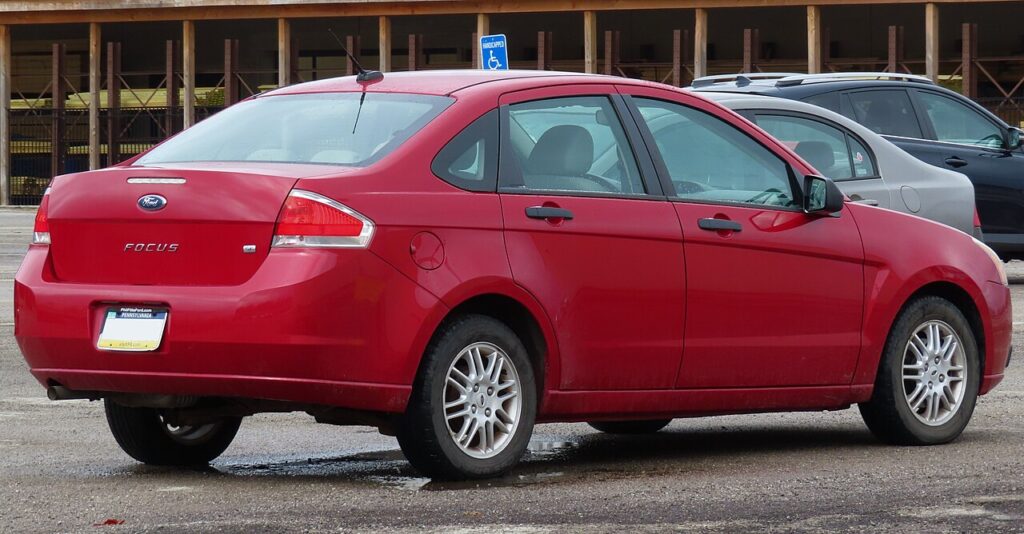
Which SYNC system is in your Mk3 Focus
The DYB Focus changed infotainment partway through its life, so check yours before resetting:
- 2011–2014 (pre-facelift): base cars had the button-heavy SYNC 1 stereo with a small mono/colour display; higher trims had SYNC 2 (MyFord/MyFord Touch) on an 8-inch quartered touchscreen.
- 2015–2017 (facelift): the dash was simplified and most cars moved to SYNC 2, with later facelift cars getting the faster SYNC 3 on a cleaner 8-inch screen.
Whichever you have, a frozen screen is nearly always a software lock-up in the audio module — the car drives normally while the display sticks. The reboot uses two hard buttons: Seek-forward and the Power/Volume knob.
Soft reset (reboot) the screen
Park the Focus and keep the ignition on so the unit stays powered.
- On the centre stack find the Power/Volume knob (its centre is the on/off and mute) and the Seek-forward button (the >> double-arrow).
- Press and hold both together.
- Keep holding for about 10 seconds until the screen goes black and the Ford oval appears.
- Release both buttons; press the Power button once if the screen does not come back on by itself.
- Give it up to a minute to reload before you expect touch and audio to respond.
Safe — it loses no data
The Seek-plus-Power reboot does not erase presets, paired phones, or MyFord Touch settings. It simply reloads the software. Repeat as needed.
If it stays frozen
- Hold longer. If 10 seconds did nothing, retry and hold both buttons for 20–30 seconds.
- Cycle the ignition fully. Switch off, open the driver’s door, lock the car, and walk away for a few minutes so the module powers down; then unlock and restart.
- Pull the SYNC fuse (last resort). On a totally dead MyFord Touch screen, removing the audio/SYNC (APIM) fuse from the cabin fuse box for 30–60 seconds and refitting it forces a hard power-down — check the fuse-box diagram in the door pillar for the correct one.
- Update SYNC. Recurring freezes on SYNC 2 cars are often fixed by firmware — check for a free update on the Ford owner site, download it to a USB stick, and install it in the car.
Master reset (erases data — rarely needed)
A master reset is only worth doing if you are selling the Focus or chasing a deep glitch. On a SYNC 2/SYNC 3 touchscreen go to Settings → General → Master Reset and confirm. It wipes paired phones, call history, presets and personal settings back to factory defaults. On the older SYNC 1 stereo the equivalent factory reset sits in the audio menu.
Frequently Asked Questions
How do I know if my Mk3 Focus has SYNC 2 or SYNC 3?
SYNC 2 (MyFord Touch) splits the home screen into four coloured corners; SYNC 3, fitted to late facelift cars, uses a flatter, app-style layout. SYNC 3 is noticeably quicker to respond.
Will the reboot delete my radio presets and Bluetooth pairings?
No. Only the Master Reset in Settings clears them. The Seek-plus-Power restart keeps everything.
My MyFord Touch screen is completely dead — what now?
Try the button reboot first; if nothing happens, pull and refit the SYNC/APIM fuse to force a power-down, or briefly disconnect the negative battery terminal. If it still will not wake, the module may need a dealer check.
Is it safe to drive with the screen frozen?
Yes. The audio/SYNC unit is independent of the engine and brakes — you only lose media, phone and navigation. Reboot when safely parked.
Can I still update SYNC on a Focus this old?
Yes for SYNC 2/SYNC 3 cars — download the latest version for your VIN from the Ford owner site to a USB stick and install it in the car. SYNC 1 stereos are not updatable the same way.
If a warning light or fault message stays on the dash after the reboot, the car may have stored a diagnostic trouble code — you can look it up on autodtcs.com.
Independent guide — not affiliated with Ford. Always follow your official service manual and safety precautions. Read our full disclaimer.