These instructions apply to the Nissan Note Mk2 (E12) 2013-2017.
For other models, please choose your vehicle here.
If the centre screen in your Nissan Note (Mk2, E12, 2013–2017) has frozen, gone black, or stopped answering taps and the surrounding buttons, you can force the NissanConnect unit to restart yourself in about a minute. The Note drives normally while the display is stuck — the lock-up is in the audio/navigation module, not anything that affects the engine or brakes.
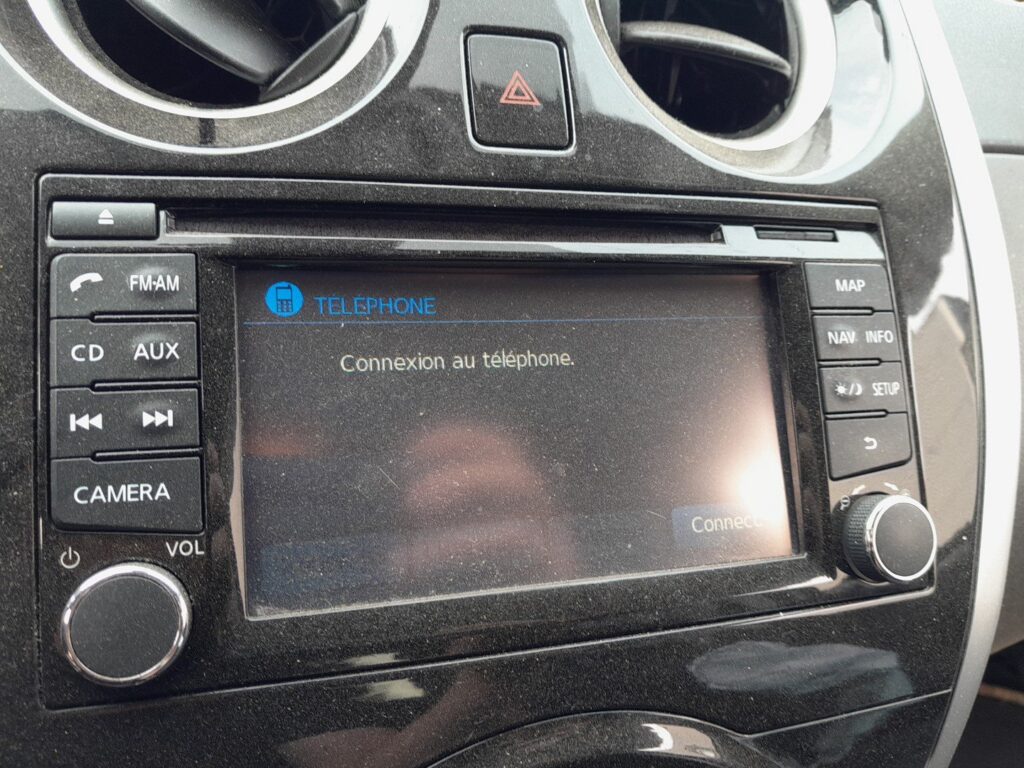
The system in this Note
The E12 Note shipped with two head units depending on trim:
- Visia / lower trims: a button stereo with a small display and no map — a sticky “screen” here is the radio display rather than NissanConnect.
- Acenta Premium and above: the 5.8-inch NissanConnect colour touchscreen with radio, Bluetooth and navigation. This is the unit that freezes, and it reboots from the power knob.
This is an early NissanConnect generation, so it predates Apple CarPlay and Android Auto — phone integration is by Bluetooth only. The reboot control is the Power/Volume knob beside the screen: press in to mute, turn for volume, hold to force a restart.
Soft reset (reboot the screen)
Park the Note and leave the ignition on so the unit stays powered.
- Find the Power/Volume knob on the centre stack.
- Press and hold it in — a steady press, not a tap.
- Keep holding for about 10 seconds until the screen goes black and the Nissan logo reappears.
- Release the knob; the system reloads on its own.
- Give it up to a minute before the radio, Bluetooth and touch respond again.
Safe — it loses no data
Holding the power knob to reboot does not erase presets, paired phones or saved nav destinations. It only reloads the software. Repeat as needed.
If it stays frozen
- Hold longer. If 10 seconds did nothing, retry and hold the knob for 15–20 seconds.
- Cycle the ignition fully. Switch off, open the driver’s door, lock the car and walk away for a few minutes so the module powers right down; then unlock and restart.
- Disconnect the 12V battery (last resort). Briefly disconnecting the negative terminal for a few minutes forces a hard power-down. This resets the clock and may need your radio code.
- Ask about a software update. Repeat freezes on the E12 are often firmware-related — a Nissan dealer can flash the latest NissanConnect software.
Factory reset (erases data)
Only needed when selling the car or chasing a glitch the reboot will not clear. Open Settings → System → Factory Reset (wording varies by year) and confirm. This wipes paired phones, call history, presets and saved destinations back to factory defaults — not the fix for an everyday freeze.
Frequently Asked Questions
Where is the reset on the E12 Note’s screen?
There’s no separate button — press and hold the Power/Volume knob beside the screen for about 10 seconds until the Nissan logo appears.
Will rebooting delete my presets and Bluetooth pairings?
No. Only the Factory Reset in Settings clears them. The power-knob restart keeps everything.
Does the Note have Apple CarPlay?
No. The E12’s NissanConnect predates CarPlay and Android Auto — phone connection is by Bluetooth only.
My base Note has no touchscreen — how do I reset the radio?
On the button-stereo cars, hold the radio’s power button for about 10 seconds or cycle the ignition. If it stays blank, briefly disconnecting the 12V battery resets it.
Is it safe to drive with the screen frozen?
Yes. NissanConnect is separate from the engine and brakes — you only lose media, phone and navigation. Reboot when safely parked.
If a warning light or fault message stays on the dash after the reboot, the car may have stored a diagnostic trouble code — you can look it up on autodtcs.com.
Independent guide — not affiliated with Nissan. Always follow your official service manual and safety precautions. Read our full disclaimer.