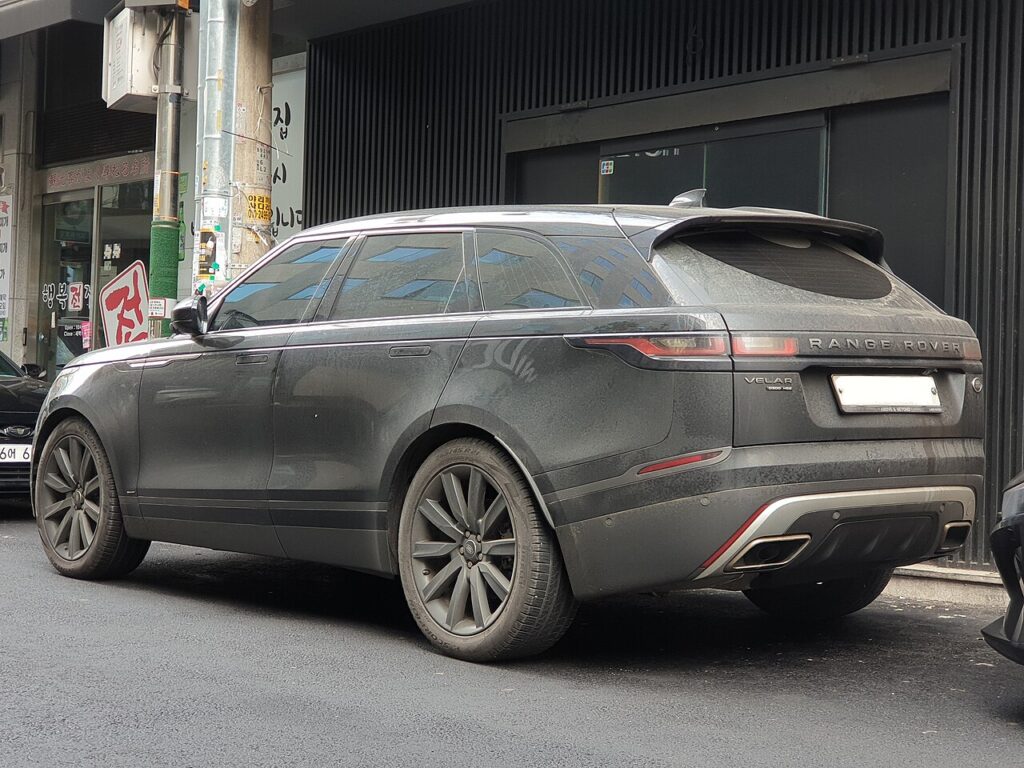
These instructions apply to the Land Rover Range Rover Velar Mk1 (L560) 2017-Present.
For other models, please choose your vehicle here.
If the touchscreen in your Land Rover Range Rover Velar (L560, 2017–Present) has frozen, gone black, or stopped responding, you can force the infotainment unit to reboot from the driver’s seat in under a minute — no tools and no loss of your saved settings. The Velar launched with the dual-screen Touch Pro Duo and later moved to Pivi Pro, so the right hold time depends on the model year.
Which infotainment system your Velar has
The Velar debuted JLR’s InControl Touch Pro Duo — the signature pair of stacked 10-inch glass touchscreens, the lower one (the Interactive Control panel) handling climate, seats and Terrain Response. Touch Pro Duo looks superb but is the unit owners most often report freezing, lagging on start-up, or leaving the lower screen blank. From around the 2021 model year the facelifted Velar switched to Pivi Pro, which has its own backup battery, boots fast and updates over the air — far more stable. Both reboot through the power/volume control; only the hold time differs.
Soft reset (frozen screen, keeps all data)
- Keep the vehicle switched on so the screens have power — the engine does not need to be running.
- Find the round volume / on-off knob on the centre console.
- Press and hold it: about 10–20 seconds for Touch Pro Duo, or 20–25 seconds for Pivi Pro. Keep holding past the point where the audio mutes.
- The screen goes black, then the Land Rover logo reappears. On Touch Pro Duo both screens go dark and restart together.
- Release and wait up to a minute for both displays to finish loading before touching anything.
Is this safe? Will I lose anything?
Yes, it is safe, and no — a soft reset only power-cycles the unit. Radio presets, paired phones, navigation favourites and your seat/climate/audio settings are stored in permanent memory and survive the reboot. It is the same as restarting a hung phone, and you can repeat it as often as needed.
If the screen stays frozen
- Hold longer. Touch Pro Duo often needs the full 15–20 seconds; Pivi Pro reboots nearer 20–25. Releasing early only mutes the audio.
- Lower screen blank? A blank lower screen is a common Touch Pro Duo fault — the full reboot usually brings it back; if not, a dealer software update for Display Modules A and B is the cure.
- Reboot twice on Pivi Pro if a stalled over-the-air update left it stuck.
- Lock and walk away for 5–10 minutes so all modules sleep, then restart.
- Try the InControl app — locking the doors via the app, then starting normally, clears some hangs.
Factory reset (erases personal data)
Only needed for selling the car or chasing a deep fault — it wipes paired phones, accounts, favourites and settings. Go to Settings → All settings → System → Reset (or Restore factory settings / Clear personal data), confirm, and let the unit reboot itself. Always try the soft reset first; a frozen screen almost never needs a factory wipe.
Frequently Asked Questions
How do I reboot the Velar screen?
Hold the centre-console volume / on-off knob until the Land Rover logo reappears — about 10–20 seconds on the Touch Pro Duo, or 20–25 seconds on the later Pivi Pro. On the Duo, both screens reboot together. There is no separate reset button.
My lower screen has gone blank — how do I fix it?
A blank lower (climate) screen is a well-known Touch Pro Duo fault. Force a full reboot with the volume knob; if it does not return, the dealer reflashes the two Interactive Display Modules (A and B), which usually cures it.
Did the Velar get more reliable later on?
Yes. The facelift Velar moved from Touch Pro Duo to Pivi Pro (around the 2021 model year), which has a backup battery, boots almost instantly and updates over the air, so it freezes far less often.
Will rebooting delete my presets or paired phone?
No. A soft reset only restarts the unit; presets, paired devices and favourites are kept. Only a factory reset or a long battery disconnect erases them.
Do I need the engine running to reset it?
No — the ignition just needs to be on so the screens are powered. You can reboot parked with the engine off.
If a fault code appeared around the freeze, decode it on our sister site autodtcs.com to check whether it is infotainment-related.
Independent guide — not affiliated with Land Rover. Always follow your official service manual and safety precautions. Read our full disclaimer.