These instructions apply to the MG ZS Mk1 (ZS11) 2017-2021.
For other models, please choose your vehicle here.
If the central touchscreen in your MG ZS (2017–2021) has frozen on the MG logo, gone black, or stopped responding to your taps, you can force the head unit to reboot yourself in well under a minute — no garage, no tools, and without losing your radio presets or paired phones.
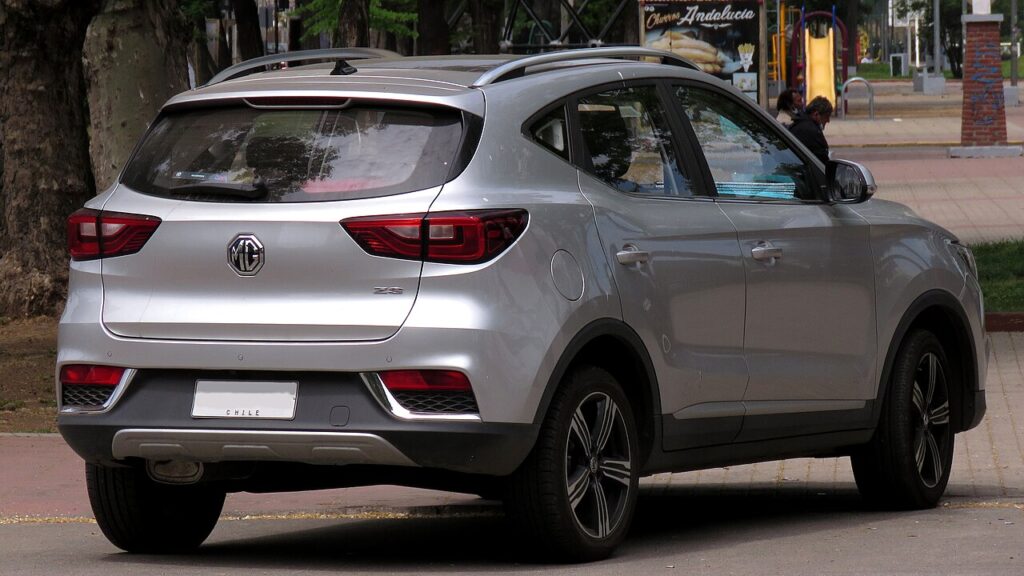
Which screen is in your ZS
The first-generation petrol ZS and the early ZS EV use MG’s i-SMART infotainment running on an 8-inch (or 10.1-inch on later/EV trims) portrait-friendly touchscreen. There are no MMI-style dials — almost everything is done by tapping the glass, with only a physical volume/power knob and a small row of touch keys (including the Home button) along the bottom bezel. This early i-SMART unit is well known among ZS owners for occasional lag and the so-called “black screen of death”, where the display freezes or reboots itself. The good news: in the vast majority of cases it is a software lock-up in the head unit, not a dead screen, and a forced reboot clears it.
Soft reset (reboot) the touchscreen
Do this parked, with the ignition on so the unit keeps its power.
- Press and hold the Home button on the bottom bezel of the screen.
- Keep holding for about 10 seconds — do not let go when the audio cuts; hold straight through it.
- When the screen goes black, release the button.
- The MG logo reappears as the system restarts — let it boot.
- Wait up to a minute for the home screen to reload; radio, Bluetooth and reversing camera all come back on their own.
If your trim has no obvious Home button or the bezel keys are unresponsive, press and hold the round volume knob instead for about 10–15 seconds until the screen blanks and the MG logo returns. Some owners report needing to hold as long as 20 seconds before the unit blanks — stick with it.
Will this erase anything? No
The reboot is completely safe. It does not wipe your radio presets, paired phones, navigation favourites or driver settings — it just restarts the head unit’s software, exactly like restarting a phone. Use it as often as the i-SMART screen plays up.
If the screen stays frozen
- Hold longer. If 10 seconds did nothing, repeat and keep the Home button (or volume knob) held for a full 20–30 seconds before the display blanks.
- Let the car sleep. Switch off, lock the car with the key fob and walk away for about five minutes so the electronics fully power down; then unlock and restart.
- Check for the software update. MG issued service bulletins for the early i-SMART unit — the ZS EV (Gen1) update under bulletin SA 0021, for example, is a small USB flash done by the dealer specifically to cut the crashing and screen lag. If yours freezes repeatedly, ask whether the latest firmware is installed.
- Disconnect the 12V battery (last resort). If the screen will not respond to any button at all, a short disconnection of the negative terminal on the 12V battery for a few minutes forces a full cold restart of the head unit. Only do this if nothing else works.
Factory reset (erases data — rarely needed)
A factory reset is separate from the reboot and only worth doing if you are selling the car or chasing a deep, persistent glitch. From the home screen tap Settings → System (or General) and look for Factory reset / Restore default settings, then confirm. It erases radio presets, paired Bluetooth devices and saved navigation addresses, so only do it deliberately.
Frequently Asked Questions
Why does my MG ZS screen keep rebooting on its own?
The early i-SMART head unit is prone to software lock-ups, which can show as random reboots, freezing or the “black screen”. A manual reboot usually clears a one-off, but if it loops constantly the fix is the dealer firmware update (e.g. bulletin SA 0021 on the ZS EV) rather than repeated resets.
Will the reboot delete my Bluetooth phone or radio presets?
No. Holding the Home button or volume knob to reboot keeps every preset, paired phone and saved setting. Only the menu-driven factory reset clears them.
The ZS screen is stuck on the MG logo — what now?
A unit looping on the logo usually needs a longer power-down. Repeat the hold for 20–30 seconds; if it still loops, lock the car and leave it five minutes, then restart. Persistent boot-loops point to the firmware update being overdue.
Is it safe to drive with the ZS touchscreen frozen?
Yes. The infotainment is separate from the engine and driving systems — you only lose audio, the reversing-camera view and navigation. Reboot once you are safely parked. Note that with the camera feed frozen you should rely on mirrors and over-the-shoulder checks when reversing.
My ZS screen lags badly even after a reboot — why?
Sluggishness on the early i-SMART is a known trait of the original software. A reboot helps short term; the lasting improvement is the dealer software update, which MG released partly to address touch-screen lag.
If a warning light or fault message stays on the dash after the reboot, it may have stored a diagnostic trouble code — you can look it up on autodtcs.com.
Independent guide — not affiliated with MG. Always follow your official service manual and safety precautions. Read our full disclaimer.