These instructions apply to the BMW X3 Mk3 (G01) 2017-Present.
For other models, please choose your vehicle here.
BMW’s Condition Based Servicing (CBS) on the BMW X3 (G01, 2017–present) tracks each service item separately. When “Engine oil” or another item is due, you reset it from the dashboard with the trip button — no garage tool needed. Do the work first; a CBS item only resets when it’s at 90% of its life or less.
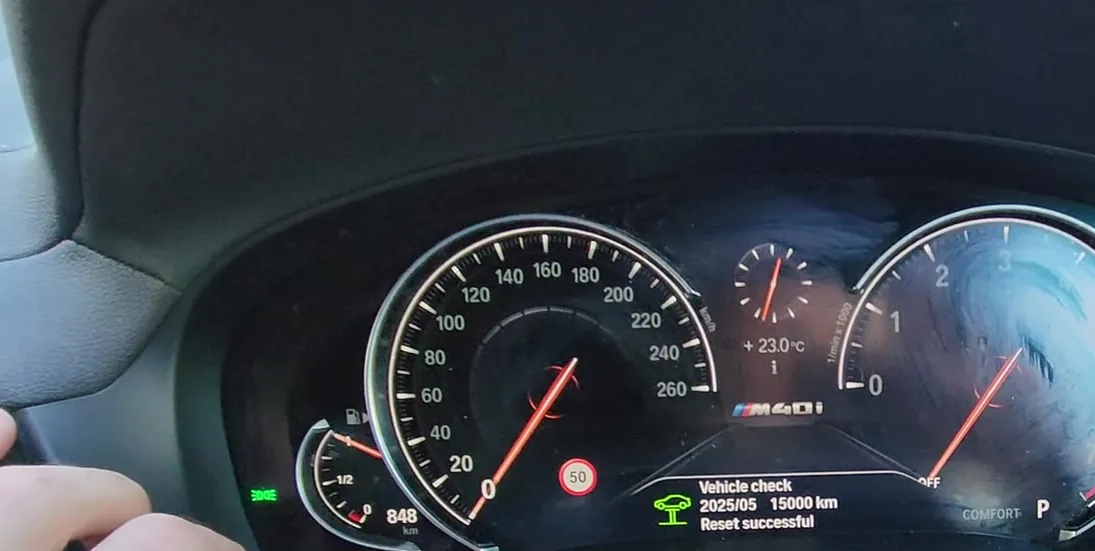
Unlike a car with a single service light, the G01 X3 doesn’t treat “a service” as one event. CBS is a maintenance reminder, not a fault, and it monitors each item on its own line — engine oil, front and rear brake pads, brake fluid, the vehicle check, and so on. Each has its own countdown, so the dashboard can tell you the oil is due while the brake fluid still has months to run. That’s why the reset is done item-by-item rather than all at once, and why you reset only the specific item you’ve just serviced.
What CBS Tracks and How It Counts
CBS doesn’t just count kilometres. It blends distance, time and how the car is actually used — cold starts, short trips, engine load and, for the oil, the fuel burned and oil condition — to estimate the real remaining life of each item as a percentage. When an item drops toward 0% you see the message, often with a lead-time warning weeks before so you can book the work. Because it’s condition-based, two identical X3s can reach an oil service at quite different mileages. Don’t assume a fixed figure; let the CBS readout and your handbook guide the timing.
You can see every item’s status at any time, which is handy for checking what’s actually due before you start spending money.
Reset After the Service Only
Reset ‘Engine oil’ first if both oil and a vehicle check are due. The clock must be correct for CBS to log the reset.
A little preparation avoids a failed reset:
- Do the work first. Only reset an item once that item has actually been serviced.
- Check the clock and date. CBS timestamps each reset, so if the battery has been disconnected, set the time first or the record will be wrong.
- Park safely on level ground with the parking brake set and the car in P.
- Ignition on, engine off — no pedals. You need the dashboard live but the engine not running, so keep your foot off the brake.
How to Reset CBS on the X3 G01
- Close all the doors.
- Switch the ignition on without pressing a pedal — press the start/stop button twice (don’t touch the brake).
- Press and hold the trip-reset button on the cluster until the first service symbol appears.
- Release, then press the button to select the item; hold again when ‘RESET’ shows to confirm.
- Repeat for each item you’ve serviced, then switch off.
You can also view the items under iDrive → Vehicle → Vehicle status → Service required.
If It Won’t Reset
If a CBS item refuses to clear, it’s almost always one of these:
- The item is above 90% life — CBS won’t let you reset it early. This is deliberate, to stop the record being falsified.
- You didn’t confirm — hold the button again at the ‘RESET’ prompt; a single press only highlights the item.
- Wrong item selected. Scroll to the exact item you serviced — each has its own line.
- Engine started. Do it with the ignition on and the engine off; if it fired up, switch off and begin again.
- Ignition not fully on. Two presses of start/stop with no pedal wakes the dash without cranking; make sure the cluster is fully lit before you hold the trip button.
What to Expect After Resetting
Once an item is reset it drops off the ‘Service required’ list and its remaining life returns to 100% (or the appropriate full figure), counting down again from there. The message won’t reappear at the next start-up. Only the item you reset changes — any others stay exactly where they were, which is why it’s worth checking the Vehicle status list afterwards to confirm the right item cleared and nothing else was touched.
How Often to Reset It
Reset each CBS item once, immediately after that item is serviced. Because the system is condition-based, there is no single mileage to quote — the oil interval in particular varies with how the X3 is driven, so follow the CBS readout and your owner’s handbook. Reset only the items you’ve actually done; leave the others counting so the dashboard keeps giving you honest warning of what’s next.
Frequently Asked Questions
How do I reset the service light on a BMW X3?
Close the doors, ignition on without pedals, hold the trip button, then select and confirm each CBS item.
Do I need a diagnostic tool?
No — the trip-button CBS reset is built in.
Why won’t it let me reset?
A CBS item only resets once it’s at 90% of its life or below. If it’s still fresh, the car blocks an early reset on purpose.
Does the clock matter?
Yes — CBS uses the clock; set it correctly (it stops if the battery was disconnected).
Do I have to reset every item?
No — reset only the items you’ve serviced. Each item counts down separately, so leave the others alone or you’ll lose track of when they’re genuinely due.
Where can I check what’s actually due?
Look under iDrive → Vehicle → Vehicle status → Service required, which lists every CBS item and its remaining life so you can see what needs doing before you reset anything.
If a warning light appeared with the service message, look it up on autodtcs.com. After battery work, see our X3 G01 battery guide.
Independent guide — not affiliated with BMW. Always follow your official service manual and safety precautions. Read our full disclaimer.