These instructions apply to the Ford Focus Mk IV (DEH) 2019-Present.
For other models, please choose your vehicle here.
If the touchscreen in your Ford Focus (Mk IV, DEH, 2019–Present) has frozen, gone black, or stopped responding — commonly while Apple CarPlay or Android Auto is connected — you can force the SYNC unit to reboot yourself in under a minute, with no tools and no dealer visit.
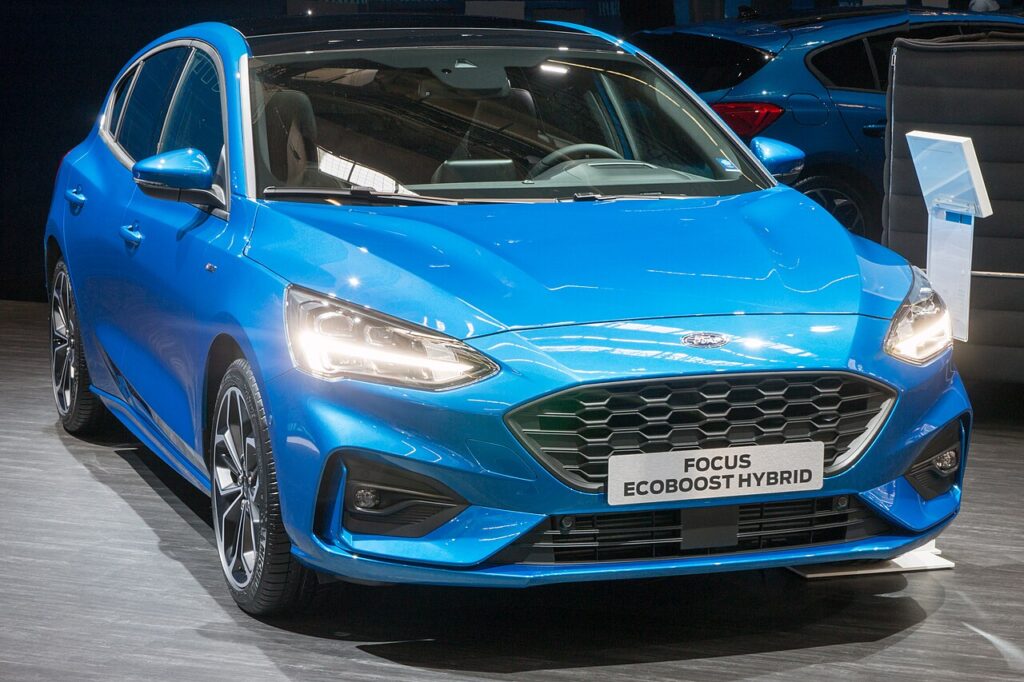
Which SYNC system the Mk4 Focus uses
The fourth-generation Focus runs SYNC 3 on a tablet-style “floating” 8-inch touchscreen (a smaller 6.5-inch screen on early base trims). It is touch-operated with a handful of hard buttons below; there is no rotary controller. A frozen Focus screen is almost always a software lock-up in the APIM module — the engine, climate and driving systems carry on while only the display sticks. The reboot is triggered with the Seek-forward button and the Power/Volume knob.
Soft reset (reboot) the SYNC 3 screen
Park the Focus with the engine running or ignition on so the system stays powered.
- Find the Power/Volume knob (press-in centre is power/mute) and the Seek-forward button (the >> double-arrow) below the screen.
- Press and hold both at the same time.
- Keep holding for about 10 seconds until the screen goes black and the Ford oval appears.
- Release both buttons; press Power once if the screen does not switch back on by itself.
- Allow 30–60 seconds for the home screen to reload before expecting touch and audio to respond.
Safe — it loses no data
This reboot is harmless: it does not delete presets, paired phones, call history or navigation favourites. The unit simply reloads its software, like restarting a phone. Repeat as often as needed.
If it stays frozen
- Hold longer. If 10 seconds did nothing, retry and hold both buttons for a full 20–30 seconds.
- Cycle the ignition fully. Switch off, open the driver’s door, lock the car, and walk away for a few minutes so the module sleeps; then unlock and restart.
- Suspect CarPlay/Android Auto. Mk4 freezes frequently track with a phone projection session or a worn USB lead — unplug, delete the pairing on both devices, swap to a known-good cable, and re-pair.
- Update SYNC. Ford issued SYNC 3 performance updates (the 20-series bulletins) specifically for frozen screens and CarPlay glitches on 2016–2020 cars including the Focus. Check for a free update on the Ford owner site, download it to a USB stick and install it — over-the-air updates were withdrawn for SYNC 3, so USB is the way.
Master reset (erases data — rarely needed)
A master reset is separate from the reboot and only worth doing if you are selling the car or chasing a stubborn glitch. On the touchscreen go to Settings → General → Master Reset and confirm. It wipes paired phones, call history, presets, navigation favourites and all personal settings back to factory defaults, so do it on purpose.
Frequently Asked Questions
Does the Mk4 Focus have SYNC 3 or SYNC 4?
European Mk4 Focus cars use SYNC 3 on the floating 8-inch screen throughout the range. The Seek-plus-Power reboot below is the correct method for SYNC 3.
Will rebooting lose my presets and paired phone?
No. The Seek-plus-Power restart keeps every preset, favourite and pairing. Only the Master Reset in Settings clears them.
My Focus freezes only when I plug in for CarPlay — how do I stop it?
Try a different Apple-certified cable, re-pair the phone, and install the latest SYNC 3 software via USB — Ford’s performance updates target exactly this CarPlay-freeze behaviour.
Is it safe to drive with the screen frozen?
Yes. The SYNC unit is independent of the engine and brakes — you only lose audio, phone and navigation. Reboot when safely parked.
How do I update SYNC 3 on the Mk4 Focus?
Sign in on the Ford owner website with your VIN, check for a newer SYNC version, download it to a blank USB stick and plug it into the media USB port with the engine running. Follow the prompts and do not switch off until it completes.
If a warning light or fault message stays on the dash after the reboot, the car may have stored a diagnostic trouble code — you can look it up on autodtcs.com.
Independent guide — not affiliated with Ford. Always follow your official service manual and safety precautions. Read our full disclaimer.