These instructions apply to the Mercedes C-Class Mk5 (W206) 2021-Present.
For other models, please choose your vehicle here.
If the big portrait MBUX screen on your Mercedes C-Class (W206, 2021–Present) has frozen, gone black, or stopped responding to touch and the voice assistant, you can force a soft reset yourself in under a minute — no tools, no garage, and without losing a single setting.
Which system the W206 uses
The fifth-generation C-Class moved fully to the second-generation MBUX — the tall, near-vertical central touchscreen and the “Hey Mercedes” voice assistant, with almost every function on glass and the steering-wheel touch-controls. There is no rotary controller to fall back on, so when the screen locks up the steering-wheel reset is the way back in. (It is a different system from the older W205’s COMAND, which reboots from the head unit.)
Soft reset (reboot) the MBUX screen
Do this parked, with the ignition on so the system stays powered.
- On the steering wheel, find the phone/answer button and the voice-control button (the speech-bubble key).
- Press and hold both together for about 15–20 seconds. Keep holding past any beep.
- The central display goes completely dark, then the Mercedes-Benz logo reappears as MBUX reboots.
- Release and wait 30–60 seconds for the home screen to reload. Touch, voice, and the controls should respond again.
If your trim uses the Favourites “star” and Telephone touch-controls, holding those two together for the same 15–20 seconds triggers the identical reboot.
Will this erase anything? No
The two-button MBUX reset is completely safe. It does not wipe radio presets, navigation favourites, paired phones, driver profiles, or your “Hey Mercedes” settings — the system simply reloads its software. Do it as often as you need.
If the screen stays frozen
- Hold longer. If 20 seconds did nothing, repeat and hold both buttons for a full 30 seconds before releasing.
- Cycle the ignition fully. Switch off, open the door, lock the car, and walk away for about five minutes so the electronics sleep; then unlock and restart.
- Check for a software update. The W206’s MBUX updates over the air via Mercedes me; staying current fixes most freeze and CarPlay glitches. A dealer can confirm the latest build.
- Unpair a problem phone. A flaky Bluetooth or wireless CarPlay/Android Auto link can hang MBUX on boot — delete the device and pair fresh.
Factory reset (erases data — rarely needed)
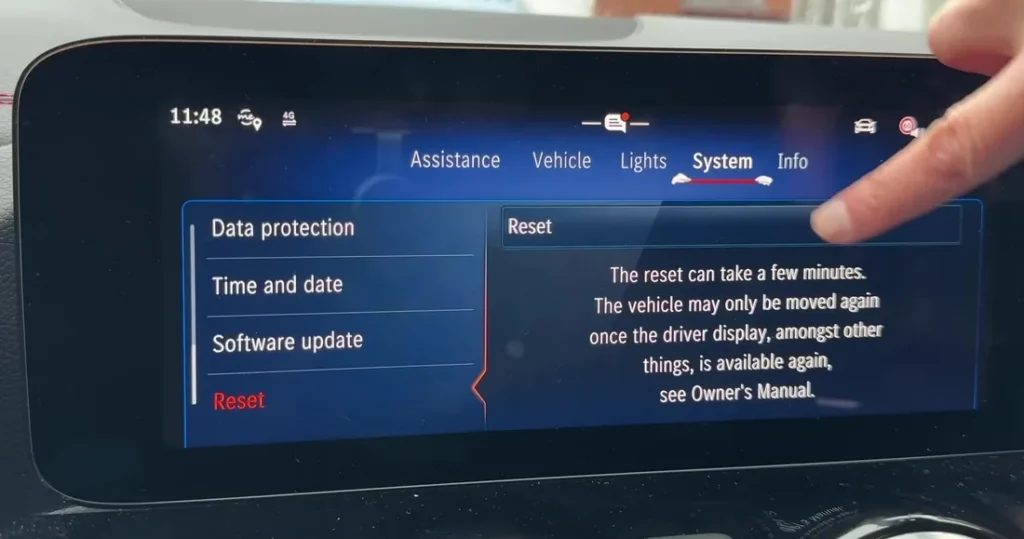
A factory reset is separate from the soft reset and only worth doing if you are selling the car or clearing a deep, persistent glitch. In MBUX it lives under System Settings → Reset (the “Reset” function). It erases presets, paired phones, profiles, and navigation history, so only do it deliberately.
Frequently Asked Questions
Which two buttons reset the W206 MBUX screen?
The phone/answer button and the voice-control button on the steering wheel, held together for 15–20 seconds. On some trims it’s the Favourites “star” and Telephone touch-controls — either pair does the same reboot.
There’s no rotary controller — how else can I reboot if touch is dead?
That’s exactly why the steering-wheel reset exists. The touch-controls and hard keys on the wheel still work even when the central glass is frozen, so the two-button hold gets you back in.
Will I lose my settings or saved stations?
No. The soft reset keeps presets, navigation favourites, paired phones, and driver profiles. Only a deliberate System Settings → Reset clears them.
Is it safe to drive with the screen frozen?
Yes. MBUX is independent of the engine and driving systems — you only lose audio, navigation, and voice control. Reset it when you are safely parked.
My C 300 keeps freezing after an update — what now?
A freeze right after an over-the-air update usually clears with a two-button soft reset. If it returns, have a dealer confirm the update completed cleanly rather than stalling mid-install.
If a warning light or fault message stays on the dash after the reboot, it may have stored a diagnostic trouble code — you can look it up on autodtcs.com.
Independent guide — not affiliated with Mercedes. Always follow your official service manual and safety precautions. Read our full disclaimer.