These instructions apply to the Toyota Yaris Mk4 (XP210/P21) 2020-Present.
For other models, please choose your vehicle here.
If the touchscreen in your Toyota Yaris (Mk4/XP210, 2020–Present) has frozen — stuck, ignoring touch, or showing a blank screen — you can usually clear it with a forced reboot from the driver’s seat. It’s a software hang, and the restart fixes it without erasing your settings.
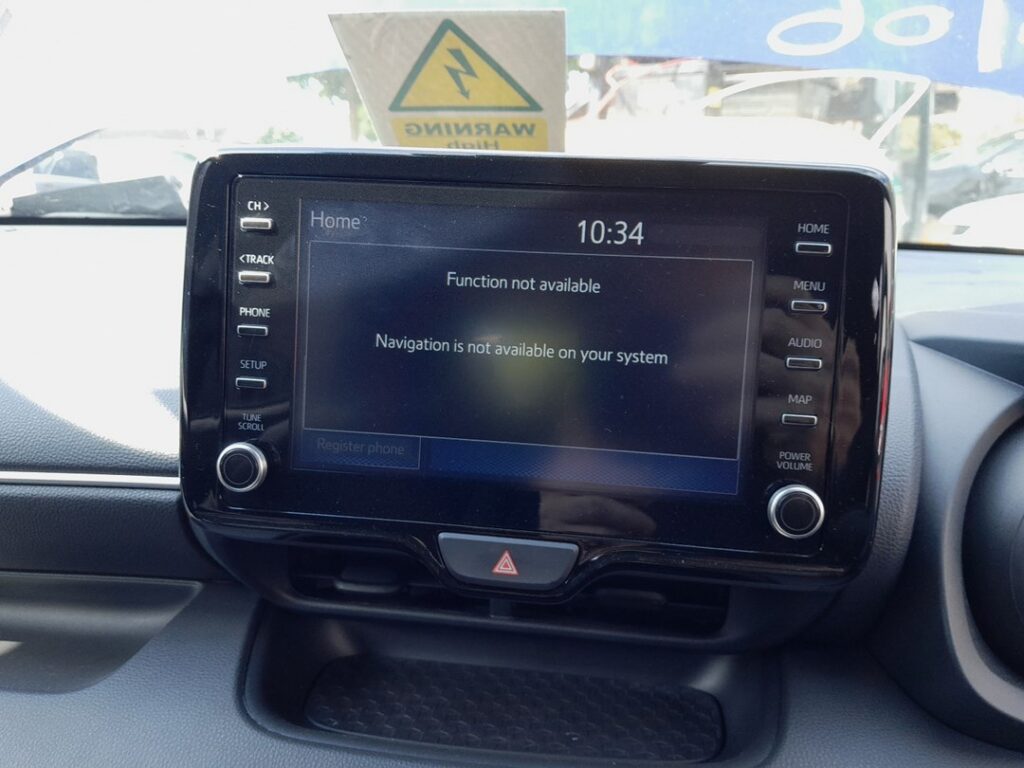
Which System Your Yaris Has
The XP210 Yaris uses Toyota Smart Connect — the cloud-connected multimedia system with connected navigation, the “Hey Toyota” voice assistant, Apple CarPlay and Android Auto, and over-the-air updates — on a 7-inch, 8-inch or 9-inch display by grade. Early Smart Connect software was reported as buggy, with freezes, slow responses and Bluetooth drops in 2020–2022 cars; Toyota improved it through software updates, so keeping the unit current is as important as knowing the reboot.
Soft Reset (Reboot the Screen)
- Leave the car switched on (Ready/ignition on) and parked.
- Press and hold the Power/Volume knob beside the screen for about 10 to 15 seconds.
- Keep holding until the display goes black and the Toyota logo shows.
- Release — the system reboots and returns to the home screen in roughly 30 seconds.
Safe — No Data Lost
The reboot keeps all your data. Paired phones, radio presets, saved destinations and profile settings stay put — the hold only power-cycles the unit, just like restarting a phone. Repeat it whenever the screen hangs.
If It Stays Frozen
- Hold the knob the full 15–20 seconds if the logo doesn’t appear at first.
- Turn the car fully off, lock it, and walk away for 5 minutes. Letting it sleep cuts power to the unit and clears a stubborn lock-up.
- Check for a software update. Many early Yaris freezes were fixed by updates; Smart Connect can update over the air when connected, or a dealer can flash the current version — the change owners notice most.
- Re-pair Bluetooth — delete the phone from the car and the car from the phone, then pair again — if the freeze follows a connection.
Factory Reset (Erases Data)
Use this only for persistent instability. Go to Settings → General → Factory reset (shown on some cars as Delete personal data). It wipes presets, pairings, saved places and logins, returning Smart Connect to factory state, so try the reboot and an update first.
Frequently Asked Questions
Is the Yaris Mk4 infotainment known for freezing?
Early Smart Connect software in the 2020–2022 Yaris was widely reported as buggy — freezes, lag and Bluetooth drops were common. Software updates improved it markedly, so update yours if it still misbehaves.
Will rebooting delete my saved destinations or phone?
No. The Power/Volume hold only restarts the unit. Saved places, presets and pairings are kept — only a factory reset erases them.
How do I get the update that fixes freezing?
Smart Connect updates over the air when the car is connected; otherwise a Toyota dealer can apply the latest version. Owners report noticeably fewer freezes afterward.
Why is CarPlay laggy or dropping out?
Early software and a weak data connection both affect it. A reboot helps short term; a software update and a good-quality cable (for wired CarPlay) help longer term.
Can I reboot the screen while driving?
Best done parked — the screen blanks for about half a minute during the restart, removing the camera and map while it reloads.
If a warning light or stored code appears with the freeze, look it up first on autodtcs.com.
Independent guide — not affiliated with Toyota. Always follow your official service manual and safety precautions. Read our full disclaimer.