These instructions apply to the Mazda 3 Mk3 (BM/BN) 2013-2018.
For other models, please choose your vehicle here.
The Mazda 3 (BM/BN, 2013–2018) — the third-generation Mazda 3, sold as hatchback and saloon (Fastback) across Europe and the first Mazda 3 built on the full SKYACTIV platform with KODO design — uses one of two reset paths depending on whether your car has the central MZD Connect 7-inch touchscreen. Most Mazda 3 BM trims from 2014 onwards have the touchscreen; basic SE trim from 2014–2015 sometimes doesn’t. Both methods are straightforward — no diagnostic tool needed.
When to Reset the Service Indicator
- After completing an oil and filter change.
- After a scheduled inspection service.
- After a tyre rotation (touchscreen trims only — Mazda 3 BM tracks tyre rotation as a separate item).
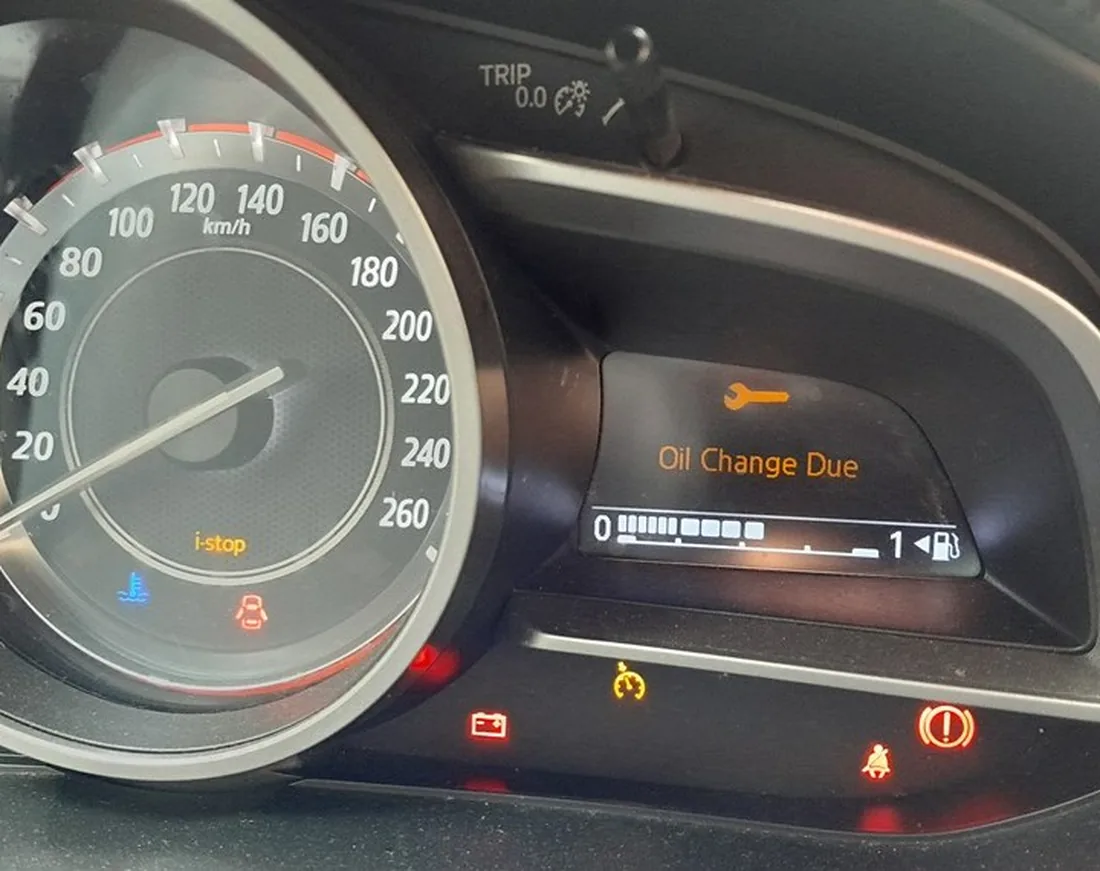
- If the spanner / wrench symbol with “Service Required” appears on the cluster at startup.
⚠️ The BM Mazda 3 tracks three separate service items independently on touchscreen trims: Oil change, Scheduled inspection, and Tyre rotation. Each resets independently — clearing one doesn’t clear the others. Make sure you reset only the items where work has actually been done.
Before You Begin
- Park on a level surface with the engine off.
- Complete the actual service work before the reset (oil change for the oil reset, full inspection items for the scheduled reset, tyre rotation for the tyre-rotation reset).
- Identify which trim you have: look at the centre console between the front seats. If there’s a rotary commander knob and a 7-inch screen at the top of the centre stack with the MZD Connect interface, use Method 2. If the centre stack has only the cluster trip-computer readouts and no rotary commander, use Method 1.
- Locate the trip-recorder button on the cluster — small button on the lower-left of the speedometer face, labelled with a trip icon or “0.0”.
What You’ll Need
None for the reset itself. For the oil change: fresh Mazda-spec oil — 0W-20 ACEA C5 / Mazda Genuine 0W-20 SKYACTIV for the SKYACTIV-G 1.5/2.0 petrol engines, 0W-30 ACEA C3 / DPF-compatible for the SKYACTIV-D 1.5/2.2 diesel; a new spin-on filter (different part for SKYACTIV-D and SKYACTIV-G); a 14 mm sump-plug socket; torque about 30 Nm. The 2.2 diesel uses a slightly different filter element and sump plug — check the specific variant.
Method 1 — Vehicles Without Touchscreen (Basic SE Trim, 2014–2015)
- Turn the ignition OFF.
- Press and hold the trip-recorder button on the cluster.
- While still holding the button, turn the ignition ON (key position II, engine off).
- Keep holding the trip-recorder button.
- Wait until the LED next to the spanner symbol on the cluster starts flashing.
- Release the button. The reset is complete.
- Switch the ignition off.
Method 2 — Vehicles With MZD Connect Touchscreen (Most BM Trims)
The MZD Connect system tracks three service items independently. Reset only the one(s) you’ve completed.
Oil Service Reset
- Turn the ignition ON.
- On the MZD Connect screen, navigate to “Applications” using the rotary commander or by tapping (the touchscreen is enabled when stationary).
- Select “MAINTENANCE”.
- Select “Oil change”.
- Select “RESET”.
- Confirm. The oil-service counter resets.
Inspection Service Reset
- Turn the ignition ON.
- On MZD Connect, go to Applications → MAINTENANCE → Scheduled.
- Select “RESET”.
- Confirm. The scheduled-inspection counter resets.
Tyre Rotation Reset
- Turn the ignition ON.
- Go to Applications → MAINTENANCE → Tyre Rotation.
- Select “RESET”.
- Confirm. The tyre-rotation counter resets.
Verify the Reset Worked
Switch the ignition off, wait 30 seconds, then cycle back on. The spanner symbol that was appearing at startup should be gone. On touchscreen trims, re-open the MAINTENANCE app — the item(s) you just reset should now show a fresh full interval (typically 10,000 miles / 15,000 km or 12 months for European-spec Mazda 3 BM on SKYACTIV-G petrol; the SKYACTIV-D 1.5 diesel uses 12,500 miles / 20,000 km, the 2.2 diesel uses 12,500 miles / 20,000 km).
If Something Goes Wrong
- (Method 1) The LED next to the spanner doesn’t flash. Two common causes: the trip-recorder button was released before the ignition was fully on (the procedure requires the button to be held continuously through the ignition transition), or the cluster is in ACC mode rather than full ON. On the Mazda 3 BM, the ignition key has three positions — push to the second click for IGNITION ON (engine off).
- (Method 2) MZD Connect doesn’t have a MAINTENANCE app. The MAINTENANCE app is part of the MZD Connect Tools section, which was rolled out across the BM range in mid-2014. Very early 2014 cars may have an older firmware that hides this app. A Mazda dealer can update the MZD Connect firmware via their workshop tool — the latest firmware adds the MAINTENANCE app along with several other improvements. After the update, the reset path becomes available.
- I reset the oil service but the spanner symbol stays on. Most likely: the inspection service is also due (BM tracks them separately). Open MZD Connect → MAINTENANCE → Scheduled — if the percentage is at 0%, that’s the item still triggering the warning. Reset it too.
- Touchscreen doesn’t respond while driving. Mazda locks parts of MZD Connect when the car is moving. The MAINTENANCE app should be accessible at any speed, but if you can’t reach certain options, stop the car and try with the gear selector in P (or neutral with the parking brake on for manual transmissions).
- Reset works but the spanner symbol comes back after a few miles. Cluster EEPROM commit failure, almost always due to a marginal 12V battery. Load-test the battery; replace if older than 5 years. The BM cluster is particularly sensitive to voltage drop during cold-cranking on the SKYACTIV-G engines because of their high compression ratio (14:1) — they pull a lot of current on first crank.
- I drive a MazdaSpeed 3 / MPS — same procedure? No MazdaSpeed variant was sold of the BM generation. The “hot” Mazda 3 era ended with the BL Mazda3 MPS (2009–2013). If you have a Mazda 3 with the 2.5L SKYACTIV-G it’s still a normal BM, not an MPS — use the BM procedure.
Frequently Asked Questions
What does the spanner symbol on the Mazda 3 mean?
On the BM Mazda 3 the spanner / wrench icon is the maintenance reminder — it indicates one or more service items are due. The cluster doesn’t tell you which one without opening the MAINTENANCE app (touchscreen trims). The icon does not indicate an engine fault — engine faults trigger the orange check-engine light (a separate engine-outline icon).
How often does the Mazda 3 BM service indicator come up?
Mazda’s official European-market schedule for the BM Mazda 3:
- 1.5 SKYACTIV-G petrol (P5): 12,500 miles (20,000 km) or 12 months.
- 2.0 SKYACTIV-G petrol (PE): 12,500 miles (20,000 km) or 12 months.
- 2.5 SKYACTIV-G petrol (PY): 12,500 miles (20,000 km) or 12 months.
- 1.5 SKYACTIV-D diesel (S5): 12,500 miles (20,000 km) or 24 months.
- 2.2 SKYACTIV-D diesel (SH): 12,500 miles (20,000 km) or 24 months.
The Mazda 3 BM doesn’t have a condition-based interval — it’s fixed mileage/time. Severe-service driving requires halving the interval manually.
Does the reset clear engine fault codes?
No. The reset zeros the service-distance counter only. Engine fault codes are stored in the engine ECU and need a scan tool. For DTC interpretation see autodtcs.com.
What about the Mazda 3 BN (facelift 2017–2018)?
The Mazda 3 BN is the 2017 facelift of the BM platform. It uses the same MZD Connect system and the same reset paths described above. No procedural difference — Mazda kept the firmware structure identical between BM and BN.
And the new Mazda 3 BP (2019+)?
The fourth-generation Mazda 3 (BP) uses the upgraded MZD Connect with the new Mazda Connect 2 firmware and a different menu hierarchy. The reset path moves to Applications → Settings → Vehicle → Maintenance. We’ll publish a dedicated BP guide.
Will the touchscreen Method 2 work without touching the screen?
Yes. The rotary commander knob between the front seats can drive every menu option without ever touching the screen. Rotate to scroll, press to select. Mazda explicitly designed MZD Connect to be operable without touch input while driving — touch only works when stationary on most trims.
I have a Mazda CX-3 / CX-5 from the same era — is the procedure similar?
Yes. The Mazda CX-3 (DK, 2015–2022) and Mazda CX-5 Mk1 (KE, 2012–2017) and Mk2 (KF, 2017–2024) all use MZD Connect with the same MAINTENANCE app structure. The procedure is identical on touchscreen-equipped CX-3 / CX-5 trims. We’ll publish dedicated CX-3 and CX-5 guides.
For DTC code interpretation on Mazda vehicles see autodtcs.com.
Independent guide — not affiliated with Mazda. Always follow your official service manual and safety precautions. Read our full disclaimer.