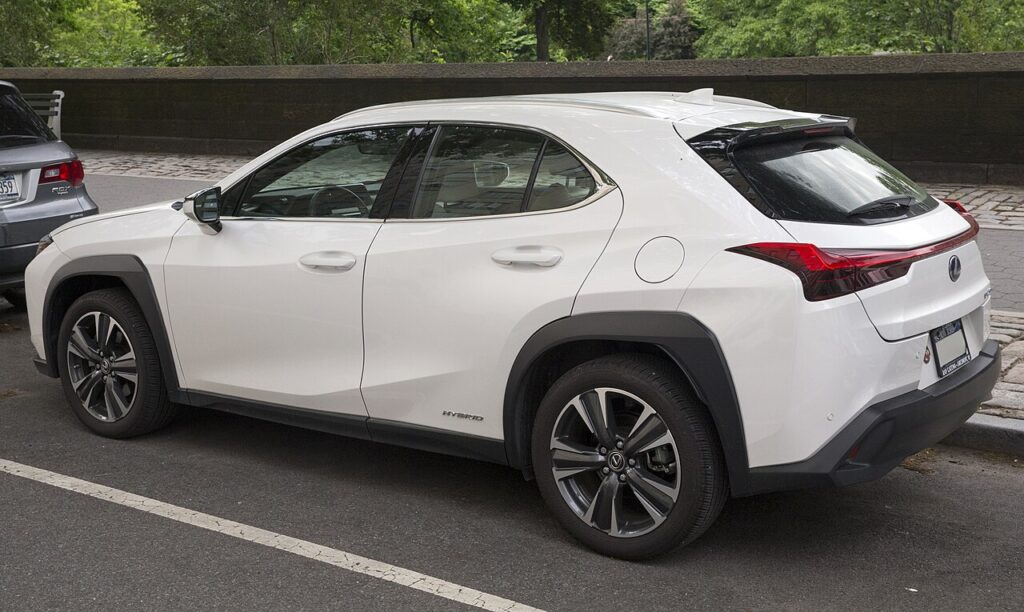
These instructions apply to the Lexus UX Mk1 (A1) 2019-Present.
For other models, please choose your vehicle here.
The Lexus UX (2019–present) — the UX 200, UX 250h and electric UX 300e — controls its dash display through the console Remote Touchpad, not a touchscreen (on pre-facelift cars). When the cursor freezes or the map locks up, you reboot the head unit with the Power/Volume knob, which takes about ten seconds and leaves your settings untouched.
The infotainment system in this UX generation
The UX launched with Lexus’s Remote Touchpad — a flat, trackpad-style surface on the centre console that slides an on-screen cursor across the 7-inch or 10.3-inch display, with haptic feedback as the pointer crosses each button. On these cars the screen itself is not touch-sensitive, so tapping it does nothing; control is via the pad and the hard keys. Later facelift UX models gained a true touchscreen, but the reboot method is the same on both. Common complaints are a frozen or jumpy cursor, an Apple CarPlay session that hangs, or a black screen at start-up.
Soft reset: reboot the UX head unit
- Keep the car in READY so the 12V supply is stable during the restart.
- Find the Power/Volume knob next to the display (left of the screen on left-hand-drive cars).
- Press the knob in and hold it for about 10 seconds, keeping the pressure on after the sound mutes.
- The display goes dark and the Lexus logo appears — now let go of the knob.
- Wait around half a minute for the map, audio and touchpad cursor to come back.
This is safe — no data is lost
Holding the Power/Volume knob simply restarts the infotainment software. It does not delete navigation favourites, paired phones, radio presets or any of your display and personalisation settings. It is exactly what the system does after an internal glitch, just done on command, so you can use it whenever the screen hangs.
If it stays frozen
- Unplug your phone or USB device and reboot again — a stalled CarPlay or Android Auto session is one of the most common UX freeze causes.
- Switch the car fully off, open the driver’s door, wait two or three minutes, then restart for a complete cold boot.
- If the screen restarts in a loop, prune the Bluetooth list to a single phone; multiple devices competing to connect can keep the head unit cycling.
- Look in Settings → System for a software update — the UX received stability patches that smooth out early freezing.
- As a final step, disconnect the negative battery terminal for 15–30 minutes to force a full discharge, then reconnect.
Factory reset (erases data)
For a full wipe, use the menu instead of the knob: MENU → Setup → General → Delete personal data (touchscreen cars may show it under Settings → System → Reset), then confirm. This clears saved destinations, phonebook, call history and Bluetooth pairings — use it only before selling the car or to clear a corrupt profile, not for a routine freeze.
Frequently Asked Questions
Why won’t the UX screen respond to my touch?
Pre-facelift UX models don’t have a touchscreen — the display is driven only by the console Remote Touchpad and the hard keys. If your cursor has frozen, tapping the glass won’t help; hold the Power/Volume knob to reboot instead.
How long do I hold the knob to reboot?
About 10 seconds. The audio mutes early, but keep holding until the screen blacks out and the Lexus logo shows, then release.
Does rebooting delete my saved places and phone pairings?
No. The knob-hold only restarts the software. Saved destinations, presets and paired phones all survive. Only the “Delete personal data” menu option removes them.
My UX freezes when I use Apple CarPlay — what should I do?
Unplug the phone, hold the Power/Volume knob to reboot, then reconnect with a known-good cable. A hung projection session is a frequent freeze trigger on the UX; a fresh cable and a software update usually settle it.
Is the touchscreen facelift UX reset any different?
No. Whether your UX has the touchpad or the later touchscreen, the same Power/Volume knob hold reboots the head unit and the same menu path performs a factory reset.
If the frozen screen appears together with a dashboard warning light or a stored code, look the code up on autodtcs.com to check whether the infotainment fault and the warning share a root cause.
Independent guide — not affiliated with Lexus. Always follow your official service manual and safety precautions. Read our full disclaimer.