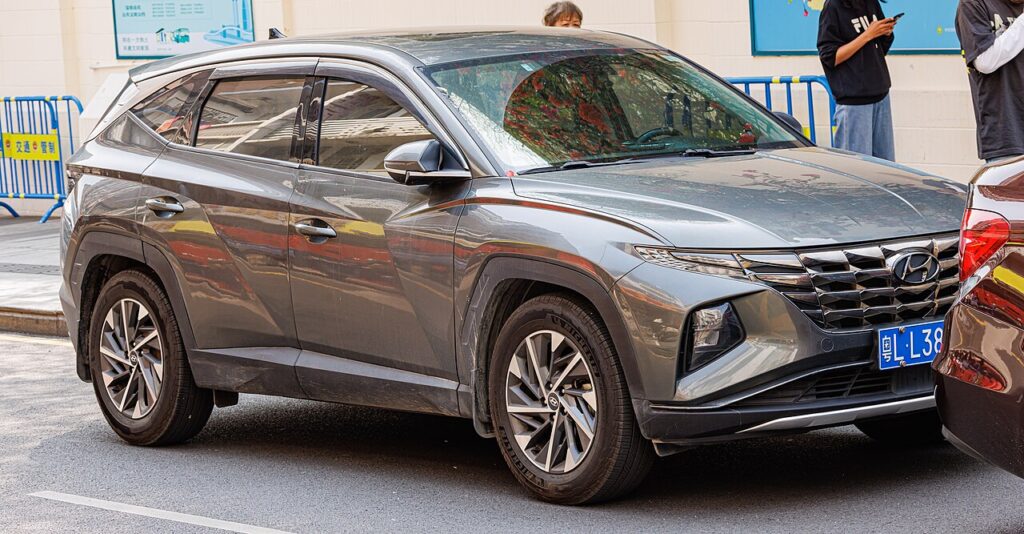
These instructions apply to the Hyundai Tucson Mk4 (NX4) 2020-Present.
For other models, please choose your vehicle here.
The Hyundai Tucson Mk4 (NX4, 2020–present) moved to a large, glossy dashboard with up to a 10.25-inch touchscreen and a touch-sensitive climate panel — impressive, but more software to occasionally hang. If the screen freezes, goes black, or ignores taps while the audio plays on, you can reboot it yourself in under a minute and keep all your data.
The Infotainment System in This Tucson
The NX4 Tucson runs an 8-inch Display Audio or the 10.25-inch AVN navigation unit with Bluelink connected services. Wired CarPlay/Android Auto is standard; wireless projection is available on many trims and, as on the i20, a dropped wireless handshake is a frequent cause of a lock-up. The Power / Volume knob beside the screen is the reboot control, and the unit also has a small reset pinhole on the faceplate.
Soft Reset (No Data Loss)
- Keep the ignition on (engine running or ACC).
- Press and hold the Power / Volume knob for about 5–10 seconds until the display blanks; the Hyundai logo then reappears.
- Or, with a straightened paperclip, briefly press the RESET pinhole near the knob — a short press reboots without losing settings.
- Release and wait for the home screen to load.
Important: on the NX4, holding the pinhole in for around 5 seconds triggers a full reset that wipes your settings — for a normal reboot, press it only briefly.
This Is Safe — Nothing Is Erased
A soft reboot restarts the software only. Your Bluelink login, saved destinations, paired phones, presets and preferences are all kept.
If It Stays Frozen
- If on wired projection, unplug the USB cable; if wireless, toggle the phone’s Bluetooth or “forget” the car and re-pair.
- Switch the ignition off, lock the car, wait a couple of minutes, then restart.
- Install the latest software from update.hyundai.com — Hyundai has issued NX4 updates that cure wireless-CarPlay/Android-Auto dropouts and map-screen freezes.
- Still stuck? Disconnect the 12 V battery for ~15 minutes — see our Tucson Mk4 battery guide. (On the hybrid/PHEV the 12 V is separate from the drive battery.)
Factory Reset (Erases Your Data)
Only for persistent faults: tap Setup / Settings → General → Reset (or “Factory data reset”) and confirm — or hold the pinhole ~5 seconds. Either way Bluelink, paired devices, saved destinations and presets are wiped back to factory state, so you’ll set everything up again.
Frequently Asked Questions
What’s the difference between a short and long pinhole press on the NX4?
A brief press reboots without data loss; holding it for about 5 seconds does a full factory-style reset that erases your settings. Use a brief press for a normal freeze.
My wireless CarPlay freezes constantly — what’s the real fix?
Re-pair the phone, then install the current head-unit update from Hyundai; the wireless-projection patches resolve the recurring NX4 hangs.
Does the knob-hold delete my Bluelink account?
No. A soft reboot keeps Bluelink and all saved data; only a factory reset signs you out.
The touch climate panel froze too — does this fix it?
Often yes, if the panel is driven by the same head unit. Reboot first; if the climate buttons stay dead, have it scanned.
Black screen but audio still plays — is the unit dead?
Almost never. That is the classic soft-reset case — hold the Power knob for 10 seconds.
If a dashboard warning light appeared alongside the glitch, decode it on autodtcs.com.
Independent guide — not affiliated with Hyundai. Always follow your official service manual and safety precautions. Read our full disclaimer.