These instructions apply to the Kia Sportage Mk4 (QL/QLE) 2016-2022.
For other models, please choose your vehicle here.
If the touchscreen in your Kia Sportage (Mk4, QL, 2016–2022) has frozen, gone black, lost the reversing camera or stopped responding to taps, you can force the head unit to reboot yourself in under a minute — no tools and no dealer trip.
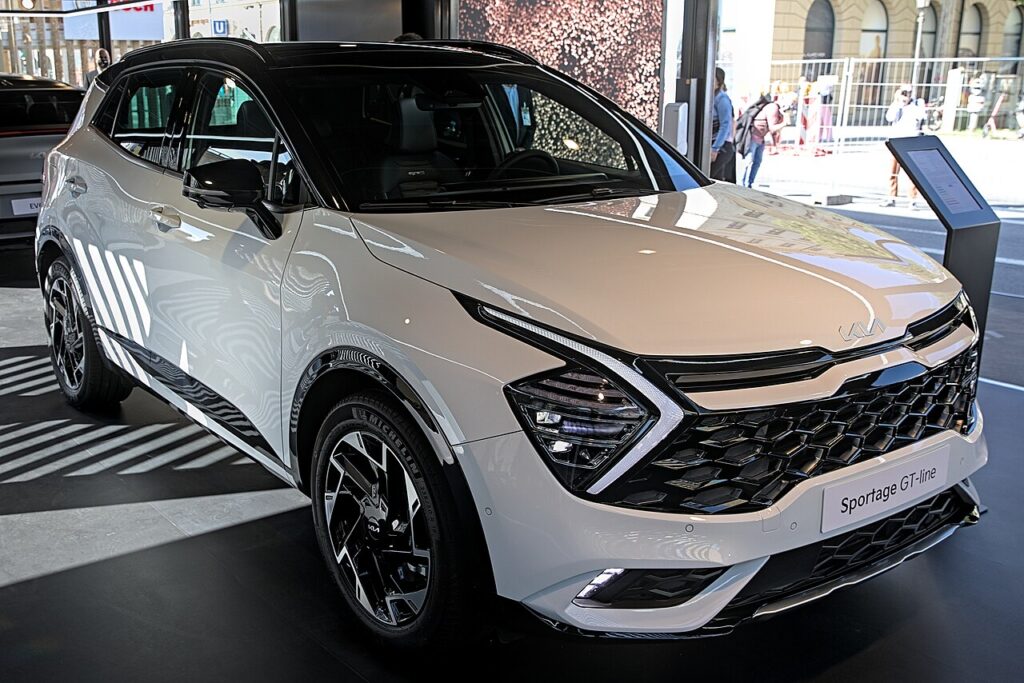
Which system the Sportage uses
The Mk4 Sportage runs Kia’s Display Audio / UVO head unit — a 7-inch screen on most cars, with an 8-inch Kia Connect / TomTom navigation screen on GT-Line and higher trims (the 2018 facelift moved to a cleaner floating display). All are touch-operated with a power/volume rotary knob on the left and hard shortcut keys. A frozen Sportage screen is a software lock-up in the head unit; the engine, lights and climate keep running because only the display has stuck.
Soft reset (reboot) the screen
Park with the ignition on so the unit stays powered.
- Find the power/volume knob on the left of the screen (press to mute).
- Press and hold it in.
- Keep holding for about 10 seconds until the screen goes black and the Kia logo appears.
- Release the knob.
- Allow 30–60 seconds for the home screen, radio and camera to reload.
Many Sportages also have a small pinhole RESET on the bezel near the knob. Use a straightened paperclip on the recessed button for about 5 seconds until the screen blacks out — same reboot, different button.
Safe — it loses no data
This reboot is harmless. It does not wipe radio presets, paired phones, navigation favourites or settings — the unit simply reloads its software. Repeat as needed.
If it stays frozen
- Hold longer. If 10 seconds did nothing, retry for a full 20–30 seconds.
- Cycle the ignition. Switch off, open the driver’s door, lock the car, wait a couple of minutes, then unlock and restart.
- Suspect the phone link. If freezes happen with CarPlay or Android Auto, unplug, swap to a known-good USB cable and re-pair.
- Update the software. Recurring QL freezes and “map centering” hangs are fixed by a Kia firmware/map update from the Kia Update site or a dealer.
- Disconnect the battery. As a last resort, disconnect the negative (−) terminal for 10 minutes and reconnect.
Factory reset (erases data — rarely needed)
Separate from the reboot, and only for selling the car or clearing a persistent glitch. On the touchscreen go to Setup → General → Reset, or Settings → System → Restore Factory Settings on navigation units, and confirm. It wipes paired phones, presets, navigation favourites and settings back to factory defaults.
Frequently Asked Questions
Will rebooting my Sportage lose my presets and paired phone?
No. The knob-hold and pinhole only reload the software — presets, navigation favourites and pairings stay. Only the factory reset in the menu clears them.
My Sportage is stuck on the UVO loading screen — how do I fix it?
Hold the volume knob for 10 seconds, or press the pinhole for 5, to force a reboot. If it loops on the loading bar, disconnect the battery for 10 minutes; a unit stuck after a failed update needs a dealer re-flash.
Where is the reset pinhole on the Mk4 Sportage?
It is a tiny recessed hole on the screen bezel near the power/volume knob, marked RESET. If your trim doesn’t have one, use the knob-hold instead.
The reversing camera is frozen on screen — will the reboot fix it?
Usually, yes. A stuck camera image is the same software lock-up, and the knob-hold reboot clears it. If the camera never returns afterwards, have it and its wiring checked.
Is it safe to drive with the Sportage screen frozen?
Yes. The head unit is independent of the engine and brakes — you only lose audio, phone, navigation and the camera. Reboot when parked.
If a warning light or fault message stays on the dash after the reboot, the car may have stored a diagnostic trouble code — you can look it up on autodtcs.com.
Independent guide — not affiliated with Kia. Always follow your official service manual and safety precautions. Read our full disclaimer.