These instructions apply to the Nissan Juke Mk2 (F16) 2019-Present.
For other models, please choose your vehicle here.
If the touchscreen in your Nissan Juke (Mk2, F16, 2019–present) has frozen, gone black, or stopped answering taps — or Apple CarPlay / Android Auto has locked up — you can force the NissanConnect unit to restart yourself in about a minute. The car drives normally while the display is stuck; the lock-up sits in the infotainment module only.
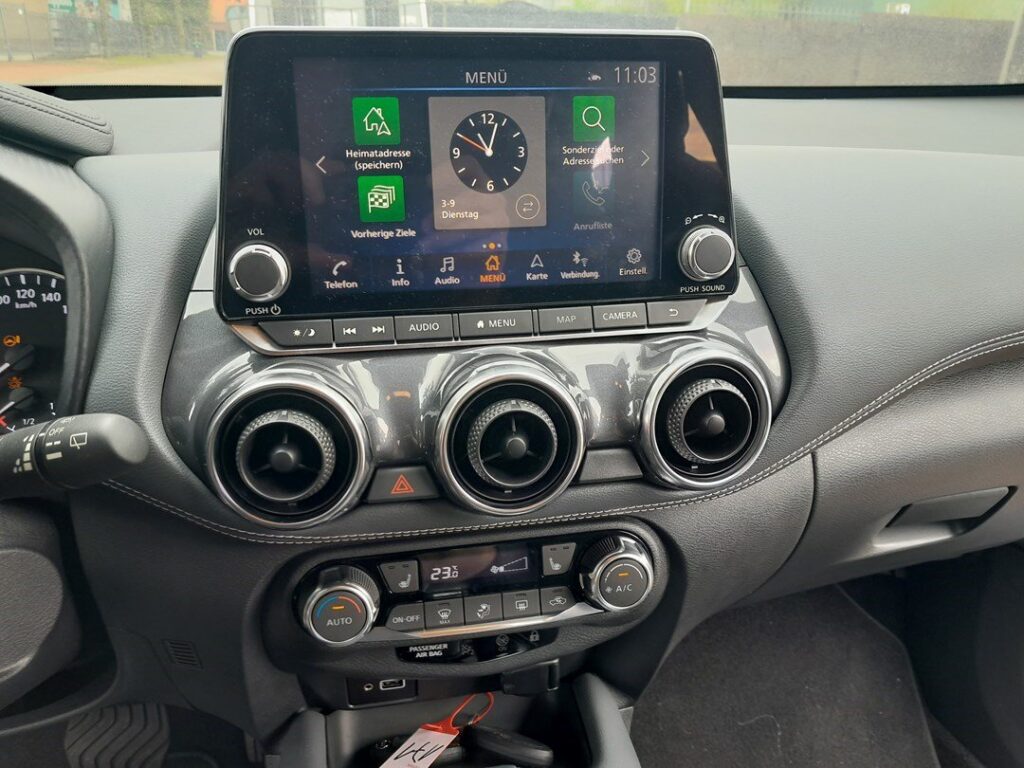
The system in this Juke
The second-generation F16 Juke uses an 8-inch NissanConnect touchscreen mounted high on the dash, with Apple CarPlay and Android Auto fitted from launch on most trims (Acenta and above). Lower trims carry the same screen without built-in navigation. Because phone projection is involved, a freeze is sometimes the projected CarPlay/Android Auto layer hanging rather than NissanConnect itself — but the same reboot clears both.
The reboot control is the Power/Volume knob below or beside the screen: press it in to mute, turn it for volume, and hold it to force a restart.
Soft reset (reboot the screen)
Park the Juke and keep the ignition on so the unit stays powered.
- Locate the Power/Volume knob on the centre console.
- Press and hold it in — a steady press, not a tap.
- Keep holding for about 10 seconds until the screen blacks out and the Nissan logo returns.
- Release the knob and let the system reload itself.
- Allow up to a minute before touch, audio and phone projection respond again.
Safe — it loses no data
The power-knob reboot does not erase radio presets, paired phones, saved destinations or your CarPlay/Android Auto setup. It just reloads the software. Repeat it whenever the screen sticks.
If it stays frozen
- Hold longer. If 10 seconds did nothing, retry and hold the knob for 15–20 seconds.
- Unplug your phone. If the freeze started with CarPlay or Android Auto, disconnect the USB cable (or forget the phone in the Bluetooth list), reboot, then reconnect using the front USB data port.
- Cycle the ignition fully. Switch off, open the driver’s door, lock the car and leave it a few minutes so the module powers down; then unlock and restart.
- Check for a software update. On connected cars open Settings → System → Software Update (or have a dealer flash it). F16 firmware updates fix several CarPlay handshake and freeze bugs.
Factory reset (erases data)
Only needed when selling the car or chasing a glitch the reboot will not shift. Go to Settings → System → Factory Reset and confirm. This wipes paired phones, call history, presets, saved destinations and personalisation back to factory defaults — and you may need to re-activate any NissanConnect Services subscription afterwards. It is not the fix for a routine freeze.
Frequently Asked Questions
Does the F16 Juke have a dedicated reset button?
No — the reset is done by holding the Power/Volume knob in for about 10 seconds until the Nissan logo reappears. There is no separate reset pinhole.
CarPlay froze the whole screen — will the reboot fix it?
Usually yes. Hold the power knob to reboot; if the freeze returns each time you plug in, unplug the phone before rebooting, then reconnect using the data USB port at the front of the console.
Will rebooting delete my phone pairings or CarPlay setup?
No. Only the Factory Reset clears them. The power-knob restart keeps every pairing, preset and projection setting.
Is it safe to drive with the screen frozen?
Yes. NissanConnect is independent of the engine and brakes — you only lose media, phone and navigation. Reboot when safely parked.
My Juke keeps freezing — is there a permanent fix?
Chronic freezes are usually a firmware issue. Install the latest software via Settings → System → Software Update or at a Nissan dealer; that resolves most repeat F16 lock-ups.
If a warning light or fault message stays on the dash after the reboot, the car may have stored a diagnostic trouble code — you can look it up on autodtcs.com.
Independent guide — not affiliated with Nissan. Always follow your official service manual and safety precautions. Read our full disclaimer.