These instructions apply to the Mazda 3 Mk3 (BM/BN) 2013-2018.
For other models, please choose your vehicle here.
If the centre screen in your Mazda 3 (Mk3/BM/BN, 2013–2018) has frozen, gone black, or stopped reacting to the Commander dial, you can force the head unit to reboot yourself in under a minute — no garage, no tools, and without losing your presets or paired phones.
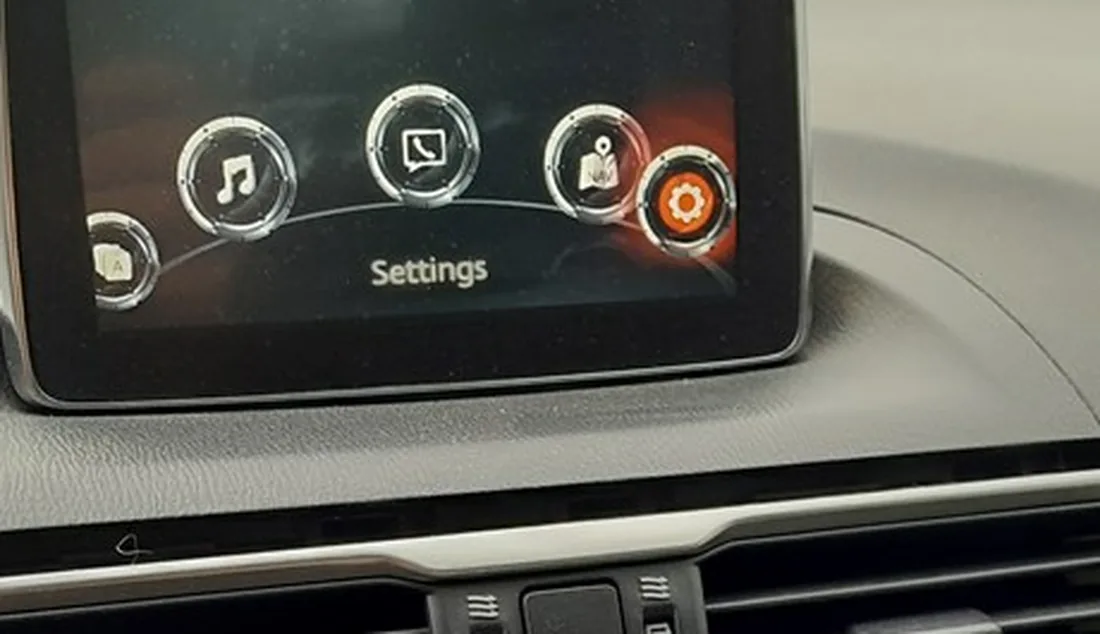
Which system the Mk3 Mazda 3 uses
The third-generation Mazda 3 was the first car to debut MAZDA CONNECT (first generation). It is driven by the round Commander dial on the centre console, surrounded by the Music/Back, Nav, Home and Favourites buttons, with a separate Volume/Power knob ahead of it. The 7-inch screen accepts touch only when the car is parked. A freeze or black screen is almost always a software lock-up in the head unit — not a hardware fault — and rebooting clears it.
Soft reset (reboot) the screen
Do this parked, with the ignition in ACC or ON so the unit keeps power (the engine does not need to run).
- Identify three buttons around the Commander: Volume/Mute, Nav and Music (Back).
- Press and hold all three at once.
- Keep holding for about 10 seconds, through any beep.
- The screen goes black and the Mazda logo appears — release the buttons.
- Give it up to a minute to reload the home screen; audio and Bluetooth return on their own.
If reaching all three is awkward, you can instead press and hold the Volume/Power knob for roughly 10–15 seconds until the unit restarts.
Will this erase anything? No
This reboot is completely safe. It does not wipe radio presets, navigation favourites, paired phones or driver settings — it just restarts the software, exactly like restarting a phone. Repeat it as often as the screen misbehaves.
If the screen stays frozen
- Hold longer. If 10 seconds achieved nothing, repeat and hold the three buttons (or the knob) for a full 15–20 seconds.
- Let the car sleep. Switch off, lock with the key and walk away five minutes so the electronics fully power down; then unlock and restart.
- Remove any USB or SD card. A corrupt music drive frequently hangs the Mk3 on boot — pull it before trying again.
- Check for a software update. Mazda released several CONNECT firmware versions for the Mk3 (notably to cure boot-loops); a dealer can flash the latest.
- Pull the fuse (last resort). With the car off, remove the audio/infotainment fuse for 30 seconds and refit it to force a cold restart — check the manual’s fuse chart for the right slot. Only if nothing else responds.
Factory reset (erases data — rarely needed)
A factory reset is separate from the reboot and only worth doing if you are selling the car or chasing a deep, persistent glitch. From the home screen go to Settings → System → Factory Reset (“Restore Factory Settings” on some builds). It erases presets, paired phones and navigation history, so do it deliberately.
Frequently Asked Questions
Will I lose my radio presets or sat-nav favourites?
No. The three-button (or volume-knob) reboot keeps every preset, navigation favourite and Bluetooth pairing. Only the menu-driven factory reset clears them.
My Mk3 keeps boot-looping on the Mazda logo — what now?
Loops on the badge usually mean a corrupt SD/USB source or out-of-date firmware. Remove any music drive, then have the dealer flash the latest CONNECT software — the Mk3 had specific updates to cure this.
The touchscreen ignores my taps — is the screen dead?
Usually not. A frozen unit stops registering touch even though the panel is fine. Use the hardware buttons around the Commander dial to reboot, then test touch again while parked.
Is it safe to drive with the screen frozen?
Yes. The infotainment is separate from the engine and braking systems — you only lose audio and navigation. Reboot once safely parked.
Does the engine need to be running?
No. Ignition in ACC or ON powers the screen for the reboot; the engine can stay off.
If a warning light or fault message stays on the dash after the reboot, it may have stored a diagnostic trouble code — you can look it up on autodtcs.com.
Independent guide — not affiliated with Mazda. Always follow your official service manual and safety precautions. Read our full disclaimer.