These instructions apply to the Jaguar XF Mk2 (X260) 2015-Present.
For other models, please choose your vehicle here.
If the central touchscreen in your Jaguar XF (X260, 2015–Present) has frozen, gone black, stuck on the boot logo, or stopped responding to touch while the radio keeps playing, you can force a clean restart yourself from the driver’s seat — no tools and no dealer visit needed.
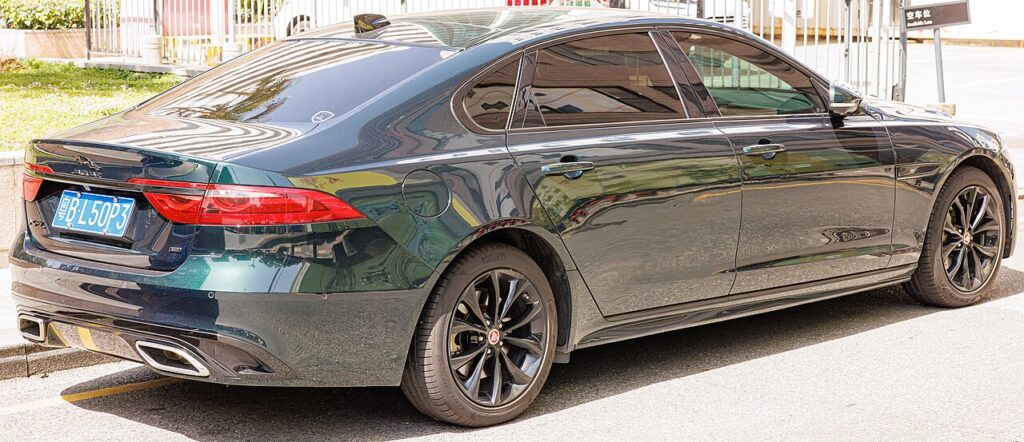
Which system is in your XF
The second-generation X260 XF ran Jaguar’s pre-Pivi infotainment throughout its life:
- InControl Touch on early entry cars — the 8-inch system.
- InControl Touch Pro on most XFs — the 10-inch screen with the spinning-globe start-up. This is the freeze-prone generation; XF owners reported random crashes of DAB, navigation and other functions even after several updates, and Jaguar shipped successive software phases to address it.
Both are rebooted by holding the physical knob, not by tapping the screen.
Soft reset (reboot) the screen
Do this parked, ignition on so the head unit keeps power.
- Find the round volume/on-off knob below the centre of the screen.
- Press and hold it — keep holding straight through the audio mute.
- After about 20–30 seconds the screen goes black. Hold until the Jaguar logo reappears, then release.
- Wait 30–60 seconds for the home screen to reload. Touch, audio and navigation should respond again.
It is the equivalent of restarting a phone — a hung process is cleared and the display reloads.
Will this erase anything? No
The knob-hold reboot is safe. It does not delete radio presets, navigation favourites, paired phones, your InControl profile or any settings. The screen just powers down and reloads. Repeat as often as needed.
If the screen stays frozen
- Hold longer. If one cycle doesn’t take, keep the knob pressed until the logo has cycled twice before releasing.
- Let it sleep fully. Switch off, lock with the fob and walk away for at least 7 minutes so the electronics power down completely, then unlock and restart.
- Suspect a paired phone. On Touch Pro XFs a bad Bluetooth or CarPlay pairing is a known trigger for lock-ups — delete the device and re-pair, or test with the phone disconnected.
- Update the software. The X260’s Touch Pro benefited from repeated dealer-flashed updates aimed at random crashing — being on the latest version is the real long-term fix.
Factory reset (erases data)
The XF’s InControl Touch Pro has no owner-accessible factory reset. The full vehicle-data wipe (added in software IMC S20A) can only be run at a dealer with Pathfinder/TOPIx. When selling the car, also log in to the My InControl website and remove the vehicle from your account. As a factory reset erases presets, pairings and personal data, treat it as a selling step, not a freeze fix.
Frequently Asked Questions
My XF Touch Pro crashes even after updates — why?
Random crashing of DAB and navigation was a stubborn Touch Pro trait on the X260, and some cars still glitched after early updates. Each crash is recovered with the knob-hold reboot; the most recent dealer software is the best available cure.
Will I lose my settings if I reboot the XF?
No. The volume-knob restart keeps every preset, favourite, profile and paired phone. Only a deliberate dealer factory reset clears them.
Does my XF have Pivi Pro?
No — the X260 XF used InControl Touch and InControl Touch Pro throughout. Pivi Pro arrived on Jaguar’s newer model range, not this generation of XF. The knob-hold reboot still applies.
Can I keep driving with the XF screen frozen?
Yes. The infotainment is independent of the drivetrain — you only lose audio and navigation. Reboot when safely parked.
The screen is black but audio still plays — what is wrong?
That is a display lock-up where the software has hung while the audio process keeps running. The knob-hold reboot almost always restores the picture.
If a warning light or message stays on the dash after the reboot, the car may have stored a diagnostic trouble code — you can look it up on autodtcs.com.
Independent guide — not affiliated with Jaguar. Always follow your official service manual and safety precautions. Read our full disclaimer.