These instructions apply to the Aiways U5 (2020-2024).
For other models, please choose your vehicle here.
If the central touchscreen in your Aiways U5 (2020–2024) has frozen, gone black, or stopped answering your taps, you can force the infotainment to reboot from the driver’s seat in under a minute — parked, with no tools and without losing your settings.
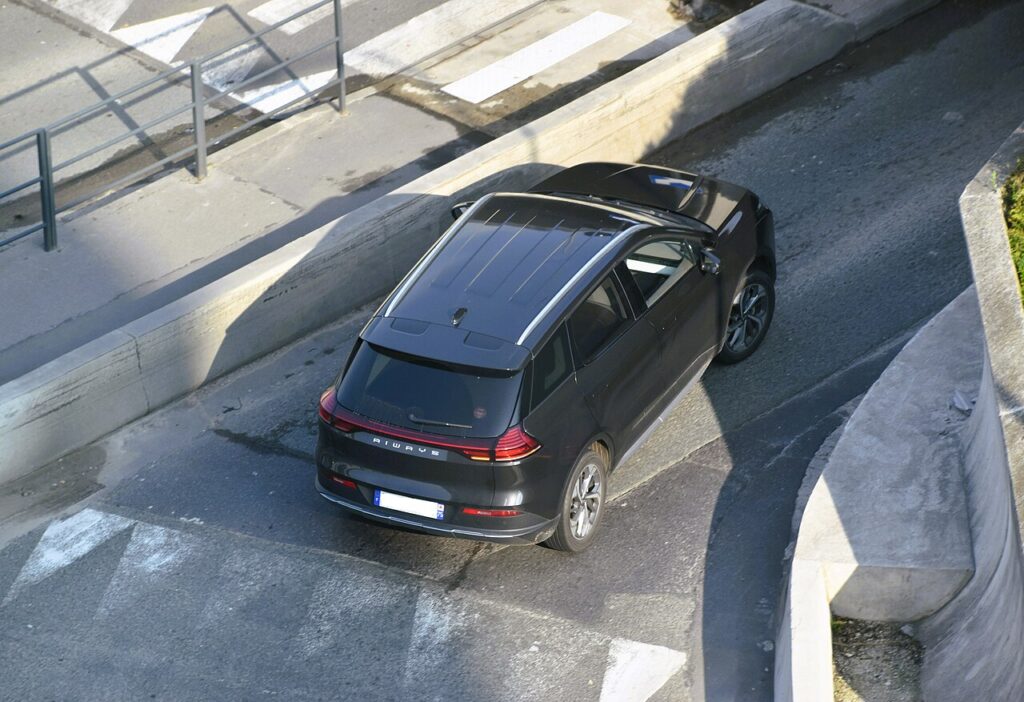
How the U5 screen reboot works
The U5 runs its Android-based infotainment on a large landscape centre touchscreen, with a separate digital driver display. Because it is a software platform that takes updates, the occasional freeze, black screen or unresponsive touch after an update is almost always a software hiccup rather than a dead panel — and Aiways lets you force a restart using two steering-wheel controls, so you never have to rely on the frozen screen itself.
Force-reboot the central screen
Do this parked, sitting in the driver’s seat with the system powered on.
- Switch on the instrument panel and let the infotainment system come up (or attempt to).
- Press and hold two controls together: the menu button and the small scroll knob on the steering wheel.
- Keep both held for a few seconds — do not release early.
- Hold through until the central display restarts — you will see it blank and begin to reboot.
- Release both controls as soon as the screen has started its restart, and let it boot back to the home screen.
Radio, navigation, Bluetooth and your apps reload on their own once the system is back up.
Will this erase anything? No
The forced reboot is safe. It does not wipe radio presets, navigation favourites, paired phones or app logins — it simply restarts the infotainment software, like restarting a phone. Use it whenever the screen freezes or lags, always while parked.
If the screen stays frozen
- Try again, holding longer. If a quick press did nothing, repeat and keep the menu button and knob held a few seconds longer until the display clearly restarts.
- Let the car sleep. Switch off, lock it and walk away for five minutes so the electronics power down fully, then unlock and restart for a clean cold boot.
- Check for a software update. Much of the U5’s freezing and lag was addressed by software updates — have the latest build installed at an Aiways service point if glitches keep returning.
- Battery disconnect (last resort). Disconnecting the 12V battery for about 90 seconds forces a cold restart of everything. Only do this if nothing else responds, and expect to reset the clock afterwards.
- Still dead? If the screen never comes back after a reboot, contact Aiways support — a persistent black screen can point to a hardware fault rather than a software freeze.
Factory reset (erases data — rarely needed)
A factory reset is separate from the reboot and only worth doing if you are selling the car or chasing a deep, persistent glitch. Open the infotainment Settings and look for the system / restore option to reset to factory defaults. It erases presets, navigation history, paired phones and app logins, so only do it deliberately.
Frequently Asked Questions
Which buttons reboot the Aiways U5 screen?
With the system on, press and hold the menu button and the small scroll knob on the steering wheel together until the central display restarts, then release both.
Will the reboot delete my radio presets or paired phone?
No. The menu-button-plus-knob reboot keeps presets, pairings and app logins. Only a deliberate factory reset in the settings menu clears them.
The U5 screen froze after a software update — is that normal?
It can happen. The infotainment occasionally needs a restart to settle after an update. Force the reboot with the steering-wheel controls; if lag persists, make sure the latest software build is fully installed.
Do I need to be parked to reboot the U5 infotainment?
Yes. Do it stationary with the system on — you need to hold the steering-wheel controls and watch the screen restart, which is not something to attempt while driving.
Is it safe to drive with the U5 screen frozen?
The infotainment is separate from the drive systems, so the car still drives — but you lose audio, navigation and the central display. Park safely first, then reboot.
If a warning light or fault message stays on the dash after the reboot, it may have stored a diagnostic trouble code — you can look it up on autodtcs.com.
Independent guide — not affiliated with Aiways. Always follow your official service manual and safety precautions. Read our full disclaimer.