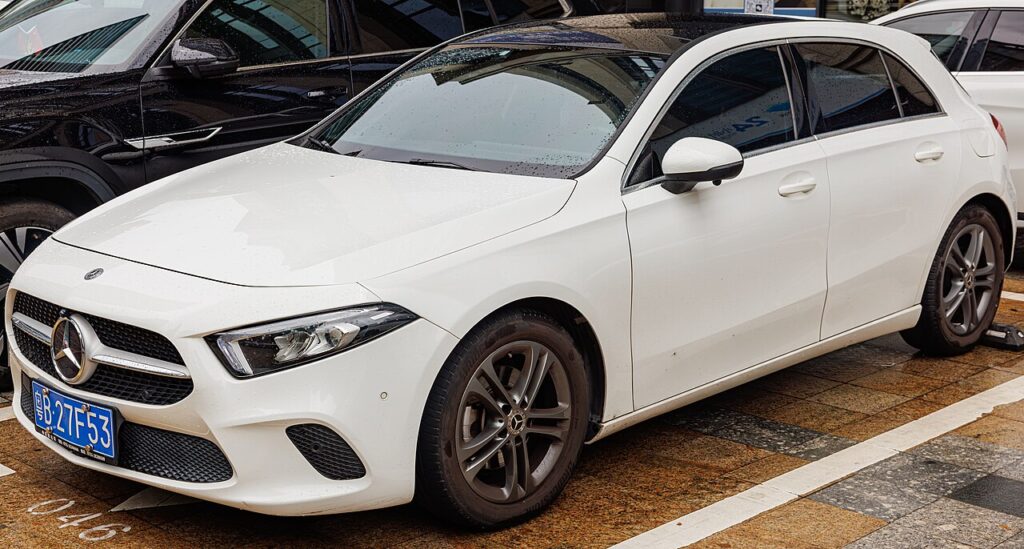
These instructions apply to the Mercedes A-Class Mk4 (W177) 2018-Present.
For other models, please choose your vehicle here.
The Mercedes A-Class (W177, 2018–present) moved to the MBUX cockpit, but a hidden workshop menu still lives behind the digital driver display — and you can open it with the steering-wheel touch controls alone, no diagnostic tool needed. It surfaces data the everyday menus hide: battery voltage, vehicle identification and software details, alongside the service readouts. It’s the quickest way to check 12 V battery health on a W177 without lifting the bonnet.
What the Hidden Menu Shows
- Battery voltage — the live 12 V reading, far more telling than the battery warning.
- VIN and chassis code plus module software versions.
- Service status and workshop data used during maintenance.
Note this is the digital-cluster equivalent of the old W176 cluster menu, adapted to MBUX’s touch controls.
How to Open It
The W177 uses the left-hand touch control and Home button on the steering wheel. Have the ignition on (engine off is fine) with the driver display showing the normal trip view.
- Switch the ignition on and let the driver display reach the main trip/odometer screen.
- On the left steering-wheel pad, press the Home (house) button and the left touch control briefly together.
- Press the Home button again — a dealer/workshop menu icon appears at the right edge of the display.
- Select that icon with the touch control to open the engineering/workshop menu.
An alternative that some MBUX software versions accept: hold the far-left toggle (CNCL) for about 10 seconds, then — without releasing — also hold the far-right toggle (hang-up) until a chime sounds.
Reading Voltage and Data
Swipe or scroll the left touch control to move through the pages. Battery voltage shows as a figure such as 12.4 V with the engine off, rising to roughly 13.8–14.6 V once running as the alternator charges. A resting reading below about 12.4 V is your early warning that the battery needs charging or testing — the usual cause of ECO start/stop refusing to engage on a W177. The VIN and software pages are handy when ordering parts or checking module versions.
How to Exit
The workshop menu is read-only for owners, so browsing it is safe. To leave, use the back/Home control to return to the normal display, or simply switch the ignition off. Nothing is changed or saved.
Frequently Asked Questions
Is this the same as the standard MBUX service menu?
No. MBUX also has a normal Service menu (service due, tyre pressure) reached through the driver-display menus. The hidden workshop menu described here additionally exposes battery voltage and identification data that the standard menu doesn’t show numerically.
Why do the exact buttons vary between cars?
MBUX has had several software updates across the W177’s life, and the touch-control layout differs between the early version and the facelift. If the Home + touch-control method doesn’t respond, try the CNCL/hang-up hold alternative above.
What battery voltage is normal on a W177?
Around 12.5 V or more at rest and 13.8–14.6 V with the engine running. Lower resting readings mean the battery should be charged or replaced and re-registered.
Can I harm MBUX by entering this menu?
No. It is a read-only diagnostic display; you cannot accidentally recode anything or affect your warranty by viewing it.
The dealer icon never appears — what now?
Make sure the display is on the plain trip screen first, and that you press Home, then Home again, rather than holding it. On some software you must use the CNCL + hang-up hold method instead.
If a warning light prompted this check, the next step is reading the stored fault code — you can look up what any Mercedes code means on our sister site autodtcs.com.
Independent guide — not affiliated with Mercedes. Always follow your official service manual and safety precautions. Read our full disclaimer.