These instructions apply to the Honda Jazz Mk4 (GR) 2020-Present.
For other models, please choose your vehicle here.
If the touchscreen in your Honda Jazz (Mk4/GR, 2020–Present) — the Fit in some markets — has frozen, gone black, or stopped responding, often while Apple CarPlay or Android Auto is connected, you can force the unit to reboot yourself in under a minute, with no tools and no dealer visit.
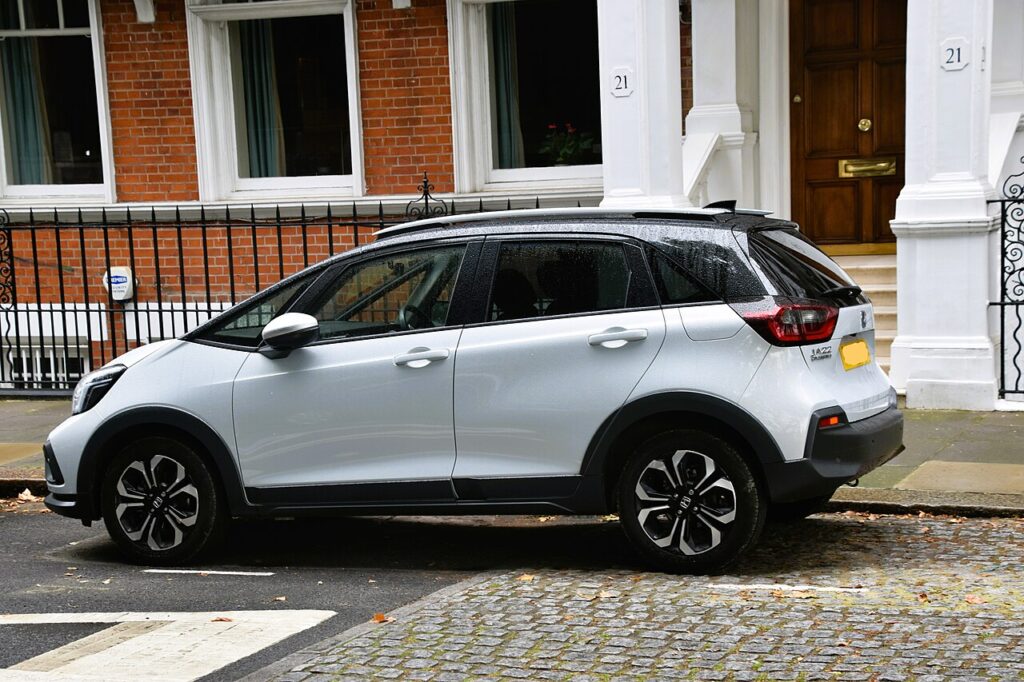
Which screen the Mk4 Jazz uses
The fourth-generation Jazz, sold only as the e:HEV hybrid in Europe, uses a 9-inch touchscreen running Honda’s newer infotainment software. This generation marks Honda’s return to physical controls: a proper volume knob sits below the screen, alongside hard shortcut buttons, after the touch-only volume on the previous Jazz drew complaints. A frozen screen is a software lock-up — the hybrid drivetrain, climate and safety systems keep working while only the display sticks. The reboot is held from the power/volume knob.
Soft reset (reboot) the screen
Park with the car in READY (power on) so the unit stays powered.
- Find the Volume / Power knob below the screen.
- Press and hold it.
- Keep holding for about 5–10 seconds until the screen goes black and the Honda logo appears.
- If a pop-up asks whether to reboot, choose Yes; otherwise just release.
- Allow 30–60 seconds for the home screen to reload before expecting touch and audio to respond.
Safe — it loses no data
This reboot is harmless. It does not delete radio presets, paired phones, call history or saved settings — the unit simply reloads its software, like restarting a phone. Repeat as often as needed.
If it stays frozen
- Hold longer. If a short hold did nothing, retry and hold the knob for a full 20–30 seconds.
- Suspect CarPlay/Android Auto. Many Mk4 Jazz freezes follow a phone-projection session — turn off the phone’s Bluetooth, unplug the cable, delete the pairing on both devices, swap to a known-good certified lead and re-pair.
- Power-cycle properly. Switch the car off, open the door, lock it and walk away for a couple of minutes so the head unit sleeps, then restart.
- Pull the audio fuse. With the car off, remove the head-unit fuse from the fuse box (check the lid diagram), wait around 15 seconds and refit it — this hard-cuts power when a knob hold will not clear the lock.
Factory reset (erases data)
A factory reset is separate from the reboot and only worth doing if you are selling the car or chasing a stubborn glitch. On the touchscreen go to Settings → System → Factory Data Reset (or Default all settings) and confirm. It wipes paired phones, call history, presets, navigation favourites and all personal settings back to factory defaults, so do it on purpose.
Frequently Asked Questions
Does the Mk4 Jazz have a volume knob?
Yes. Honda put a physical volume knob (plus hard shortcut buttons) back below the 9-inch screen on the Mk4 Jazz, reversing the touch-only volume of the previous generation — and that knob is what you press and hold to reboot a frozen screen.
Will rebooting lose my presets and paired phone?
No. The knob-hold restart keeps every preset, favourite and pairing. Only the Factory Data Reset in Settings clears them.
My screen only freezes with CarPlay or Android Auto — how do I stop it?
Use a different certified cable, delete and re-create the pairing, and keep the head-unit software up to date at a dealer. Most Mk4 Jazz freezes are phone-projection or cable related, and a fresh cable plus re-pair fixes them.
Is it safe to drive with the screen frozen?
Yes. The head unit is independent of the hybrid drivetrain and brakes — you only lose audio, phone and navigation. Reboot when safely parked.
Where is the audio fuse if the knob hold does nothing?
Check the fuse-box lid diagram for the radio/head-unit fuse. With the car off, pull it for about 15 seconds and refit it to force-restart the unit when a button hold will not.
If a warning light or fault message stays on the dash after the reboot, the car may have stored a diagnostic trouble code — you can look it up on autodtcs.com.
Independent guide — not affiliated with Honda. Always follow your official service manual and safety precautions. Read our full disclaimer.