These instructions apply to the Hyundai Kona Mk1 (OS) 2017-2023.
For other models, please choose your vehicle here.
A frozen touchscreen in your Hyundai Kona Mk1 (OS, 2017–2023) — whether it’s the small 7-inch Display Audio or the 10.25-inch nav screen — is almost always cured by a quick reboot. If taps stop registering, the display goes black, or CarPlay hangs while the radio keeps playing, you can restart the unit yourself in under a minute and keep all your data.
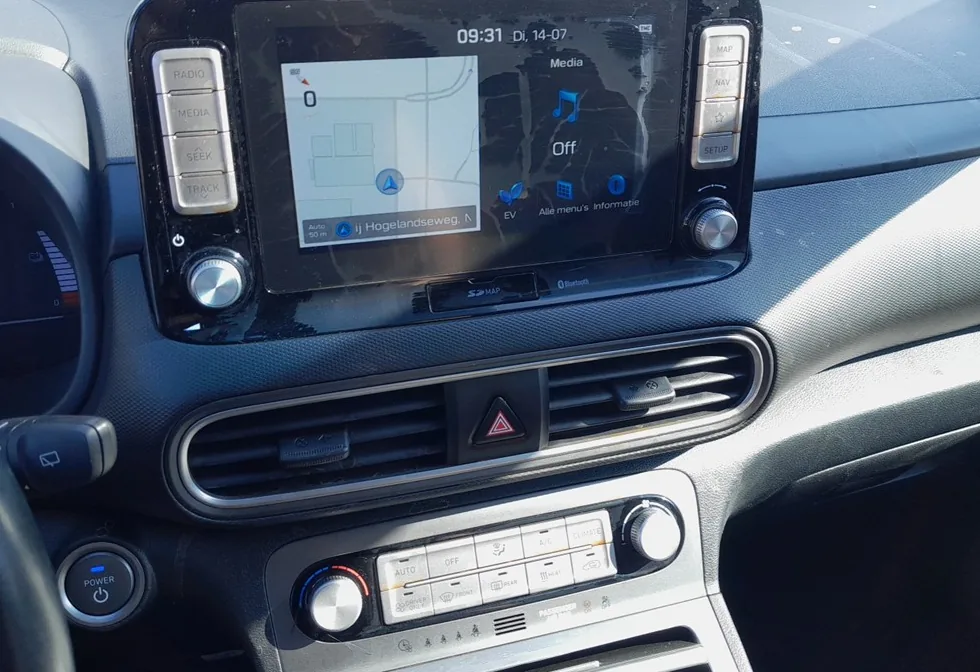
The Infotainment System in This Kona
The OS-generation Kona shipped with a 7-inch or 8-inch Display Audio unit, with an optional 10.25-inch AVN navigation system on higher trims (and on the Kona Electric). Apple CarPlay and Android Auto are wired on this car, and a dropped USB handshake is the single most common reason owners see the screen lock up. The Power / Volume knob beside the display is also the reboot control.
Soft Reset (No Data Loss)
- Keep the ignition on (engine running or ACC).
- Press and hold the Power / Volume knob for about 5–10 seconds until the screen blanks.
- The Hyundai logo appears as the unit restarts — release and wait for the home screen.
Many Kona units also have a small unmarked RESET pinhole on the faceplate near the knob; press it briefly with a straightened paperclip or pen tip for the same reboot.
This Is Safe — Nothing Is Erased
A reboot only restarts the software. Paired phones, radio presets, saved destinations and your display settings all survive.
If It Stays Frozen
- Unplug the USB cable — a worn or off-brand cable regularly locks the Kona’s CarPlay/Android Auto screen.
- Switch the ignition off, lock the car, wait 2–3 minutes, then restart.
- Update the head-unit software from update.hyundai.com via USB — Hyundai released Kona updates that fix repeat freezes and projection dropouts.
- If it still won’t clear, disconnect the 12 V battery for ~15 minutes — see our Kona Mk1 battery guide. (On the Kona Electric the 12 V is separate from the drive battery and is safe to disconnect.)
Factory Reset (Erases Your Data)
Only for persistent faults: tap Setup / Settings → General → Reset (or “Factory Reset”) and confirm. This wipes paired devices, presets, saved destinations and preferences back to factory state, so use it only when a plain reboot won’t hold.
Frequently Asked Questions
Where exactly is the reset pinhole on the Kona?
It is a tiny unmarked hole on the panel near the volume knob, on units that have one. If yours doesn’t, hold the Power / Volume knob for ~10 seconds instead.
My Kona’s CarPlay keeps dropping out — reset or cable?
Start with a genuine USB cable, then update the head unit from Hyundai. The wired-projection fixes resolve most Kona dropouts.
Will a soft reset log me out of anything?
No. Only a factory reset removes paired phones and saved data; the knob-hold keeps everything.
Is it safe to pull the battery on a Kona Electric?
Yes — the 12 V auxiliary battery is independent of the high-voltage drive battery and is the one used for an electrical reset.
Black screen, radio still playing — dead unit?
Almost never. That is the classic soft-reset scenario; hold the Power knob for 10 seconds.
If a dashboard warning light came on at the same time, decode it on autodtcs.com.
Independent guide — not affiliated with Hyundai. Always follow your official service manual and safety precautions. Read our full disclaimer.