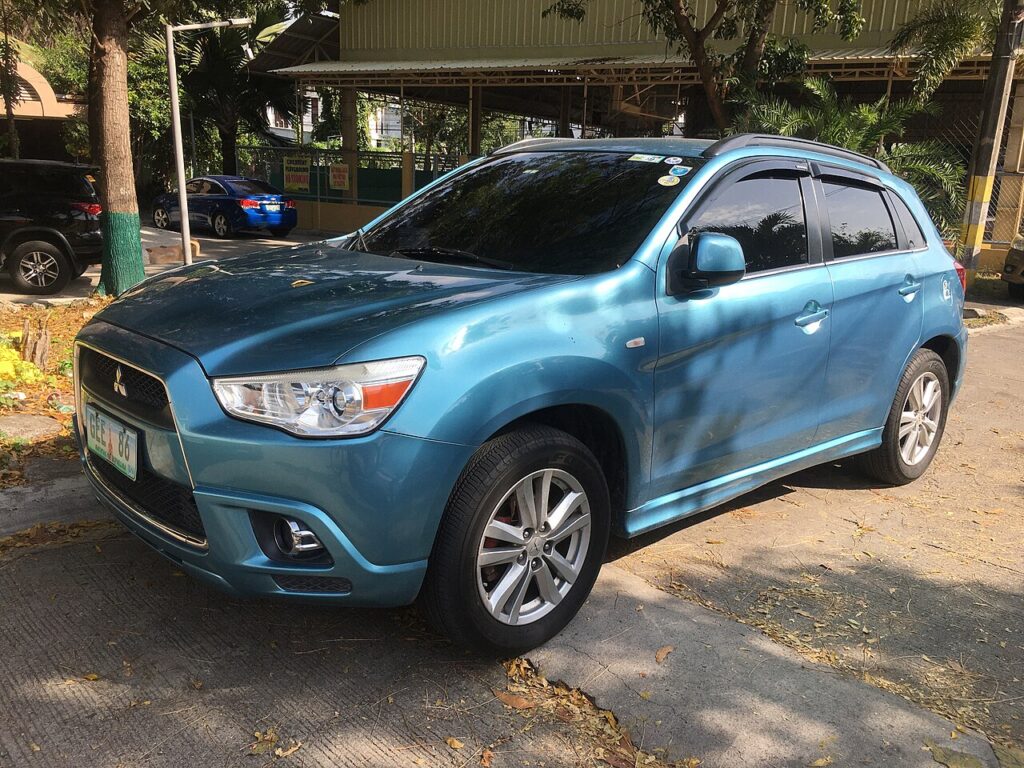
These instructions apply to the Mitsubishi ASX Mk1 (GA) 2010-2023.
For other models, please choose your vehicle here.
If the touchscreen in your Mitsubishi ASX (GA0, 2010–2023) has frozen — the audio stuck, the reversing camera locked, or the screen ignoring every tap — you almost never need a dealer. From the 2017 facelift the ASX runs Mitsubishi’s SDA (Smartphone-link Display Audio), and a forced reboot of the head unit clears a software hang in seconds without touching your settings.
Which System Your ASX Has
The long-lived ASX changed audio systems over its life. Early cars (2010–2016) used a conventional radio or an older navigation head unit. The 2017 facelift introduced the 7-inch SDA touchscreen — the Kenwood-built unit shared with the Outlander — adding Apple CarPlay and Android Auto. SDA is the system that freezes: common owner reports are a black or frozen screen, unresponsive touch, or poor Bluetooth, often after a software glitch or a dropped phone connection. A power-button reboot is the documented first step.
Soft Reset (Reboot the Screen)
- Switch the ignition to ACC/ON so the screen is powered — do this parked.
- Press and hold the Power/Volume button (the round button you press to switch the audio on/off and turn for volume) for about 10 seconds.
- Keep holding until the screen goes black and the MITSUBISHI logo reappears.
- Release. SDA reboots in 20–30 seconds and returns to the home screen.
Safe — No Data Lost
This reboot is safe. Radio presets, paired phones, and your CarPlay/Android Auto setup survive the power-button hold — it simply restarts the head unit like rebooting a phone. Do it as often as the screen misbehaves.
If It Stays Frozen
- Hold the button longer — up to 20 seconds — if 10 didn’t bring up the logo.
- Switch off, lock the car, and wait 5–10 minutes. Letting the unit power down fully clears a deeper hang.
- Use the recessed RESET button if the screen has one (a pinhole near the controls). Pressing it reboots the unit and clears its volatile state — note it can also clear presets on some versions.
- Delete and re-pair your phone if the freeze only happens with CarPlay, Android Auto, or Bluetooth connected.
- Check for an SDA software update. Mitsubishi issued software updates for unresponsive SDA screens; an out-of-date unit is more prone to freezing.
Factory Reset (Erases Data)
Only needed if SDA stays unstable. With the screen responsive, go to Settings → General → Factory data reset (wording varies by software version) and confirm. This wipes presets, pairings, and any saved data and returns SDA to its as-delivered state, so use the soft reset first.
Frequently Asked Questions
My early ASX has a basic radio — does the reboot apply?
No. Pre-2017 cars without the SDA touchscreen have no software to reboot. If the radio misbehaves, switch the ignition off and on, or pull the audio fuse briefly.
Will the power-button reboot delete my presets?
No. The 10-second hold only restarts the unit. Presets and pairings are kept; the dedicated RESET pinhole or the factory-reset menu is what clears saved data.
What is the difference between the RESET button and the power hold?
The power hold is a clean software reboot that keeps your settings. The recessed RESET button forces a harder restart and on some SDA versions also clears presets — use the power hold first.
Why does my ASX screen go black on startup?
A black screen at start-up is a common SDA glitch. A power-button reboot usually restores it; if it recurs, a dealer software update is the longer-term fix.
Can I reboot the screen while driving?
You can, but do it parked. The screen blanks for around half a minute, removing the reversing camera and audio while SDA restarts.
If a warning light or stored fault appears alongside the freeze, read the code first on autodtcs.com.
Independent guide — not affiliated with Mitsubishi. Always follow your official service manual and safety precautions. Read our full disclaimer.