These instructions apply to the Mitsubishi Outlander Mk3 (GF) 2012-2021.
For other models, please choose your vehicle here.
If the central touchscreen in your Mitsubishi Outlander (Mk3/GF/GG, 2012–2021) has frozen — the audio stuck, the navigation locked, or the screen ignoring your taps — you almost never need a dealer. On the facelifted cars the Outlander runs Mitsubishi’s SDA (Smartphone-link Display Audio), and a forced reboot of the head unit clears a software hang in seconds without touching your settings.
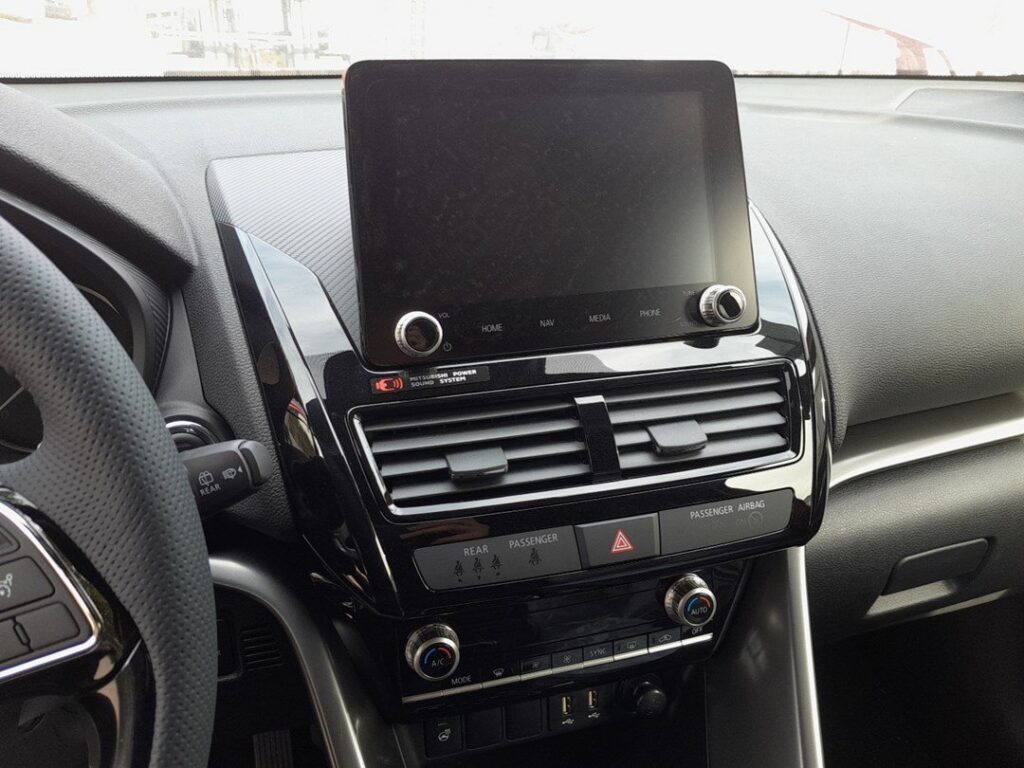
Which System Your Outlander Has
The Mk3 Outlander, including the popular Outlander PHEV, was sold with more than one head unit. Earlier cars had a conventional navigation or radio unit; from the 2016 facelift onward most Outlanders carry the 7-inch SDA touchscreen — the Kenwood-built system with Apple CarPlay and Android Auto, shared with the ASX. SDA is the unit prone to freezing: owners commonly report a frozen or black screen, unresponsive touch, or dropped Bluetooth, usually after a software glitch or a poor phone connection. A power-button reboot is the documented first fix.
Soft Reset (Reboot the Screen)
- Switch the ignition to ACC/ON so the screen is powered — do this parked. On the PHEV, switch to READY/ACC rather than driving.
- Press and hold the Power/Volume button (the round button you press to switch the audio on/off, turn for volume) for about 10 seconds.
- Keep holding until the screen goes black and the MITSUBISHI logo reappears.
- Release. SDA reboots in 20–30 seconds and returns to the home screen.
Safe — No Data Lost
This reboot is safe. Radio presets, paired phones, and your CarPlay/Android Auto setup survive the power-button hold — it simply restarts the head unit like rebooting a phone. On the PHEV, charging schedules and the remote-control app settings are stored separately and are unaffected. Repeat it whenever the screen plays up.
If It Stays Frozen
- Hold the button longer — up to 20 seconds — if 10 didn’t bring up the logo.
- Switch off, lock the car, and wait 5–10 minutes. A full power-down once the car sleeps clears a deeper hang.
- Use the recessed RESET button if the unit has one (a pinhole near the controls) to force a harder restart — note it can clear presets on some versions.
- Delete and re-pair your phone if the freeze only happens with CarPlay, Android Auto, or Bluetooth active.
- Check for an SDA software update. Mitsubishi released updates for unresponsive SDA screens; an out-of-date unit freezes more often.
Factory Reset (Erases Data)
Only needed if SDA stays unstable. With the screen responsive, go to Settings → General → Factory data reset (wording varies by software version) and confirm. This wipes presets, pairings, and saved data and returns SDA to its delivered state, so use the soft reset first.
Frequently Asked Questions
Will rebooting the screen affect my PHEV charging or remote app?
No. On the Outlander PHEV the charging timer and remote-control app settings are stored separately from the SDA head unit, so a screen reboot leaves them untouched.
Will the power-button hold delete my presets?
No. The 10-second hold only restarts the unit. Presets and pairings are kept; the recessed RESET pinhole or the factory-reset menu is what clears saved data.
My early Outlander has a different nav unit — same reset?
Pre-facelift cars may have an older head unit rather than SDA. The power/volume-hold reboot still applies to most touchscreens, but the factory-reset menu wording will differ; check that car’s own settings menu.
Why does my Outlander screen freeze or go black?
A frozen or black SDA screen is a common software glitch on this generation. A power-button reboot usually restores it; a dealer software update is the lasting fix if it recurs.
Can I reboot the screen while driving?
You can, but do it parked. The screen blanks for around half a minute, removing the reversing camera and audio while SDA restarts.
If a warning light or stored fault appears alongside the freeze, read the code first on autodtcs.com.
Independent guide — not affiliated with Mitsubishi. Always follow your official service manual and safety precautions. Read our full disclaimer.