These instructions apply to the Toyota Corolla Mk12 (E210) 2019-Present.
For other models, please choose your vehicle here.
If the touchscreen in your Toyota Corolla (Mk12/E210, 2019–Present) freezes — map stuck, audio unresponsive, taps ignored — you almost never need a dealer. It is a software hang, and force-rebooting the head unit clears it in seconds without touching any of your settings.
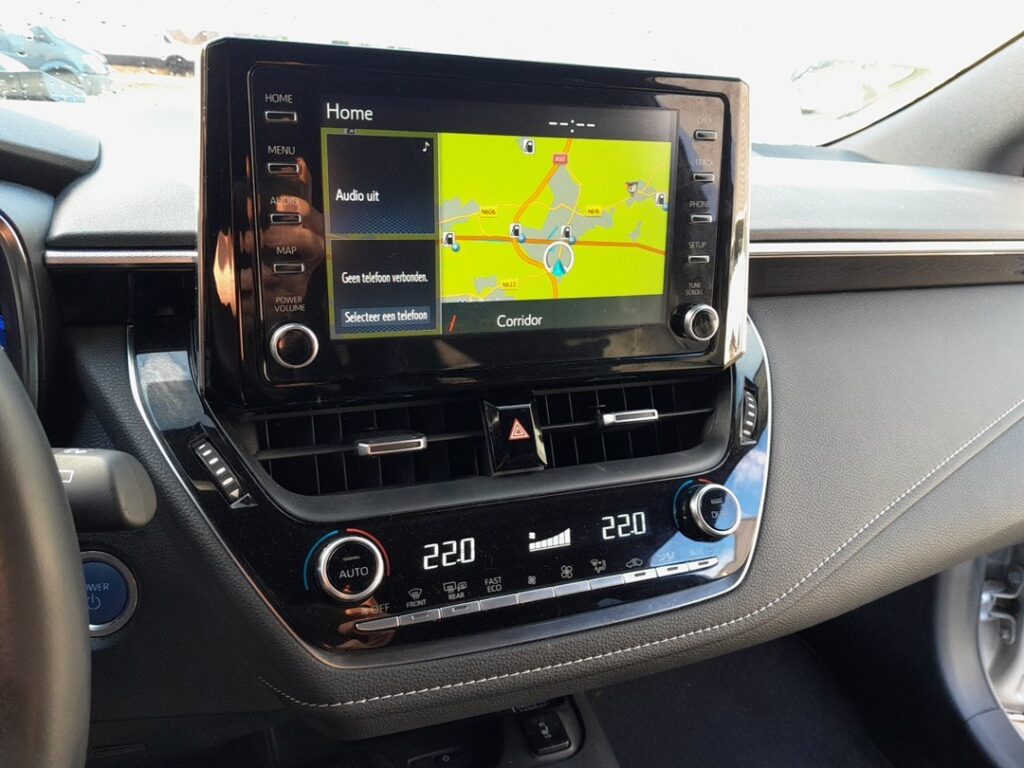
Before you start
- Pre-facelift E210 cars (2019–2022) run Toyota Touch 2 with Go — the 8-inch unit with the rotary Power/Volume knob to the left of the screen; the 2023 facelift uses Toyota Smart Connect. The reboot is identical on both — only the factory-reset menu wording differs.
- Early Touch 2 with Go units are known to lag or freeze after long drives or a half-finished map update, so a periodic reboot is normal owner maintenance, not a defect.
Soft Reset (Reboot the Screen)
- Leave the ignition on (or the car running) — do not do this while driving.
- Press and hold the Power/Volume knob — the rotary dial to the left of the screen — for about 10 to 15 seconds.
- Keep holding until the screen goes black and the Toyota logo reappears.
- Let go. The system finishes booting in 20–30 seconds and the home screen returns.
If It Stays Frozen
- Hold the knob longer — up to a full 20 seconds — if 10 seconds didn’t trigger the logo.
- Switch the ignition fully off, lock the car, and walk away for 5 minutes. This lets the unit power down completely once the car sleeps, which clears a deeper hang.
- Check for a software/map update. Many early E210 freezes were fixed by a dealer software update; on Smart Connect cars the update can arrive over the air once connected.
- Unpair and re-pair your phone if the freeze only happens with CarPlay or Android Auto connected (added to this generation by a 2019 update).
Factory Reset (Erases Data)
Only needed if the system is repeatedly unstable. On Touch 2 with Go go to Setup → General → Delete personal data (or Restore factory settings). On the 2023 Smart Connect facelift it is Settings → General → Factory reset. This wipes presets, pairings, favourites, and logins, so use the soft reset first.
Frequently Asked Questions
Will rebooting delete my saved radio stations or paired phone?
No. Holding the Power/Volume knob only restarts the unit — your presets and Bluetooth pairings are kept. Only a factory reset from the menu erases them.
My 2023 Corolla has Smart Connect — does the same hold work?
Yes. The reboot via the Power/Volume knob works on both the older Touch 2 with Go and the newer Smart Connect unit; only the factory-reset menu path differs.
Why does my Corolla’s screen keep freezing after a long drive?
Early Touch 2 with Go units are prone to lag and freezing after extended use. A reboot clears it; a dealer software update is the longer-term fix.
If a warning light or stored fault accompanies the freeze, read the code first on autodtcs.com.
Independent guide — not affiliated with Toyota. Always follow your official service manual and safety precautions. Read our full disclaimer.