These instructions apply to the Toyota RAV4 Mk4 (XA40) 2013-2018.
For other models, please choose your vehicle here.
If the central screen in your Toyota RAV4 (Mk4/XA40, 2013–2018) has frozen — unresponsive to touch, stuck on a screen, or gone black — you can usually clear it with a forced reboot of the head unit. It’s a software hang, not a fault, and the restart keeps all your settings.
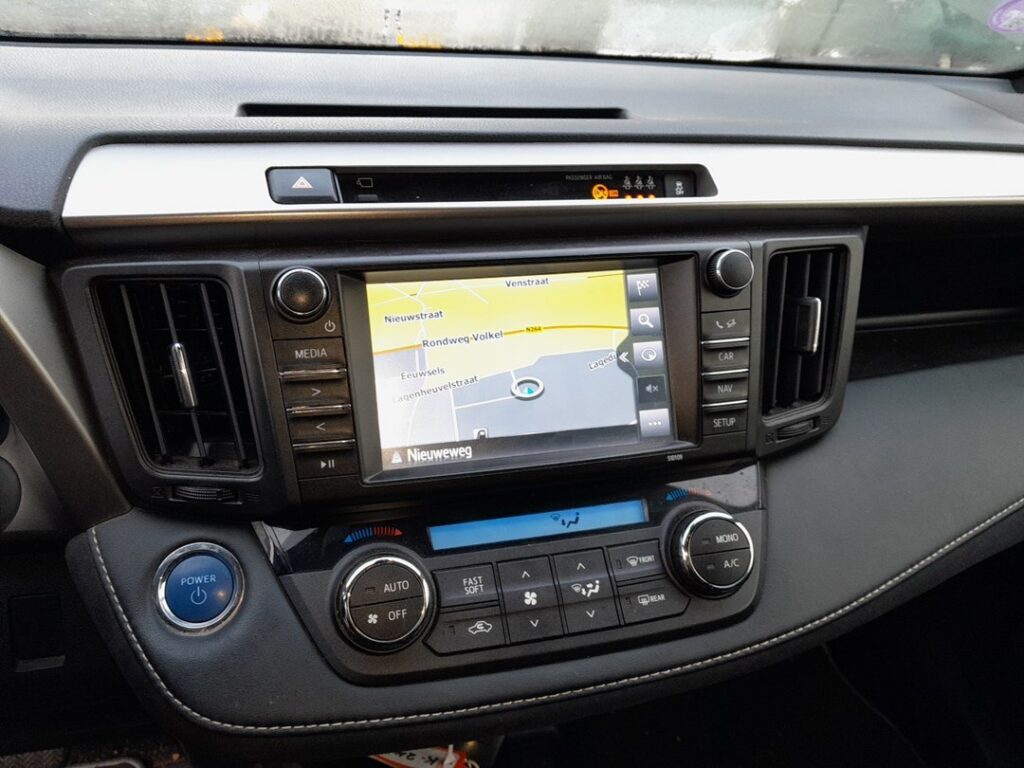
Which System Your RAV4 Has
The XA40 RAV4 was sold with Toyota Touch 2 and Toyota Touch 2 with Go (the version with built-in navigation), generally on a 6.1-inch or 7-inch display with a Power/Volume knob beside the screen. Very early cars (2013) may carry the older first-generation Toyota Touch. The 2016 facelift refreshed the unit but kept the same Touch 2 family. These units predate Apple CarPlay and Android Auto, and they can lag or freeze with age — a reboot is the standard owner fix.
Soft Reset (Reboot the Screen)
- Switch the ignition on (engine running or accessory on), parked.
- Press and hold the Power/Volume knob beside the screen for about 10 to 15 seconds.
- Keep holding until the screen goes black and the Toyota logo appears.
- Release. The unit reboots and the home screen returns within about 30 seconds.
Safe — No Data Lost
This reboot is safe. Radio presets, paired phones and navigation favourites all survive — holding the knob simply power-cycles the head unit, the same as restarting a phone. You can do it whenever the screen stops responding.
If It Stays Frozen
- Hold the knob the full 15–20 seconds if the logo doesn’t appear at first.
- Turn the ignition off, lock the car, and walk away for 5 minutes. Letting the car sleep removes power from the unit and clears a deeper hang.
- Check for a map/software update. On Touch 2 with Go, an out-of-date or interrupted map update can cause repeat freezing; a dealer or the Toyota map portal can update it.
- Re-pair Bluetooth — delete the phone from the car and the car from the phone, then pair again — if the freeze follows a connection.
- As a last resort, disconnecting the 12V battery for a few minutes power-cycles the whole car, including the head unit — but note this clears other stored settings too.
Factory Reset (Erases Data)
If the unit freezes repeatedly, a factory reset clears corrupt data. Go to Setup → General → Delete personal data (some menus show Restore factory settings). This erases presets, pairings and favourites, so use it only after the reboot and an update have failed.
Frequently Asked Questions
Does the Mk4 RAV4 have Apple CarPlay?
No. The Touch 2 family in the 2013–2018 RAV4 predates CarPlay and Android Auto, and a reset cannot add them — only an aftermarket head unit can.
Will the reboot delete my saved radio stations?
No. The Power/Volume hold only restarts the unit; presets and pairings are kept. Only a factory reset from the menu erases them.
The screen is black but the audio still plays — what now?
That’s a classic display hang. The knob reboot usually restores the picture; if it returns often, ask about a software update or a failing screen.
Why does my older RAV4 freeze more as it ages?
The Touch 2 unit slows and hangs more over years of use and accumulated data. Regular reboots help; a factory reset and update give it a cleaner start.
Is disconnecting the battery safe to unfreeze it?
It works as a last resort but also clears clock, presets and some other settings, so try the knob reboot and the sleep method first.
If a fault code is stored with the freeze, look it up first on autodtcs.com.
Independent guide — not affiliated with Toyota. Always follow your official service manual and safety precautions. Read our full disclaimer.