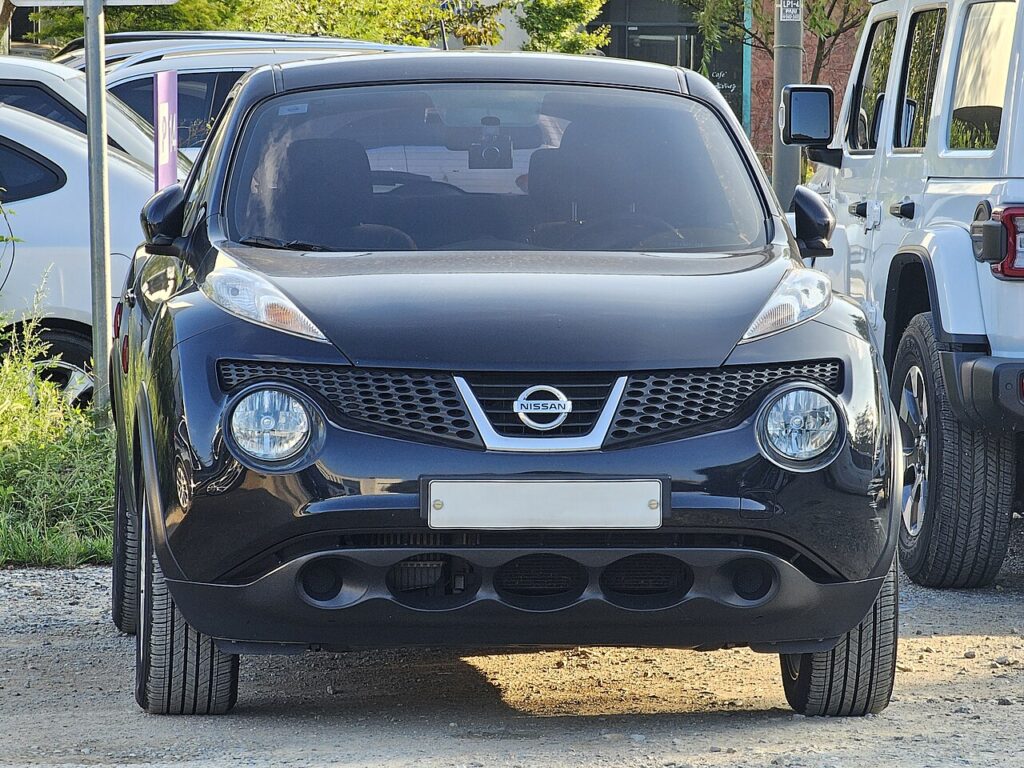
These instructions apply to the Nissan Juke Mk1 (F15) 2010-2019.
For other models, please choose your vehicle here.
A Nissan Juke F15 (2010–2019) remote that only works close up, or has stopped responding, almost always just needs a fresh coin cell. The exact cell and the way the fob opens depend on whether you have the Intelligent (keyless) key or the plain remote, so this guide covers both — plus why a new key needs a dealer.
Battery First
A weak cell is by far the most common reason a Juke remote becomes unreliable, so fit a new one before suspecting the car. The Intelligent Key carries a mechanical emergency blade that opens the driver’s door if the fob is flat.
Replacing the Fob Battery
Type 1 — Intelligent (keyless) key:
- Pull out the mechanical key from the fob.
- Remove the key cover with a screwdriver — take care not to touch the terminals.
- Lift out the old cell and fit a new CR2025 the same way round.
- Refit the cover and the mechanical key, then test.
Type 2 — standard remote key:
- Remove the screw, then prise the cases apart with a screwdriver — don’t damage the case or touch the circuit board.
- Fit a new CR1620, observing polarity.
- Refit the cases and screw, then check the remote locks and unlocks.
Lost Key or Adding a Spare
A battery swap keeps the existing coding. Programming a new key — up to four can be registered — requires Nissan’s diagnostic tool through the immobiliser, so it is a dealer or auto-locksmith job.
If a Fresh Cell Doesn’t Help
- Confirm the cell size — CR2025 for the Intelligent Key, CR1620 for the standard remote.
- Check polarity and the contacts, and don’t touch the board with wet hands.
- Intelligent Key still dead? Hold it against the start button to start the car, and check for a stored code on autodtcs.com.
Frequently Asked Questions
What battery does the Juke F15 key use?
A CR2025 in the Intelligent (keyless) key, or a CR1620 in the standard remote — check the old one.
Do I need to reprogram after the swap?
No — coding is retained; only a new key needs programming.
Can I program a new Juke key myself?
No — it requires Nissan’s diagnostic tool, so it’s a dealer or locksmith job.
How do I open the Intelligent Key?
Pull out the mechanical blade first, then lift the key cover off with a small screwdriver.
If the remote stopped working after a battery disconnection, see our Juke F15 battery disconnect/reconnect guide.
Independent guide — not affiliated with Nissan. Always follow your official service manual and safety precautions. Read our full disclaimer.