These instructions apply to the Hyundai i10 Mk3 (AC3) 2020-Present.
For other models, please choose your vehicle here.
When the touchscreen in your Hyundai i10 Mk3 (AC3, 2020–present) freezes — the clock stops, taps do nothing, or the radio audio keeps playing over a dead display — you can almost always fix it yourself in under a minute. The third-generation i10 uses Hyundai’s 8-inch Display Audio head unit (no built-in navigation on most trims; mapping comes from your phone via Apple CarPlay or Android Auto), and it reboots without losing any of your settings.
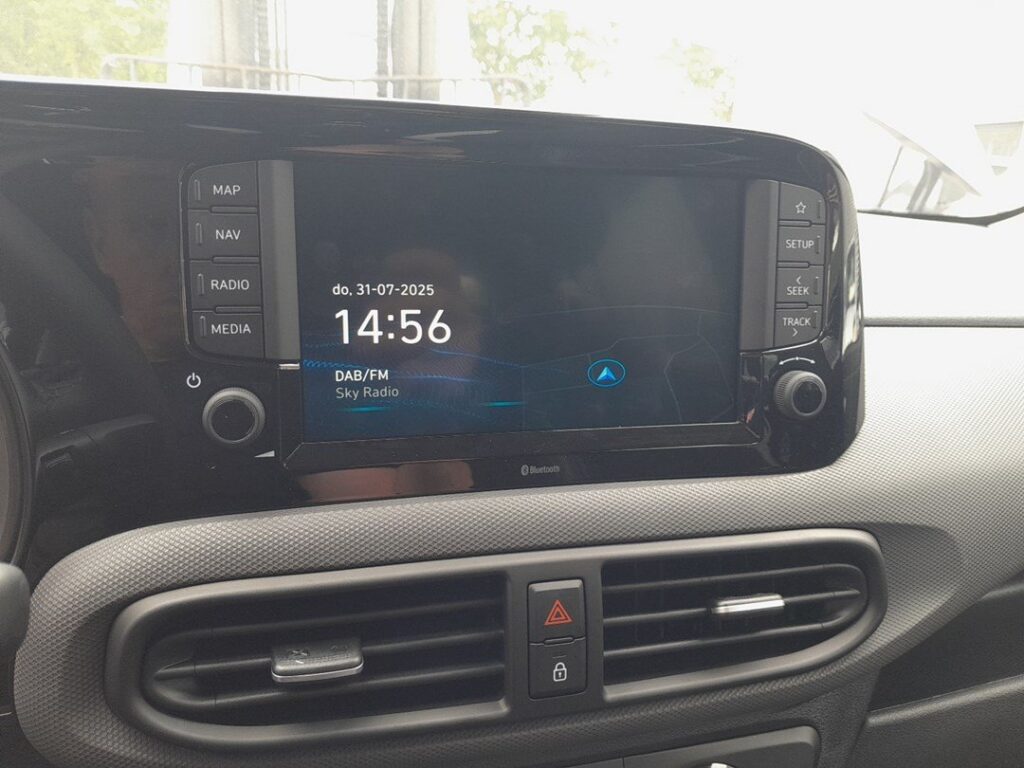
The Display Audio System in This i10
The i10 Mk3 runs a compact Display Audio unit with a row of physical buttons and two rotary knobs flanking the screen. The left-hand knob is the Power / Volume control — press it to mute, turn it to adjust volume, and hold it to reboot. CarPlay and Android Auto are wired (USB) on this car, which is the usual source of the “screen froze when I plugged my phone in” complaint.
Soft Reset (No Data Loss)
- Leave the ignition on (engine running or in ACC).
- Press and hold the Power / Volume knob for about 5–10 seconds.
- The screen goes dark, then the Hyundai logo reappears as the unit restarts.
- Release the knob and wait for the home screen to load.
If the i10’s unit has a small RESET pinhole on the faceplate near the knobs, you can instead press it briefly with a straightened paperclip or pen tip for the same reboot.
This Is Safe — Nothing Is Erased
A soft reset only restarts the software. Your paired phones, radio presets, and display preferences are all kept. It is the same as restarting a phone.
If It Stays Frozen
- Unplug the USB cable — a faulty cable or phone handshake often locks CarPlay/Android Auto.
- Switch the ignition fully off, open and lock the car, wait 2–3 minutes, then restart.
- Update the head-unit software from update.hyundai.com via USB — Hyundai has issued patches that cure repeat freezes and phone-projection dropouts on the i10.
- As a last resort, disconnect the 12 V battery for 15 minutes — see our i10 Mk3 battery guide.
Factory Reset (Erases Your Data)
Only if the unit is genuinely misbehaving: tap Setup / Settings → General → Reset (sometimes “Factory Reset”) and confirm. This wipes paired devices, presets and preferences back to showroom state, so use it only when a plain reboot will not stick.
Frequently Asked Questions
Will holding the knob delete my radio presets?
No. The knob-hold is a soft reboot only — presets, paired phones and settings survive.
My i10 screen freezes every time I plug in CarPlay — why?
Usually a worn USB cable or an out-of-date head unit. Try a known-good Apple/genuine cable first, then install the latest Display Audio update from Hyundai.
Where is the reset pinhole on the i10?
If fitted, it is a tiny unmarked hole on the panel near the volume knob. Not every i10 trim has one — the knob-hold works on all of them.
The screen is black but the radio still plays. Is the unit dead?
Almost never. A black screen with working audio is the classic case a soft reset fixes — hold the Power knob for 10 seconds.
Do I lose my CarPlay setup after a reset?
A soft reset keeps it. Only a factory reset removes paired phones, after which you reconnect once.
If a dashboard warning light appeared alongside the glitch, look the code up on autodtcs.com.
Independent guide — not affiliated with Hyundai. Always follow your official service manual and safety precautions. Read our full disclaimer.