These instructions apply to the Hyundai Bayon Mk1 (BC3) 2021-Present.
For other models, please choose your vehicle here.
The Hyundai Bayon (BC3 CUV, 2021–present) shares its dashboard and electronics with the current i20, so its infotainment — up to a 10.25-inch touchscreen with optional navigation and Bluelink — behaves the same way when it misbehaves. If the screen freezes, blacks out, or stops responding while the radio plays on, you can reboot it yourself in seconds and keep all your settings.
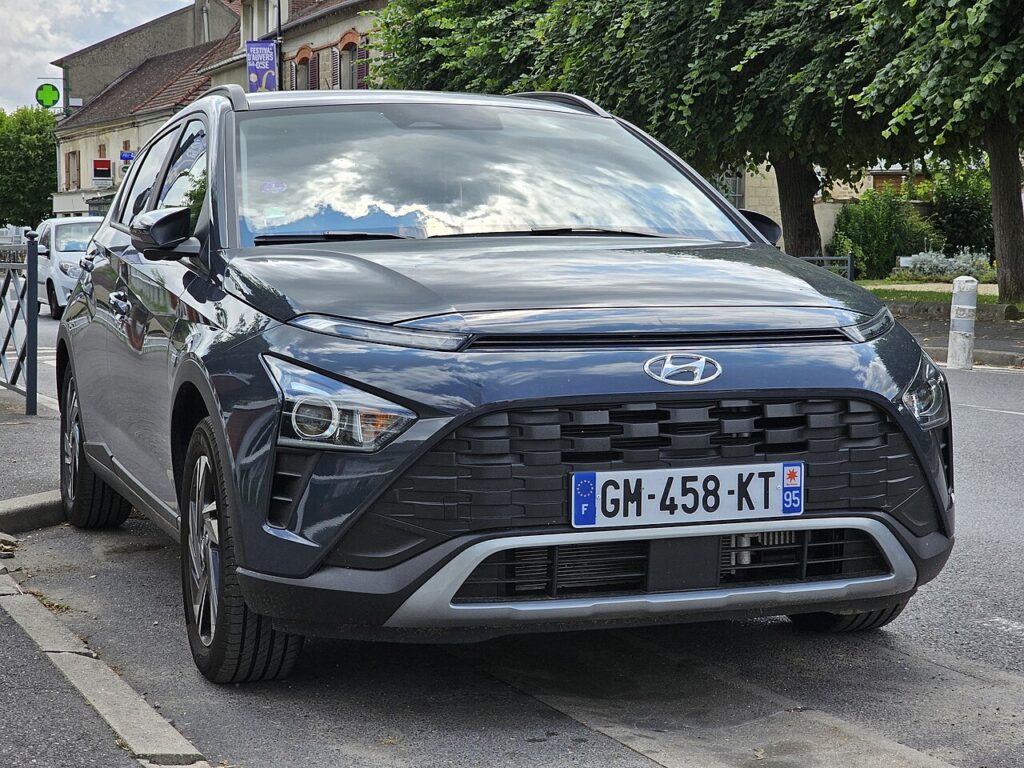
The Infotainment System in This Bayon
The Bayon offers an 8-inch Display Audio or the larger 10.25-inch AVN navigation unit with Bluelink connected services, and higher trims add wireless Apple CarPlay and Android Auto. Because the platform is i20-based, the same wireless-projection dropouts and map-screen freezes show up — and the same fixes apply. The Power / Volume knob beside the screen is the reboot control.
Soft Reset (No Data Loss)
- Keep the ignition on (engine running or ACC).
- Press and hold the Power / Volume knob for about 5–10 seconds until the display blanks.
- The Hyundai logo appears as the unit restarts — release and wait for the home screen.
If your Bayon’s unit has a small RESET pinhole on the faceplate near the knob, press it briefly with a paperclip or pen tip for the same reboot.
This Is Safe — Nothing Is Erased
A reboot restarts the software only. Your Bluelink login, saved destinations, paired phones, presets and preferences all remain.
If It Stays Frozen
- If on wired projection, unplug the USB cable; if wireless, toggle the phone’s Bluetooth or “forget” the car and re-pair.
- Switch the ignition off, lock the car, wait a couple of minutes, then restart.
- Install the latest software from update.hyundai.com — the i20/Bayon updates specifically address wireless-CarPlay/Android-Auto dropouts and freezes.
- Still stuck? Disconnect the 12 V battery for ~15 minutes — see our Bayon battery guide.
Factory Reset (Erases Your Data)
Only for persistent faults: tap Setup / Settings → General → Reset (or “Factory data reset”) and confirm. This wipes Bluelink, paired devices, saved destinations and presets back to factory state, so you’ll need to set everything up again.
Frequently Asked Questions
Is the Bayon’s infotainment the same as the i20’s?
Yes — the Bayon is built on the BC3 platform alongside the i20 and uses the same head units, so the reset steps and the relevant software updates are identical.
My wireless CarPlay keeps freezing — what fixes it?
Re-pair the phone, then install the current head-unit update from Hyundai; the wireless-projection patches resolve the recurring hangs.
Does the knob-hold delete my Bluelink account?
No. A soft reset keeps Bluelink and all saved data; only a factory reset signs you out.
Where is the reset button on the Bayon?
It is the Power / Volume knob — hold it ~10 seconds. Some units also have a small reset pinhole near the knob.
Black screen but audio still plays — is it broken?
Almost never. That is the classic soft-reset case — hold the Power knob for 10 seconds.
If a dashboard warning light came on at the same time, decode it on autodtcs.com.
Independent guide — not affiliated with Hyundai. Always follow your official service manual and safety precautions. Read our full disclaimer.