These instructions apply to the Renault Clio Mk5 (XJA) 2019-Present.
For other models, please choose your vehicle here.
If the touchscreen in your Renault Clio (Mk5, 2019–Present) has frozen, gone black, or stopped answering taps, you can force the system to reboot yourself in under a minute — no garage, no tools, and without losing your presets or paired phone.
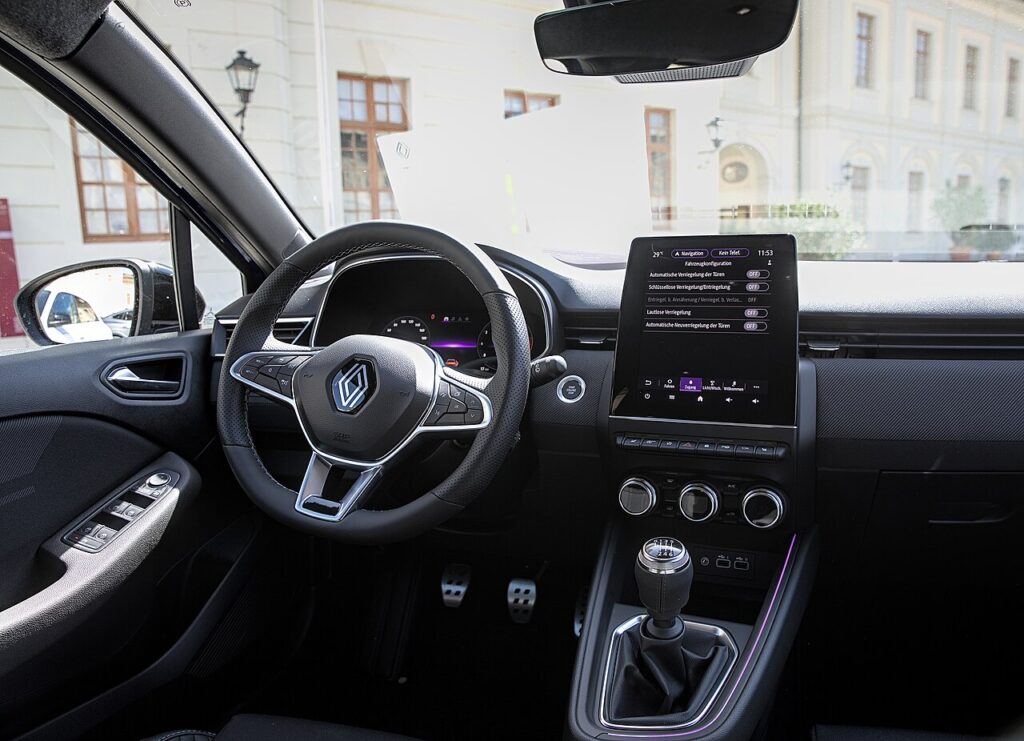
Which system is in your Mk5 Clio
The fifth-generation Clio dropped MediaNav and moved to Renault’s Easy Link platform. Lower trims have a landscape 7-inch screen; higher trims have the tall portrait 9.3-inch touchscreen. Both run the same Easy Link software, and both can occasionally freeze — most often when the system memory fills up or during a connected-services update. A freeze is a software lock-up in the head unit, not a dead screen, and the cure is to force a restart.
Soft reset (reboot) the screen
Do this parked, with the ignition on so the unit keeps its power.
- Find the Easy Link on/off button — the physical power/volume control on the screen surround (or the on-screen power icon on the home bar).
- Press and hold it — keep your finger down past the point where the audio mutes.
- Hold for at least 5–10 seconds; on a deep freeze keep holding up to about 20 seconds.
- When the screen goes black and the Renault logo returns, release. The system is rebooting.
- Wait up to a minute for the home screen to reload; radio, Bluetooth and Android Auto/Apple CarPlay come back on their own.
Safe — it loses no data
The Easy Link reboot is completely safe. It does not wipe your radio presets, navigation favourites, paired phones, or driver settings — it simply restarts the software, like restarting a phone. Use it as often as the screen plays up.
If it stays frozen
- Hold longer. If 10 seconds did nothing, retry and hold the on/off button a full 20 seconds before releasing at the logo.
- Clear the memory. Renault notes Easy Link can freeze when storage is full — after the reboot, delete old navigation downloads and unused profiles from Settings to stop it recurring.
- Let the car sleep. Switch off, lock it, and walk away for about ten minutes so the electronics power down; then unlock and restart.
- Don’t interrupt an update. If the screen froze mid software-update, leave the ignition on and let it finish — pulling power during a flash can leave it stuck on the logo.
Factory reset (erases data — rarely needed)
A factory reset is separate from the reboot and only worth doing if you are selling the car or chasing a deep, persistent glitch. From the home screen go to Settings → System and choose Reset / restore factory settings. It erases presets, paired phones, profiles and navigation history, so only do it deliberately.
Frequently Asked Questions
Will I lose my radio presets or paired phone?
No. The on/off-button reboot keeps every preset, navigation favourite and Bluetooth pairing. Only the menu-driven factory reset clears them.
Why does my Easy Link screen keep freezing?
Renault links many Easy Link freezes to full system memory — clearing old map downloads and unused profiles after a reboot often stops it. A pending software update is the other common cause.
My portrait 9.3-inch screen is completely black — what now?
Hold the on/off button for a full 20 seconds. If it stays black, lock the car and leave it ten minutes so the unit fully powers down, then restart. Persistent black screens after that point need a dealer check.
Is it safe to drive with the screen frozen?
Yes. Easy Link is separate from the engine and braking systems — you only lose audio and navigation. Reboot once you are safely parked.
Can I update Easy Link myself?
Yes — download the latest software from the Renault owner site to a USB stick and install it in the car, or accept the over-the-air update prompts. Keeping it current is the best defence against repeat freezes.
If a warning light or fault message stays on the dash after the reboot, the car may have stored a diagnostic trouble code — you can look it up on autodtcs.com.
Independent guide — not affiliated with Renault. Always follow your official service manual and safety precautions. Read our full disclaimer.