These instructions apply to the Land Rover Range Rover Evoque Mk2 (L551) 2019-Present.
For other models, please choose your vehicle here.
If the touchscreen in your Land Rover Range Rover Evoque (L551, 2019–Present) has frozen, gone black, or stopped responding, you can force the infotainment system to restart yourself in well under a minute — without losing any of your settings. The L551 launched (2019–2020) with the twin-screen InControl Touch Pro Duo; the 2021 model-year update switched to the curved Pivi Pro system. The forced restart below is the same for both.
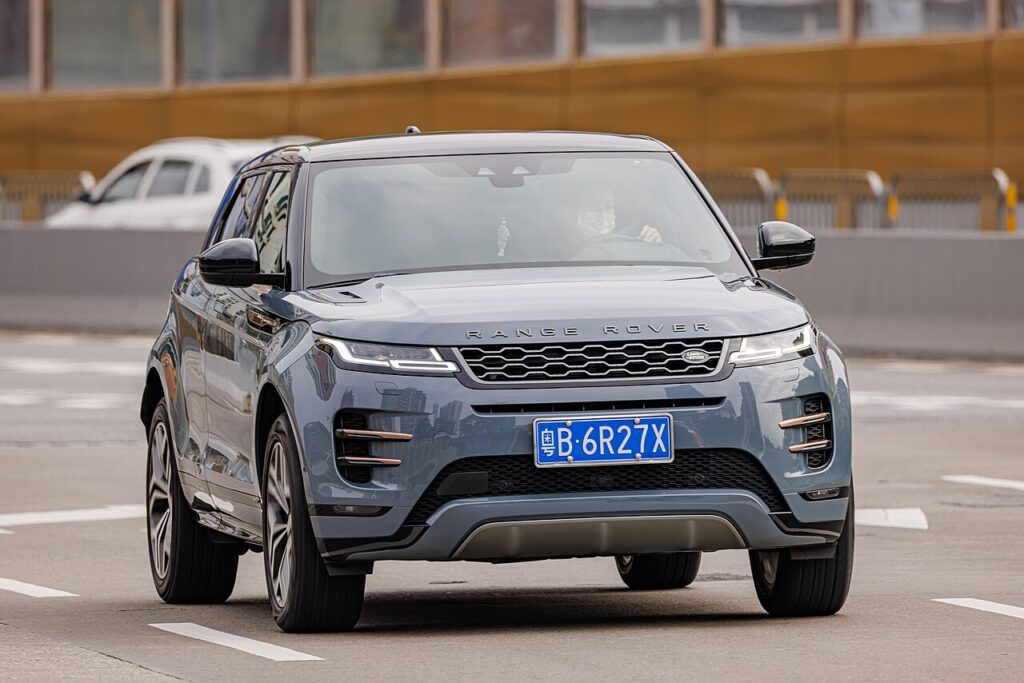
Which system your Evoque has: Touch Pro Duo or Pivi Pro
The 2019–2020 L551 shipped with the InControl Touch Pro Duo — the pair of stacked 10-inch screens, and the unit owners most often report freezing or leaving the lower screen blank. The 2021 model-year update replaced it with Pivi Pro, which runs on its own always-on power supply with a small dedicated battery so it boots almost instantly and takes over-the-air (OTA) updates. Pivi Pro hangs far less often, but either system can still lock up after an interrupted update or a glitchy CarPlay/Android Auto session. The forced restart below works the same on both.
Soft reset (force restart, keeps all data)
- Keep the vehicle switched on — sit in the car with the ignition live so the screen has power.
- Locate the rotary volume/power knob on the centre console below the display.
- Press and hold the knob. A quick press only mutes the audio, so keep holding — after several seconds the screen goes fully blank.
- Continue holding until the Land Rover logo appears, then release — that confirms the unit is rebooting.
- Let the start-up (greetings) screen load and the home screen reload fully — around 30 to 60 seconds — before tapping anything.
Is this safe? Will I lose anything?
It is entirely safe. The force-restart simply power-cycles the unit. Your profiles, paired phones, navigation favourites, presets and seat/audio settings are all retained — nothing personal is erased. Repeat it as often as you like.
If the screen stays frozen
- Try the reboot twice. Pivi Pro sometimes needs a second hold to fully recover after a bad update.
- Hold until it actually blanks. A brief press only mutes the audio; keep the knob held until the display goes dark and the logo appears.
- Facelift models (from the 2024 model year) have no central knob. Press and hold the phone button on the steering wheel instead, until the screen goes blank and the logo appears.
- Check for a pending update. A half-finished OTA update can leave the screen stuck — go to Settings → Software updates once it responds and complete or retry the install.
- Lock and leave it. Lock the car for 10 minutes so every module sleeps, then restart.
- Persistent freezing usually means a dealer software update is due, since OTA can stall on a poor signal.
Factory reset (erases personal data)
Only do this when selling the car or clearing a stubborn fault — it deletes profiles, accounts, paired devices and favourites. On Pivi Pro go to Settings → All settings → System → Reset (the wording may read Restore factory settings / Clear personal data). Confirm and let the unit reboot itself. Always try the soft restart first; a frozen screen virtually never needs a factory wipe.
Frequently Asked Questions
How do I reboot the Evoque L551 screen (Touch Pro Duo or Pivi Pro)?
Press and hold the volume/power knob on the centre console until the screen goes blank and the Land Rover logo appears, then wait for the start-up screen to reload. The same hold works on both the 2019–2020 Touch Pro Duo and the 2021-on Pivi Pro. There is no separate reset button. On facelift cars from the 2024 model year, which drop the central knob, hold the steering-wheel phone button instead.
Is Pivi Pro more reliable than the Touch Pro Duo?
Yes. The 2021-on Pivi Pro has its own backup battery, boots almost instantly and gets over-the-air updates, so it freezes far less often than the 2019–2020 Touch Pro Duo. Most hangs trace back to an interrupted OTA update or a phone-projection glitch.
Will restarting Pivi Pro delete my profile or favourites?
No. A force-restart only power-cycles the unit. Profiles, paired phones and favourites stay put. Only a deliberate factory reset removes them.
Why is my screen stuck on the Land Rover logo?
Usually a stalled software update. Hold the volume knob to force a restart; if it returns and still nags about an update, let the update finish from Settings → Software updates with a strong connection.
Do CarPlay and Android Auto survive the reset?
Yes. Your wireless CarPlay / Android Auto pairing is stored and reconnects automatically once the system has rebooted and your phone is in range.
If a fault code popped up around the freeze, decode it first on our sister site autodtcs.com to see whether it is infotainment-related or something else.
Independent guide — not affiliated with Land Rover. Always follow your official service manual and safety precautions. Read our full disclaimer.