These instructions apply to the Chevrolet Captiva (C140) 2011-2018.
For other models, please choose your vehicle here.
If the screen in your Chevrolet Captiva (C140, 2011–2018) has frozen, gone black, or stopped responding to taps, you can usually force the radio to restart yourself in about a minute — no tools, no data loss. The right method depends on which head unit your Captiva has, because the touchscreen only arrived with the later facelift.
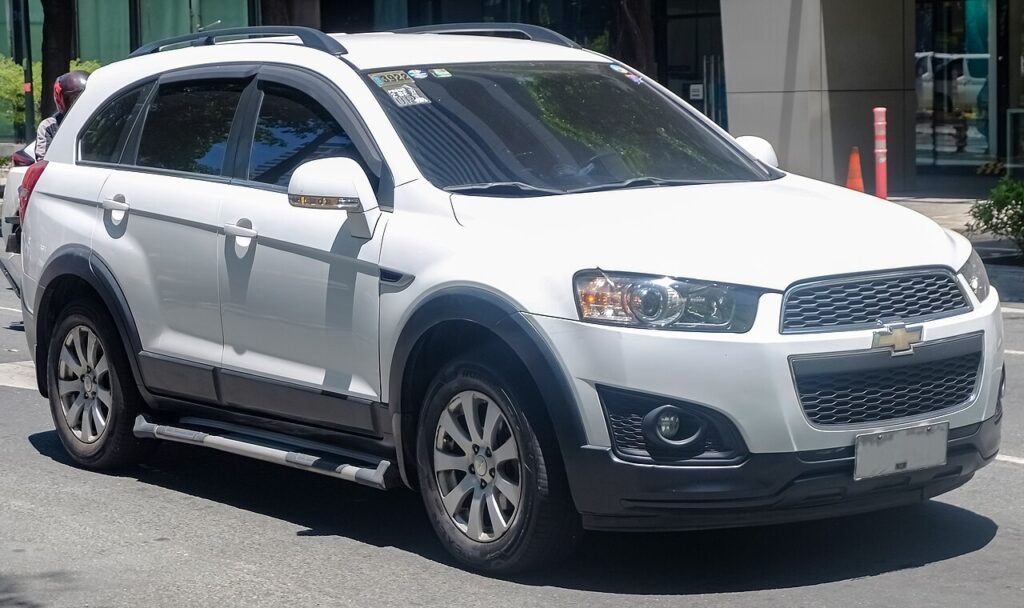
Which screen is in your Captiva
- 2011–2015 facelift cars: mostly a standard radio with a small mono/segmented display and physical buttons. No touchscreen here, so a locked radio is cured with the fuse-pull below.
- 2016–2018 (later facelift): the Captiva picked up the 7-inch MyLink colour touchscreen with Bluetooth and smartphone integration. This is the unit that actually freezes and that the button reboot is designed for.
A frozen MyLink is almost always a software lock-up inside the radio module — the car drives normally while the screen sticks. You reboot it using the unit’s hard buttons, because the touchscreen won’t answer while it’s locked.
Soft reset (reboot) the MyLink screen
Park the Captiva and keep the ignition in the ON/accessory position so the radio stays powered.
- Locate the Power/Volume knob on the MyLink unit (its centre is the on/off press).
- Press and hold that knob for about 10–15 seconds. On some 7-inch MyLink units the reboot is instead Home + Seek-forward (>>) held together for ~10 seconds.
- Hold until the screen goes black and the Chevrolet logo reappears.
- Release and give it up to a minute to reload before expecting touch and audio to respond.
Safe — it loses no data
This reboot does not erase your presets, paired phones or MyLink settings — it only reloads the software. Repeat as often as needed with no risk to saved data.
If it stays frozen
- Hold longer. If a 10-second hold did nothing, retry for a full 20–30 seconds.
- Cycle the ignition fully. Switch off, open the door, lock the car and walk away for a few minutes so the radio powers right down, then restart.
- Pull the radio fuse (reliable last resort). With everything off, remove the radio/infotainment fuse — the fuse-box lid (engine bay or dash end) lists it as “RADIO” or “INFO”. Wait 30–60 seconds and refit it for a hard power-down.
- Disconnect the battery briefly. If you cannot find the fuse, disconnecting the negative terminal for a minute does the same job — note that the larger Captiva battery is in the engine bay.
Factory reset (erases data)
Only worth doing if a recurring glitch survives a normal reboot, or you are selling the car. On the MyLink touchscreen open Settings and choose Restore / Return to factory settings. This wipes paired phones, presets, favourites and personal settings back to factory defaults — record anything you want to keep first.
Frequently Asked Questions
Does my Captiva have MyLink?
Only the later 2016–2018 facelift cars with the 7-inch colour touchscreen do. Earlier Captivas have a plain radio with a small mono display and buttons, with no touchscreen to reboot — use the fuse method for those.
Will the reboot erase my presets or paired phone?
No. Only the factory reset in Settings clears them. The button reboot keeps everything.
The screen is dead and the knob hold does nothing — what now?
Pull and refit the radio fuse, or briefly disconnect the negative battery terminal, to force a full power-down. If it still won’t wake, the unit may have a backlight or hardware fault.
Can I drive the Captiva with the screen frozen?
Yes. The radio is independent of the engine and brakes, so you only lose audio and phone functions. Reboot when safely parked.
A warning light stayed on after the reboot — is that related?
No, they’re separate. A light that stays on may mean a stored fault code — look it up on autodtcs.com.
If a warning light or fault message remains on the dash after the reset, the car may have logged a diagnostic trouble code — you can decode it on autodtcs.com.
Independent guide — not affiliated with Chevrolet. Always follow your official service manual and safety precautions. Read our full disclaimer.