These instructions apply to the Hyundai Tucson Mk4 (NX4) 2020-Present.
For other models, please choose your vehicle here.
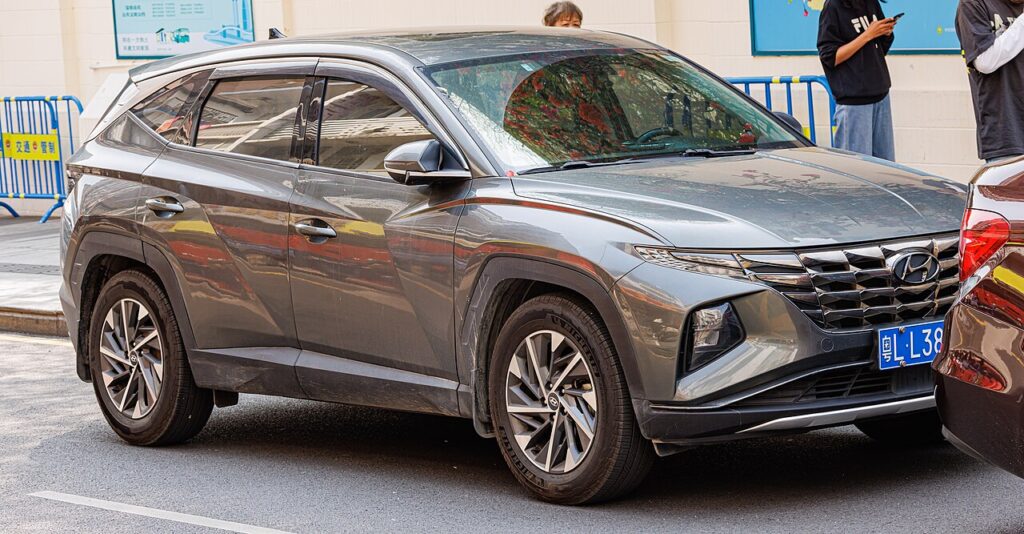
The Hyundai Tucson (Mk4/NX4, 2020–Present) — including the mild-hybrid, full hybrid and plug-in hybrid — runs the Smart Key proximity fob and a START/STOP button across almost the whole range. When the fob’s CR2032 coin cell dies the remote-lock buttons, proximity unlocking and the flush pop-out door handles stop responding, but the car can still read the key at point-blank range and start normally. The fourth-gen Tucson has no drop-in key slot, so pressing the fob to the button is the official backup.
Start the Tucson Mk4 with a dead fob
With a flat fob the Tucson’s immobiliser still reads your key using the backup coil built into the START/STOP button.
- Get into the car using the emergency blade first (next section) — the flush door handles are dead on a flat fob.
- Sit in, press the brake pedal and keep it pressed (on the hybrid and PHEV, brake the same way).
- Hold the Smart Key so the back face of the fob touches the START/STOP button directly.
- With the fob pressed against it, push the START/STOP button. The car reads the transponder through the button and starts (or powers up to READY on the hybrids).
- If nothing happens first time, rotate the fob a few degrees and press again — the read zone behind the button is small.
Unlock the Tucson with the emergency key blade
The Mk4 hides a metal blade inside the Smart Key, and the driver’s door lock is concealed under a cap because of the flush handle design.
- Slide the catch on the back of the Smart Key and pull the metal emergency blade straight out.
- On the driver’s door handle, slip the blade into the slot at the rear and prise off the small cap to expose the lock cylinder.
- Insert the blade and turn to unlock. This frees the driver’s door; the interior lock switch opens the rest once you are inside.
Why a flat fob still starts the Tucson
The coin cell only powers the remote buttons and the proximity broadcast that lets you unlock and start hands-free. The chip that authorises the drive is a passive RFID transponder with no battery of its own — it is woken by the coil behind the START/STOP button the instant you hold the fob there, like a contactless card. Because that chip never depends on the cell, the immobiliser can still verify the key when the fob is completely dead.
Replace the fob battery
The Tucson Mk4 Smart Key uses one CR2032 3V lithium coin cell. Pull the emergency blade, then use it or a small coin to twist the case open at the seam. Lift out the old cell, fit the new one with the + side facing the same way, handling it by the edges, and click the halves back together. Remote locking and proximity start return immediately. A fresh cell typically lasts two to three years.
Frequently Asked Questions
Where exactly do I hold the fob to start the Tucson?
Press the back of the Smart Key flat against the START/STOP button itself, keep the brake down, then push the button with the fob still in place. The Mk4 has no drop-in slot.
Does the trick work on the hybrid and plug-in Tucson?
Yes. The hybrids have no separate procedure — hold the dead fob to the button with the brake pressed and the car powers up to READY just as a petrol Tucson cranks.
The door handles won’t pop out — how do I get in?
A flat fob disables the flush handles. Use the emergency blade in the capped driver’s door lock to get in, then start the car by pressing the fob to the button.
Which battery does the Tucson Mk4 fob take?
A single CR2032 3V lithium coin cell, sold in any supermarket or hardware shop.
It only started when I held the fob to the button — is something wrong?
Usually just a weak or flat coin cell. Fit a fresh CR2032; if it keeps happening, the fob transmitter may be failing.
If a warning light stayed on after the no-start, look it up on autodtcs.com to confirm it was just the fob and not an immobiliser fault.
Independent guide — not affiliated with Hyundai. Always follow your official service manual and safety precautions. Read our full disclaimer.