These instructions apply to the Renault Kadjar Mk1 (XFE) 2015-2022.
For other models, please choose your vehicle here.
If the touchscreen in your Renault Kadjar (2015–2022) has frozen, gone black, or stopped answering taps, you can force the system to reboot yourself in about a minute — no garage, no tools, and without losing your presets or paired phone.
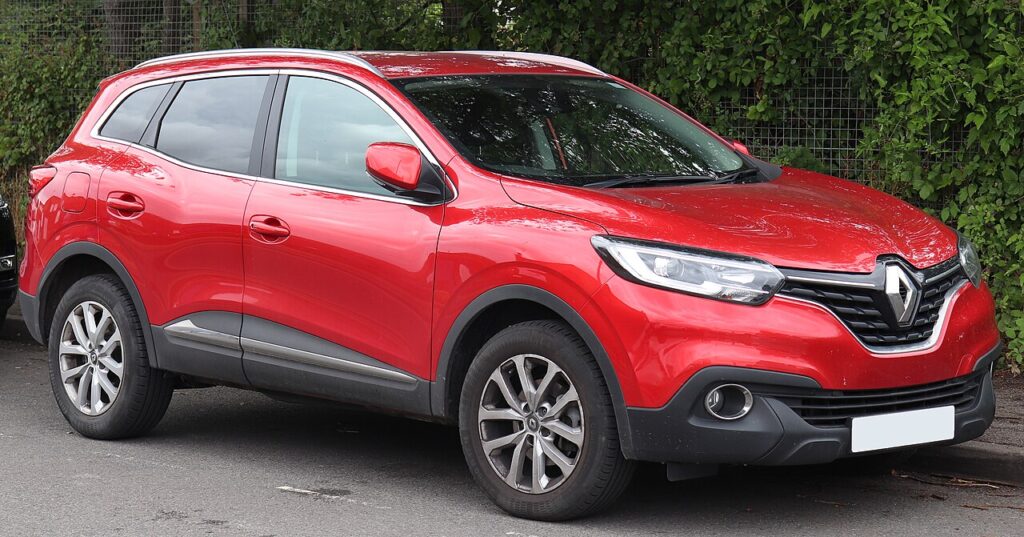
Which system is in your Kadjar
The Kadjar runs Renault’s R-Link 2 infotainment on a 7-inch landscape touchscreen (lower trims kept a basic radio display). R-Link 2 is capable but prone to software hiccups — freezes, lag and the occasional black screen, particularly after a software update. A freeze is a lock-up in the head unit, not a dead screen, and a soft reset clears most of them.
Soft reset (reboot) the screen
Do this parked, with the ignition on so the unit keeps its power.
- Find the power / on-off button on the R-Link 2 unit (it sits at the top of the screen panel and doubles as on/off).
- Press and hold it — keep holding past the point where the audio mutes.
- Keep holding for about 5–15 seconds until the unit shuts down and begins to restart.
- When the screen goes black and the R-Link / Renault logo returns, release. The system is rebooting (give it about a minute).
- If holding does nothing, try the alternative: press the Home button five times in a row — this forces R-Link 2 to switch off and restart on many Kadjars.
Safe — it loses no data
The power-hold (or Home-button) reboot is completely safe. It does not wipe your radio presets, navigation favourites, paired phones, or driver profiles — it simply restarts the software, like restarting a phone. Use it as often as the screen plays up.
If it stays frozen
- Hold longer. If a short hold did nothing, retry and hold the power button up to 20 seconds before releasing at the logo.
- Remove USB sticks and the SD card. R-Link 2 can boot-loop on bad external media — pull any USB stick and the navigation SD card, restart, then refit the SD card once it boots.
- Let the car sleep. Switch off, lock it, and walk away for about ten minutes so the electronics power down; then unlock and restart.
- Pull the R-Link fuse (last resort). With the car off, the R-Link fuse in the cabin fuse box (near the glovebox) can be removed for around 30 seconds and refitted to force a cold restart. Check the fuse-box label for the audio/R-Link fuse.
Factory reset (erases data — rarely needed)
A factory reset is separate from the reboot and only worth doing if you are selling the car or chasing a deep glitch. From the home screen go to Settings (System) → Reset to factory settings. It erases presets, paired phones, profiles and navigation history, so only do it deliberately — and make sure the battery is healthy, as an interrupted reset can leave R-Link 2 stuck.
Frequently Asked Questions
My Kadjar screen froze after a software update — what now?
A freeze straight after an update is common. Hold the power button for up to 20 seconds, or press Home five times, to force a restart. If it stays stuck on the logo, the update may not have completed — a dealer can re-flash it.
Will the reboot delete my presets and paired phone?
No. The power-hold and Home-button restarts keep everything. Only the menu-driven factory reset clears presets, profiles and pairings.
Where is the power button on the Kadjar’s R-Link 2?
It is the on/off control at the top edge of the screen unit. Pressing it briefly turns the screen on and off; holding it for several seconds forces the full reboot.
Is it safe to drive with the screen frozen?
Yes. R-Link 2 is separate from the engine and brakes — you only lose audio and navigation. Reboot once you are safely parked.
The screen keeps freezing every few days — why?
Recurring freezes are usually an out-of-date R-Link 2 build or a flaky phone pairing. Update the firmware from the Renault owner site and re-pair your phone before suspecting the hardware.
If a warning light or fault message stays on the dash after the reboot, the car may have stored a diagnostic trouble code — you can look it up on autodtcs.com.
Independent guide — not affiliated with Renault. Always follow your official service manual and safety precautions. Read our full disclaimer.