These instructions apply to the Tesla Model S (2012-2021).
For other models, please choose your vehicle here.
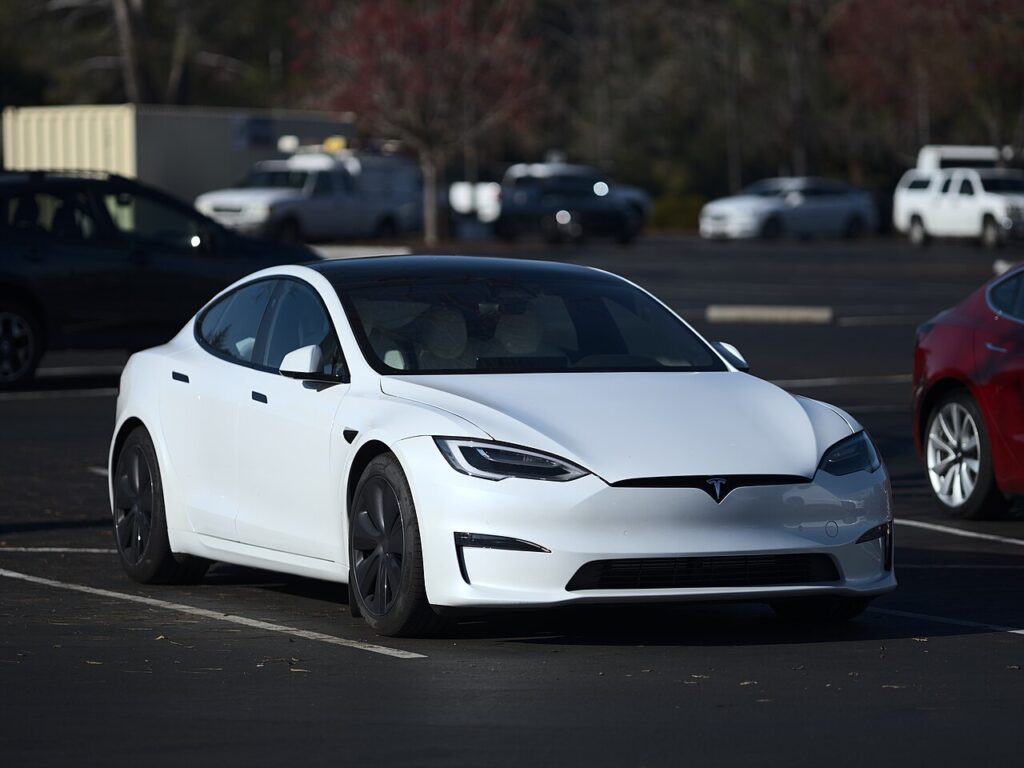
If the smart key for your Tesla Model S (2012–2021) only unlocks the car when you stand right next to it, or has stopped waking the car altogether, the coin cell inside the fob has almost certainly gone flat. For most of this run the Model S shipped with the distinctive car-shaped key fob — a miniature model of the car itself, with no buttons and no mechanical blade — that you press on the roof, bonnet or boot to operate. From the 2021 refresh onward Tesla moved the primary keys to a phone key and a credit-card-style key card, making the fob an optional accessory. This guide covers how to spot a dying cell, the exact battery the car-shaped fob takes, how to crack the case open without a screwdriver, and how Tesla’s self-pairing changes the usual “go to the dealer” story.
How to Tell the Fob Battery Is Dying
- Shrinking range. You have to be almost touching the car before a press on the roof or boot registers. On a proximity key like this, falling range is the first and clearest warning.
- The car stops greeting you. Passive unlocking as you walk up fails, and walk-away locking becomes unreliable — both lean on the fob broadcasting at full strength.
- A key-battery alert on the touchscreen. The Model S shows a low-key-battery notification on the main display when it reads a weak fob, so watch for that prompt.
- Cold-weather dropouts. A cell that is nearly done will struggle on a frosty morning and recover a little once warm — a sign it is on the way out, not a car fault.
A coin cell in a Model S fob typically lasts two to four years. If yours is older than that and behaving as above, fit a fresh battery before suspecting the car or the fob’s electronics.
The Battery You Need
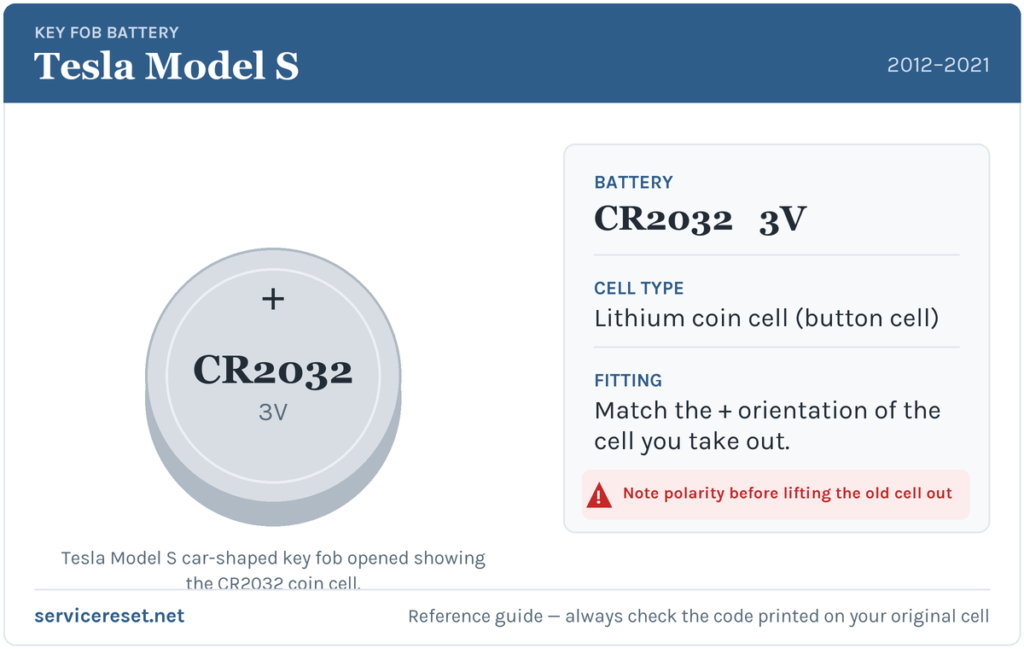
The car-shaped Model S fob uses a single CR2032 3-volt lithium coin cell — the most common fob battery there is, sold in any supermarket, pharmacy or hardware shop. Tesla ships these fobs with a Panasonic CR2032, and any reputable branded CR2032 is a direct match. Buy a good-quality cell: budget batteries sag under the brief burst of current the transmitter draws and can give poor range even when brand new. Handle the new cell by its edge — Tesla notes that finger grease on the flat faces can shorten its life — and wipe it clean before fitting.
Method — Car-Shaped Key Fob (2012–2021)
- Turn the fob over so the flat underside faces up. Look for the small notch or indent near the middle, close to the “S” marking — this is the release point for the base cover. There is no screw and no hidden metal blade to remove first.
- Insert the flat end of a plastic pry tool (a spudger, guitar pick or fingernail works) into the notch and gently lever the base cover away along the seam. It unclips and lifts off in one piece.
- Lift the old CR2032 out of its holder, freeing the curved edge from under the retaining clips.
- Drop the new CR2032 in with the marked “+” face (the side with the writing) pointing up toward you, so the blank numbered face sits down in the well. Press it home until it seats under the clips.
- Refit the cover by tilting it in at the widest end, lining the tabs up with their slots, then pressing the two halves together until they snap flush. Give the car-shaped fob a squeeze all round to confirm it has closed evenly.
⚠️ Get the polarity right. The CR2032 goes in “+” side up on this fob. A cell fitted upside down will not power the transmitter and can discharge itself — if the fob is dead after a change, this is the first thing to re-check.
Confirm It Worked
Step a couple of metres away, then press the boot or roof of the car-shaped fob and confirm the car responds at normal distance. Full range should return at once. Because unlocking the car with a flat fob temporarily disables walk-away locking, re-enable that feature in the car’s settings after the swap if you rely on it — and check that passive entry greets you again as you approach.
If a Fresh Cell Doesn’t Fix It
- Re-check polarity and seating. An upside-down or loosely-seated CR2032 is by far the most common reason a “new” battery seems dead. The marked face must point up and the cell must click firmly under its clips.
- Wipe the contacts. A smear of grease or light corrosion on the terminals is enough to cause dropouts — clean them and the battery faces with a dry cloth.
- Try the backup access method. If you are locked out, hold the fob against the base of the passenger-side windscreen wiper and press the front passenger door handle; to drive, rest the fob’s underside on the centre console just below the low-voltage power outlet and press the brake. If that starts the car with the old cell, the battery really was the problem.
- Still nothing with a known-good cell? The fob’s electronics may have failed, or it may need re-pairing to the car — see below.
Adding a New Key or Spare — and Why Tesla Is Different
Swapping the coin cell keeps the fob’s existing pairing, so nothing needs reprogramming after a battery change. Where the Model S breaks from most cars is adding a new key: you don’t need a dealer or a locksmith with a diagnostic tool. Using an already-paired key, open Controls → Locks on the touchscreen, tap the key “+”, authenticate with your existing fob or key card, then present the new fob to be paired — the car enrols it itself. New car-shaped fobs (and key cards) are ordered from Tesla against your account. It’s worth keeping a spare fob’s battery fresh too, and setting up the phone key as a backup, so a single flat cell never leaves you stranded.
Frequently Asked Questions
What battery does a Tesla Model S key fob take?
The car-shaped fob used across most of 2012–2021 takes a single CR2032 3-volt lithium coin cell — the same size sold everywhere for watches and remotes.
Which way does the battery go in?
The marked “+” face points up, with the writing visible, and the blank numbered side sits down in the holder. Fitting it the other way round leaves the fob dead, so match this orientation exactly.
Is there a screw or a hidden metal key to remove first?
No. The car-shaped Tesla fob has no screw and no mechanical blade — the base cover simply unclips from a notch near the “S”, so a plastic pry tool or a fingernail is all you need.
Do I have to reprogram the fob after changing the battery?
No. A battery swap doesn’t affect the pairing, so the fob works straight away. Only a genuinely new fob needs enrolling — and on a Tesla you can do that yourself from the touchscreen.
My 2021 refresh Model S didn’t come with a fob — what do I do?
Refreshed cars use a phone key and key cards as standard; the fob is an optional extra. If you have one and its battery is flat, replace the coin cell in the fob you own and keep using your phone or key card in the meantime.
Can I still get into and drive the car if the fob is completely dead?
Yes. Hold the fob near the base of the passenger-side windscreen wiper and press the front passenger door handle to unlock, then place the fob against the centre console below the power outlet and press the brake to drive. A phone set up as a key will also get you moving with no fob at all.
If your Model S started throwing warnings or acting up right after the fob or 12-volt battery was disturbed — rather than the remote simply fading — a stored fault code will tell you far more than guesswork; you can look up what it means on autodtcs.com.
Independent guide — not affiliated with Tesla. Always follow your official service manual and safety precautions. Read our full disclaimer.