These instructions apply to the Volvo XC40 Mk1 (536) 2017-present.
For other models, please choose your vehicle here.
The Volvo XC40 (2017–Present) runs everything — navigation, climate, phone, drive-mode settings and even the door-mirror and head-up adjustments — through one large portrait touchscreen in the centre of the dash. When that screen locks up, goes black or stops responding to taps, you do not need a workshop and you will not lose your settings. The XC40 lets you soft-restart the centre display yourself from the driver’s seat in well under a minute.
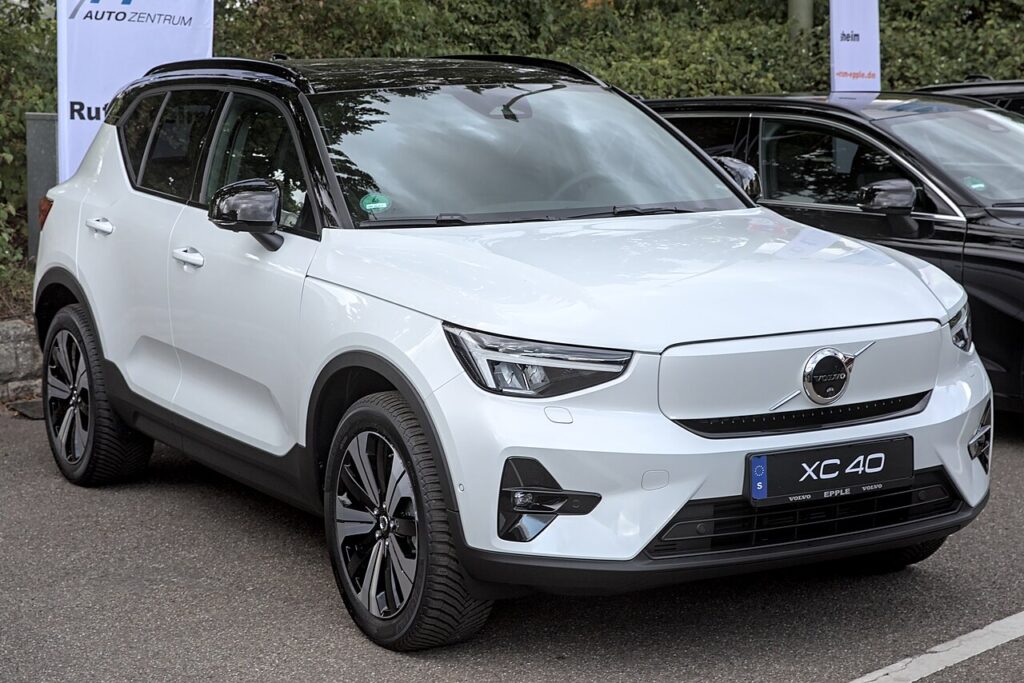
The infotainment system in this generation
Early petrol, diesel and mild-hybrid XC40s (built on Volvo’s CMA platform) use Sensus Connect, the portrait tablet-style screen with a single physical home button directly below the glass. Later full-electric XC40 Recharge cars switched to the Google built-in (Android Automotive) interface, which looks different but keeps the same physical home button and reboots in exactly the same way. Either system can occasionally freeze after a software update, a deep cold start or a glitchy phone connection — a restart clears it.
How to restart the frozen screen (soft reset)
- Put the car in P and apply the parking brake. You can leave the engine/ignition running.
- Press and hold the physical home button on the dash directly below the touchscreen.
- Keep holding. After a few seconds a cleaning-mode message may appear — ignore it and keep holding.
- After roughly 20 seconds the display goes black. If the screen is badly frozen, hold for up to 60 seconds.
- Release the button when the screen turns black. The Volvo logo appears and the system reboots.
- Wait one to two minutes for the display to come fully back to life before driving off.
Is this safe? Will I lose anything?
Yes, it is safe, and no data is lost. A home-button restart only reboots the screen software — your saved navigation destinations, paired phones, radio presets and personal profile all stay intact. Climate, parking sensors and some driver-assist functions are briefly unavailable while the screen reloads, so always do this with the car stopped, never while moving.
If it stays frozen
- Hold longer. A severely hung screen can need the full 60 seconds before the logo appears — don’t let go too early.
- Let the car sleep. Park, lock it and walk away for about 30 minutes so the electronics power down fully, then unlock and check the display.
- Check for an update. Sensus and Google built-in both have known freeze/black-screen bugs that Volvo has patched — ask your dealer or accept the over-the-air update.
- 12V battery pull (last resort). Disconnecting the 12 volt battery for 20–30 minutes forces a full electronic reset if nothing else works.
Factory reset (erases your data)
If you are selling the car or the system is permanently corrupted, a full reset wipes every personal setting. On Sensus, swipe down the top settings tab, open Settings → System → Factory data reset; on Google built-in, go to Settings → System → Reset options. This deletes paired phones, profiles, saved places and accounts and returns the car to its as-delivered state, so only use it deliberately — it is not needed to clear a simple freeze.
Frequently Asked Questions
Where is the home button on the XC40?
It is the single physical button on the dashboard directly beneath the portrait touchscreen, marked with a small house icon. Press and hold it — a quick tap just returns you to the home view.
Does my XC40 have Sensus or Google built-in?
Petrol, diesel and mild-hybrid XC40s use Sensus Connect. Later full-electric XC40 Recharge models use Google built-in (Android Automotive). Both reboot the same way via the home button.
My screen shows “cleaning mode” when I hold the button — is that the reset?
No. Cleaning mode just locks the touchscreen so you can wipe it. Keep holding the home button straight through that message until the display goes fully black and the Volvo logo appears — that is the actual reboot.
Why does my XC40 screen keep freezing after an update?
Early Sensus and Google built-in software had known black-screen and reboot-loop bugs. A single restart usually clears it; if it recurs, have the latest software installed, as Volvo released fixes for these faults.
Will rebooting delete my Google account or saved destinations?
No. A home-button restart keeps all accounts, profiles and saved data. Only a deliberate factory data reset removes them.
For warning lights or stored fault codes that appear alongside infotainment glitches, our sister site autodtcs.com explains what each diagnostic trouble code means.
Independent guide — not affiliated with Volvo. Always follow your official service manual and safety precautions. Read our full disclaimer.