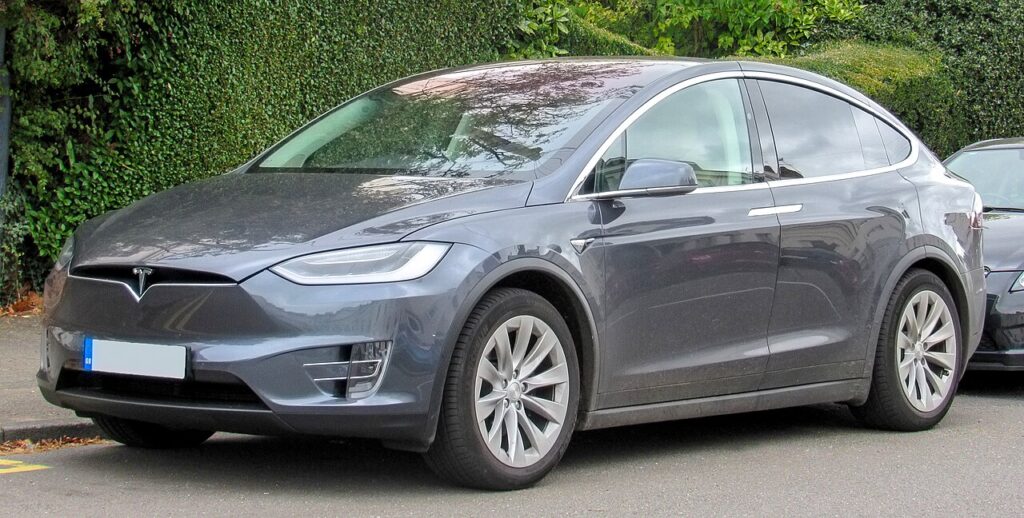
These instructions apply to the Tesla Model X (2016-2021).
For other models, please choose your vehicle here.
When the central display in your Tesla Model X (2016–Present) freezes, blacks out, ignores taps or keeps glitching, a soft reboot almost always sorts it. Like the Model S it shares its platform with, the Model X has two screens — the central touchscreen and the driver’s instrument cluster — and the scroll-wheel reboot restarts both at once. It takes about 15 seconds, loses no data, and the car keeps running throughout.
Reboot the Screens With the Scroll Wheels
- Put the car in Park — the reboot will not run while driving.
- Keep your foot off the brake pedal the whole time; pressing the brake can interrupt it.
- Press and hold both scroll wheels on the steering wheel (or yoke) at the same time, pressing each inward.
- Hold for about 10 to 15 seconds until both the centre screen and the instrument cluster go black.
- Release when the Tesla “T” logo reappears on the centre display.
- Give it about 30 seconds to finish loading — both screens, maps, media and climate come back on their own.
Wheel variations: The refreshed Model X (2021 onward) uses two scroll wheels on the yoke or round wheel — press both. The pre-2021 Model X has the same two thumb scroll wheels that click inward to act as the reboot buttons. The action is identical on both: hold both wheels until the screens go dark.
It Is Safe — No Data Is Lost
This soft reboot only restarts the display software. It does not erase driver profiles, navigation favourites, Autopilot settings, paired phones or any other data. Tesla service recommends it as the first step for any screen problem, and it is completely safe while parked. The drive system, locks, climate and the Falcon Wing doors are unaffected — the doors do not move during a reboot.
If a Soft Reboot Isn’t Enough: Power Off
For freezes that keep returning, do a deeper power-down:
- With the car in Park, tap ‘Controls’ > ‘Safety’ > ‘Power Off’.
- Confirm, then leave the car untouched for 2 to 3 minutes — don’t open a door, touch a screen, or press the brake.
- After the wait, press the brake pedal (or open a door) to wake the car.
This fully shuts the computers down and clears deeper hangs the scroll-wheel reboot can’t reach.
If It Stays Frozen
- Hold the wheels longer — a stubborn hang can need 20–30 seconds before the screens go black.
- Use the Power Off method above and give the car its full 3-minute rest.
- Check for a software update after the screens return — an interrupted update can cause repeat freezes.
- Report it via the Tesla app under ‘Service’ — on early Model X cars persistent freezing can point to a worn display memory (eMMC) unit Tesla can diagnose remotely.
Don’t Reboot While Driving
Reboot only when parked. Because the Model X reboot also blanks the instrument cluster, doing it on the move would remove your speed, gear and Autopilot display — pull over and Park first. If a screen freezes mid-drive the car remains drivable; reboot only once you have safely stopped.
Frequently Asked Questions
Will rebooting delete my profiles or Autopilot settings?
No. The reboot only restarts the screen software. Driver profiles, navigation favourites, Autopilot and Full Self-Driving settings, and paired phones are all preserved.
Will the Falcon Wing doors move when I reboot?
No. A touchscreen reboot does not operate the doors. The Falcon Wing doors stay exactly where they are while the screens restart.
Does the reboot restart the instrument cluster too?
Yes. The Model X has a separate driver cluster, and the scroll-wheel reboot restarts both it and the central touchscreen together.
My pre-2021 Model X has different wheel buttons — does this still work?
Yes. Both pre-2021 and refreshed cars reboot by holding the two steering-wheel scroll wheels inward until the screens go dark; only the button shape differs.
Do I need my foot on the brake?
No — keep your foot off the brake during the hold, or you may cancel the reboot.
If a warning or fault message stays on after the screens restart, you can look the stored code up on autodtcs.com.
Independent guide — not affiliated with Tesla. Always follow your official service manual and safety precautions. Read our full disclaimer.