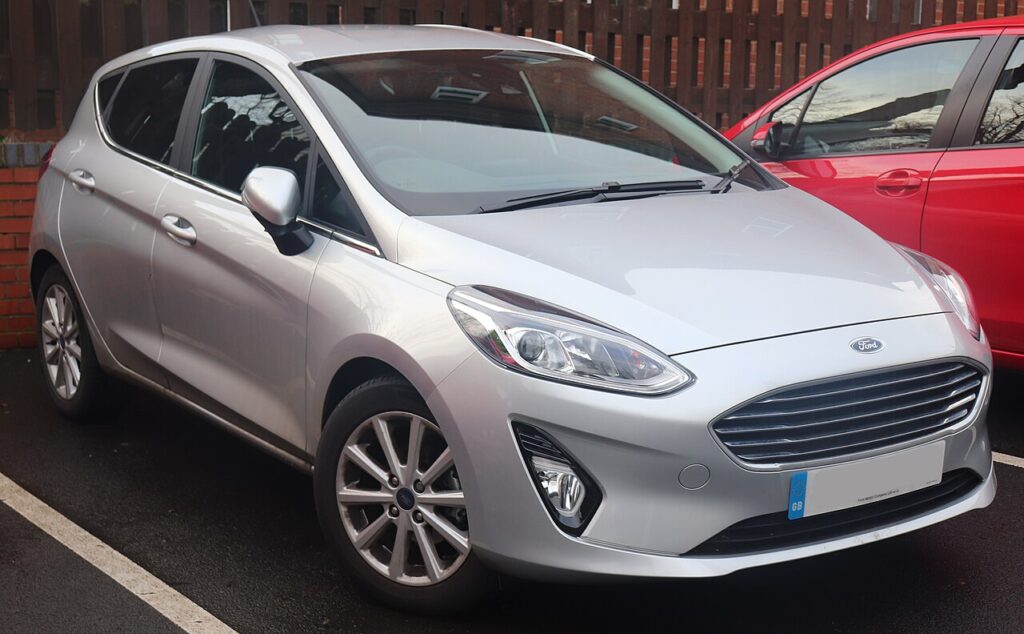
These instructions apply to the Ford Fiesta Mk8 (2017-2023).
For other models, please choose your vehicle here.
If the touchscreen in your Ford Fiesta (Mk8, 2017–2023) has frozen on one image, gone black, or stopped answering taps — often mid-way through Apple CarPlay or a Bluetooth call — you can force the head unit to reboot yourself in well under a minute. No tools, no dealer trip.
Which SYNC system the Mk8 Fiesta uses
Every Mk8 Fiesta runs SYNC 3, shown on a 6.5-inch or 8-inch touchscreen (the larger one on Titanium, ST-Line, Vignale and ST trims, often with the B&O sound option). There is no rotary controller — everything is touch plus a few hard buttons. A frozen Fiesta screen is almost always a software lock-up in the APIM module behind the dash; the engine, heater and driving systems keep working while just the display sticks. The reboot is triggered by two hard buttons: Seek-forward and the Power/Volume knob.
Soft reset (reboot) the SYNC 3 screen
Park the Fiesta with the engine running or the ignition on, so the system stays powered through the reboot.
- Find the Power/Volume knob (press-in centre is power/mute) and the Seek-forward button (the double-arrow >> next to it) on the centre stack.
- Press and hold both at the same time.
- Keep holding for about 10 seconds until the screen goes black and the Ford oval appears.
- Release both buttons. If the screen stays off, press the Power button once to switch it back on.
- Wait 30–60 seconds for the home screen to reload; touch, audio and CarPlay should respond again.
Safe — it loses no data
This Seek-plus-Power reboot is harmless. It does not delete radio presets, paired phones, call history, or navigation favourites — the unit just reloads its software, exactly like restarting a phone. Repeat as often as you need.
If it stays frozen
- Hold longer. If 10 seconds did nothing, try again and hold both buttons for a full 20–30 seconds — some Mk8 units need the longer press to drop power to the screen.
- Cycle the ignition fully. Switch off, open the driver’s door, lock the car with the key, and walk away for a few minutes so the module sleeps; then unlock and restart.
- Suspect CarPlay. Many Mk8 freezes track with Apple CarPlay or a flaky USB lead — unplug the phone, delete the pairing on both the car and the phone, and pair again with a known-good cable.
- Update SYNC. Recurring Mk8 freezes are addressed by Ford software (the SYNC 3 performance bulletins). Check for a free update on the Ford owner site, download it to a USB stick and install it in the car — over-the-air updates were withdrawn for SYNC 3 cars, so USB is the route now.
Master reset (erases data — rarely needed)
A master reset is separate from the reboot above and only worth doing if you are selling the Fiesta or chasing a deep, persistent glitch. On the touchscreen go to Settings → General → Master Reset and confirm. It wipes paired phones, call history, radio presets, navigation favourites and all personal settings back to factory defaults, so do it on purpose, not as a first try.
Frequently Asked Questions
Will rebooting my Mk8 Fiesta lose my presets and paired phone?
No. The Seek-plus-Power reboot keeps every preset, favourite and paired device. Only the Master Reset in Settings clears them.
My Fiesta screen freezes whenever I use Apple CarPlay — is that normal?
It is a known SYNC 3 quirk on the Mk8. Try a different Apple-certified cable, re-pair the phone, and install the latest SYNC software via USB — Ford issued performance updates specifically for CarPlay freezing.
My Fiesta has no separate power button — how do I reboot?
The press-in centre of the volume knob is the power button. Hold that together with Seek-forward. If your trim lacks it, hold Volume-down and Seek-forward on the steering-wheel stalk instead.
Is it safe to drive with the screen frozen?
Yes. The SYNC unit is independent of the engine and brakes — you only lose audio, phone and navigation. Reboot once you are safely parked.
How do I update SYNC 3 on the Mk8 Fiesta?
Sign in on the Ford owner website with your VIN, check whether a newer SYNC version is available, download it to a blank USB stick and plug it into the car’s media USB port with the engine running. Follow the on-screen prompts and do not switch off until it finishes.
If a warning light or fault message stays on the dash after the reboot, the car may have stored a diagnostic trouble code — you can look it up on autodtcs.com.
Independent guide — not affiliated with Ford. Always follow your official service manual and safety precautions. Read our full disclaimer.