These instructions apply to the Kia Rio (UB, QBR) 2011 - 2018. For other models, please choose your vehicle here.
The Kia Rio (2011–2018) is equipped with an OBD-II diagnostic port that allows you to read engine fault codes, reset warning lights, and monitor live data using a scan tool. This guide shows where to find the connector and how to access it safely without removing interior trim.
OBD-II Port Location
The diagnostic connector is located under the dashboard on the driver’s side, just above the brake pedal and to the left of the steering column. It sits behind a small plastic trim section integrated into the lower dash panel.
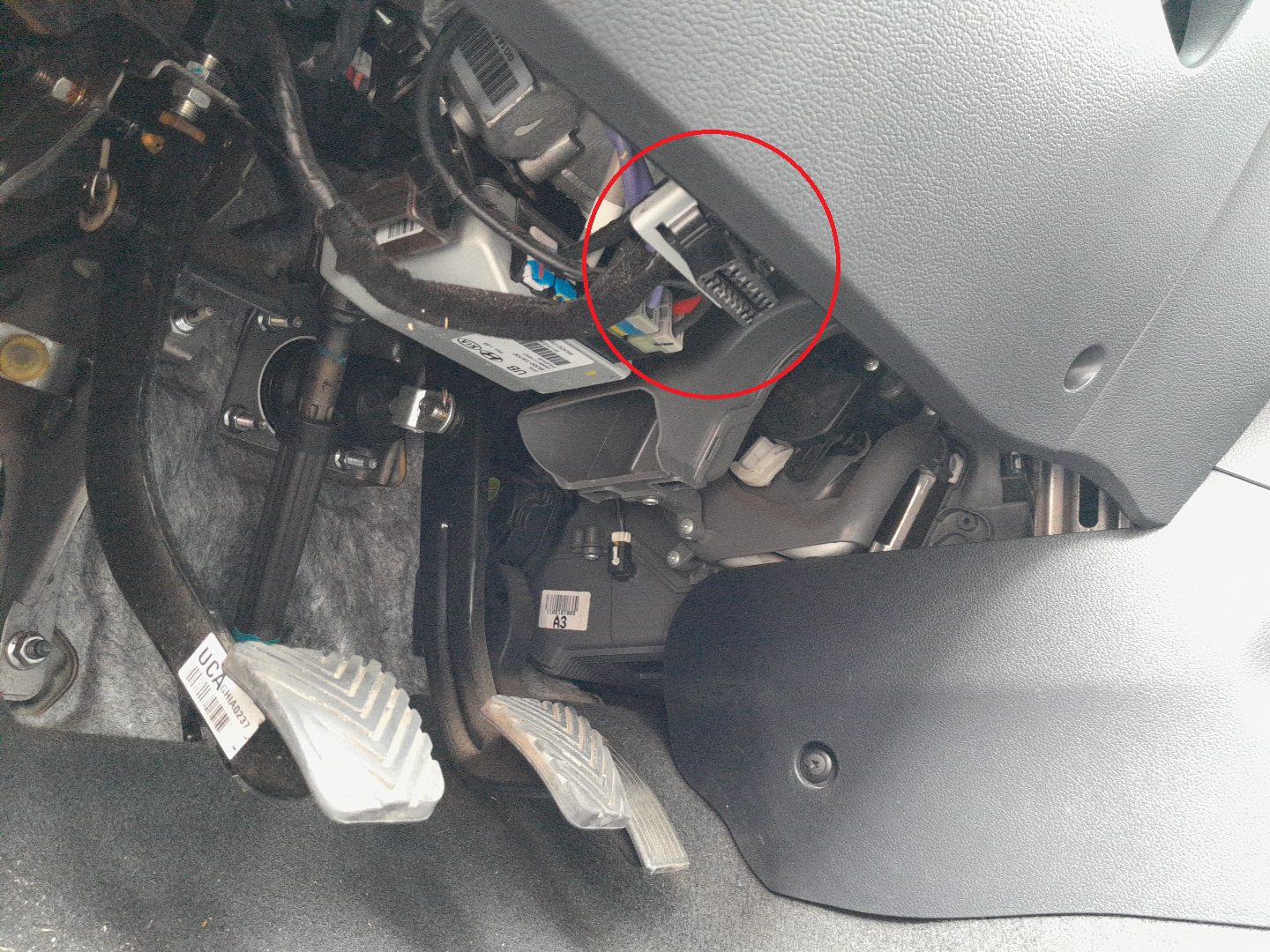
How to Access the Connector
- Sit in the driver’s seat and look under the steering column toward the pedals.
- Locate the 16-pin trapezoidal connector facing downward or slightly toward the rear.
- If covered, gently pull open the small access panel or trim flap.
- Insert your diagnostic scanner’s plug — it only fits one way, so do not force it.
Connector Pinout (Overview)
- Pin 16: +12 V battery power
- Pins 4 & 5: Ground
- Pins 6 & 14: CAN communication lines
Tips for Safe Use
- Keep the ignition ON (engine off) when connecting a scan tool unless otherwise specified.
- Never connect or disconnect the tool during engine cranking.
- If the connector feels loose or misaligned, support it with your hand before inserting the plug.
- After diagnostics, ensure the connector is left uncovered but protected from dirt or moisture.
Recommended Tools
- Bluetooth or Wi-Fi OBD-II adapter compatible with Android/iOS apps such as Torque or Car Scanner.
- Professional handheld scanner for reading live data and clearing DTCs.
Disclaimer: The information on this page is provided for general guidance only. Always follow your official service manual and safety precautions when working on your vehicle. We are not responsible for errors, omissions, or any damage resulting from the use of this information.
This website is an independent resource and is not affiliated with, endorsed by, or sponsored by Kia. All trademarks and brand names belong to their respective owners.