These instructions apply to the Toyota C-HR Mk1 (XW10) 2016-2023.
For other models, please choose your vehicle here.
Your Toyota C-HR hides an engineer’s Service Menu inside the Display Audio touchscreen. It reveals failure diagnosis, live switch and signal checks, software versions and the head-unit part number. This guide shows how to open it on the 2016-2023 (XW10) C-HR, what each section does, and how to leave without changing anything.
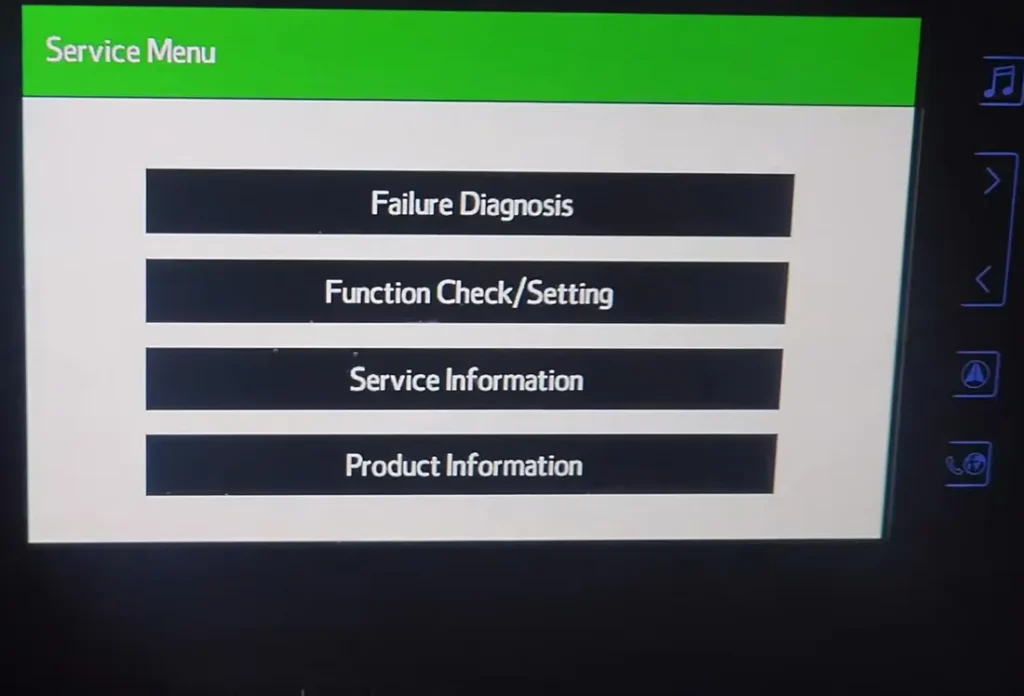
What this menu shows
The green Service Menu is a built-in engineering screen for the Display Audio head unit itself, not the engine or OBD-II system. It has four sections:
- Failure Diagnosis – System Check and a diagnosis recorder for the multimedia unit; it reports whether the audio/display module is communicating (a simple DA / OK result).
- Function Check/Setting – live tests: Panel & Steering Switch, Touch Switch, Microphone Check, Vehicle Signal and HF voice quality. Vehicle Signal shows real-time values such as battery voltage, IG, parking brake, reverse and road speed.
- Service Information – Program Update and Version Information (the head unit’s software version).
- Product Information – the Display Audio part number (an 86140-series code) and the unit’s chip serial number.

How to open the hidden Service Menu
- Park safely and apply the parking brake. You do not need the engine running.
- Without pressing the brake pedal, press the POWER switch until the dash lights up in ACCESSORY or IGNITION ON mode. On the hybrid the system stays off and the cluster shows “Depress Brake Pedal & Push POWER Switch to Start” – that is fine.
- Wait for the Display Audio to finish loading its normal home or audio screen.
- On the left-hand touch column, locate the settings gear icon, just below the volume plus and minus keys.
- Press and hold that gear icon for several seconds until the green “Service Menu” appears.
- Touch Failure Diagnosis, Function Check/Setting, Service Information or Product Information to view the data you need.
- To exit, touch Back until you return to the normal screen, or switch the ignition off. Nothing is saved unless you deliberately run an update or a reset.
If it won’t open
The hold length and exact behaviour vary slightly by software version and market. Make sure the screen is fully awake first, then press and hold the gear icon a little longer. If your car has a different (larger or aftermarket) head unit the icon layout and entry may differ, and a small number of units disable the menu entirely. It is a viewing tool – if a section looks unfamiliar, back out rather than confirming any update or clear function.
FAQ
Is it safe to open this menu? Yes. Viewing the checks and information pages is harmless – it is a factory diagnostic screen. Only the Program Update and any clear or reset functions change anything, so leave those alone unless you know what they do.
Will this delete my radio presets or settings? No. Simply opening the menu and reading the checks does not alter your presets, pairings or preferences.
Do I need a scan tool? No. This menu is built into the head unit and opens from the touchscreen. It is separate from the car’s OBD-II port, so it does not read engine or chassis fault codes.
Why does the cluster say “Depress Brake Pedal to Start”? That just means the ignition is in ACCESSORY or ON without the hybrid system started – exactly what you want for entering this menu. Do not press the brake, or the car will power up fully.
What is the number in Product Information? It is the Display Audio head-unit part number (an 86140-series code) plus its chip serial. It is useful when checking software or ordering a matching unit.
This Service Menu only covers the multimedia head unit. For actual engine, ABS or airbag fault codes read through the OBD-II port, look the code up on autodtcs.com to see what it means and how to fix it.
Independent guide — not affiliated with Toyota. Always follow your official service manual and safety precautions. Read our full disclaimer.