These instructions apply to the Dodge Charger Mk6 (LX) 2006-2010.
For other models, please choose your vehicle here.
If your Charger was ordered with the overhead console, the three buttons up there are a HomeLink transmitter that can take over from the clip-on remote for your garage, driveway gate or shop lights. It’s a tidy upgrade on a car where you’d rather not have a bulky opener flapping on the visor, and on SRT8 and R/T cars that live in a locked garage it means one press from the driver’s seat instead of hunting for the remote. The EVIC walks you through each channel, so grab your original opener remote before you start.
How you know it needs programming
Out of the factory the buttons do nothing when pressed — they hold no channels yet. Most owners come to this after buying the car used (the previous owner’s codes are best wiped anyway) or after fitting a new opener. Watch the EVIC as you work: “Did Not Train” means the handshake didn’t take, and “Channel X Transmit” confirms the button is now broadcasting.
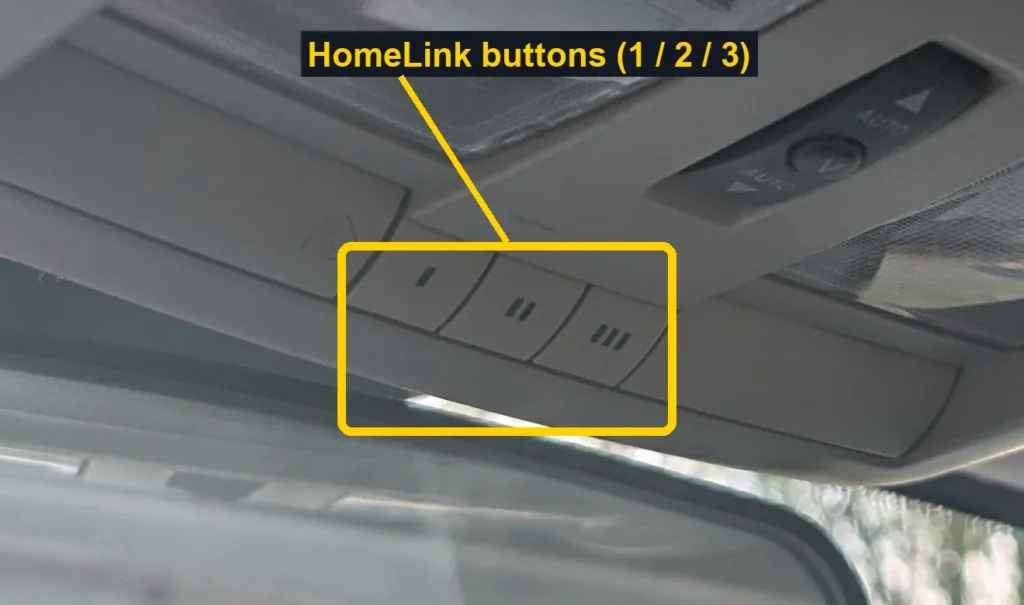
- Press and hold the two outer HomeLink buttons together. Keep holding until the EVIC displays “Channels Cleared” — about 20 seconds — then release. Only do this the first time you set up the buttons.
- Hold your hand-held garage remote 1 to 3 inches away from the HomeLink buttons.
- Simultaneously press and hold both the HomeLink button you want and the button on your remote, and keep both pressed.
- When the EVIC shows “Channel X Trained”, release both buttons. If you see “Did Not Train”, repeat steps 2 to 4.
- Press and hold the trained button; “Channel X Transmit” confirms success.
Why a modern opener needs the motor sync
Nearly every opener built since 1995 uses a rolling code that changes on each press — a deliberate anti-theft measure — so the Charger can’t just clone one captured signal. The console and the opener have to be paired at the unit itself. Press the learn or “smart” button on the opener’s motor head in the garage, then within 30 seconds press, hold and release the trained HomeLink button up to three times.
If the door still won’t open
- Adding a gate or a second door? Begin again at step 2 and skip step 1 — holding both outer buttons clears all three channels, wiping the work you just did.
- A tired remote battery shows up as a stubborn “Did Not Train”; swap in a fresh cell and vary the distance slightly.
- Trained fine but the door ignores it? That’s the rolling-code sync above — do the motor-head learn step.
- A pre-1995 fixed-code opener trains in one go and needs no motor step.
Work outside or with the garage open — never with the engine running in a closed space — follow your opener’s own manual, and stand clear of the door while it learns. Once set, the trained channels survive a battery disconnect, so this stays done.
Independent guide — not affiliated with Dodge. Always follow your official service manual and safety precautions. Read our full disclaimer.